Getting started with Icon Mosaic
Here is your first ten minutes with Icon Mosaic, from downloading it to seeing your new Home Screen on your iPhone, with a picture of each step.
Updated
1. Install Icon Mosaic
- Download it. Get Icon Mosaic from the download page. It is free to download and try.
- Open the disk image, and drag Icon Mosaic into Applications. Double-click IconMosaic.dmg in your Downloads folder, and drag the Icon Mosaic icon onto the Applications folder in the window that opens.
- Open it from Applications. The first time, your Mac may ask whether you are sure you want to open an app you downloaded from the internet. Click Open.
2. Connect your iPhone
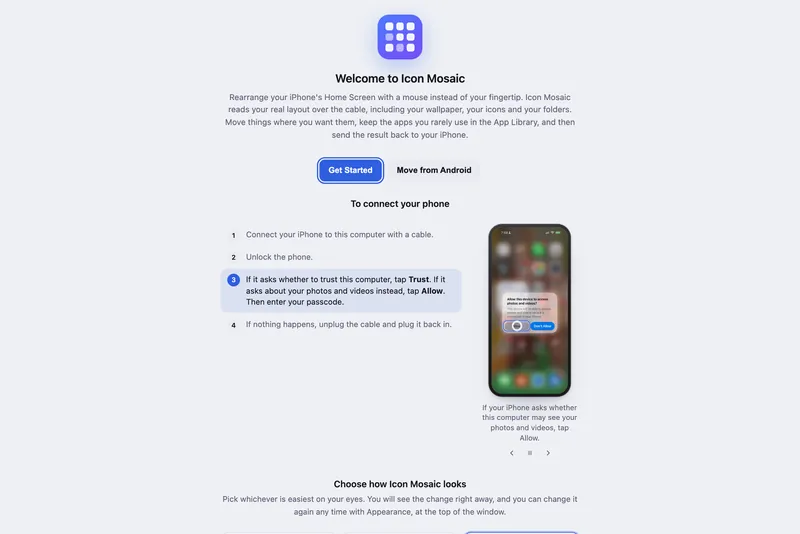
- Plug in your iPhone and unlock it. Use the cable you charge it with.
- Tap Trust. If your iPhone asks whether to trust this computer, tap Trust, or Allow if it asks
about your photos and videos, and enter your passcode. Icon Mosaic shows these steps too, with pictures.
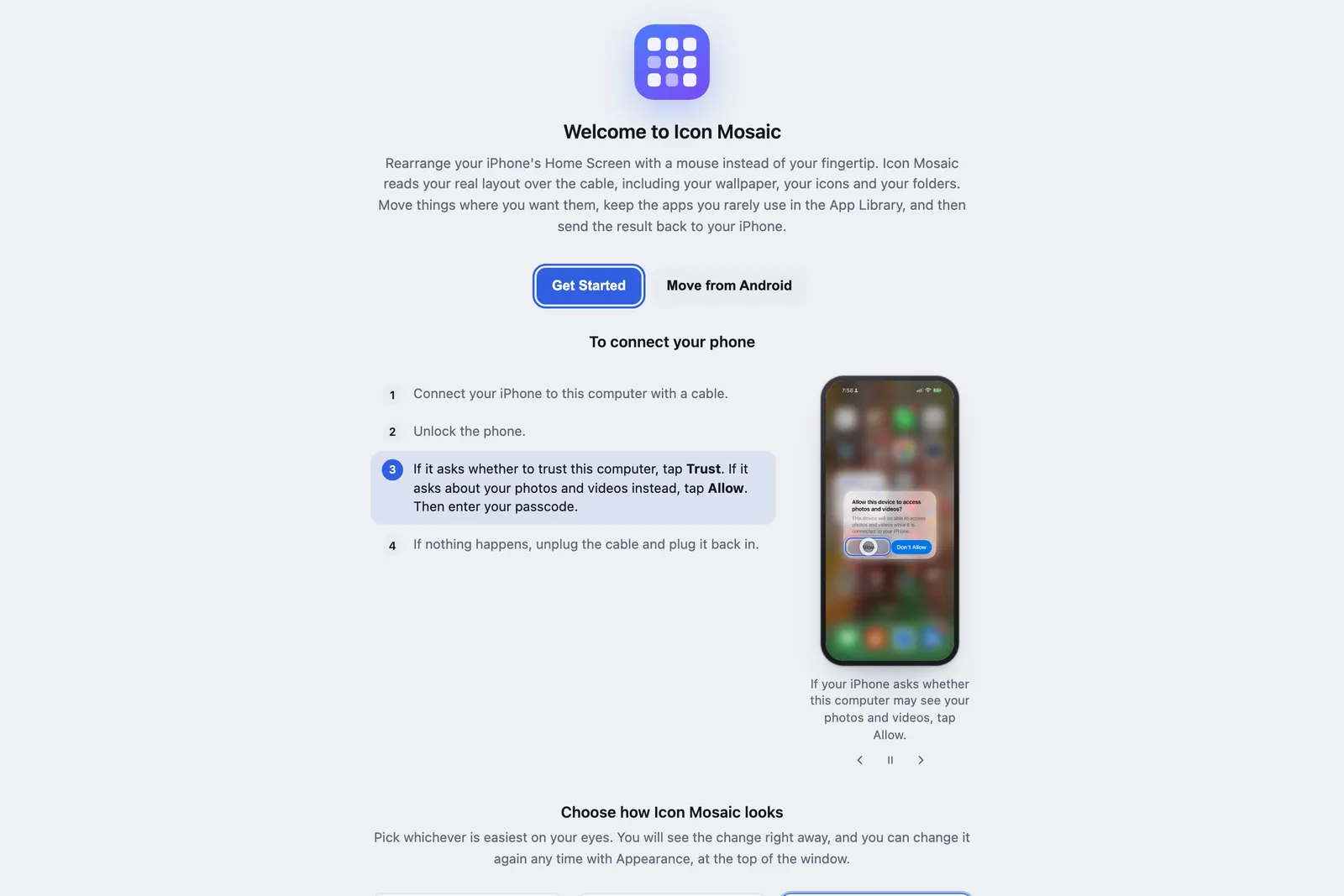
Icon Mosaic walks you through connecting.
If your iPhone does not appear, see if your iPhone does not connect.
3. Find your way around

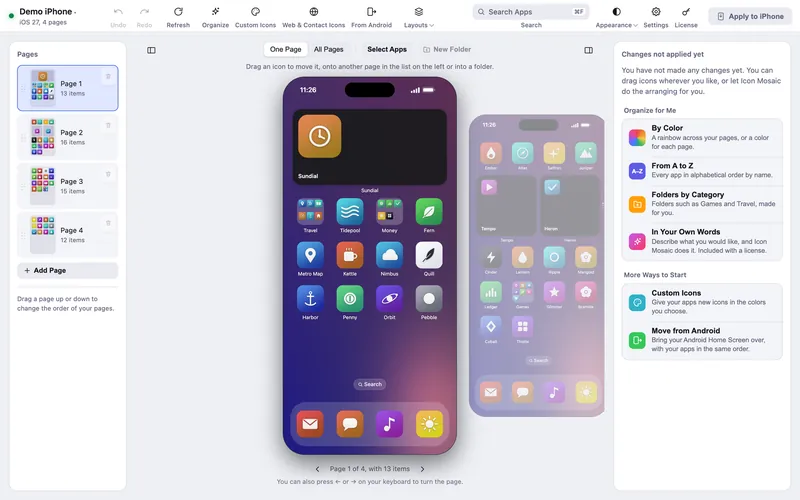
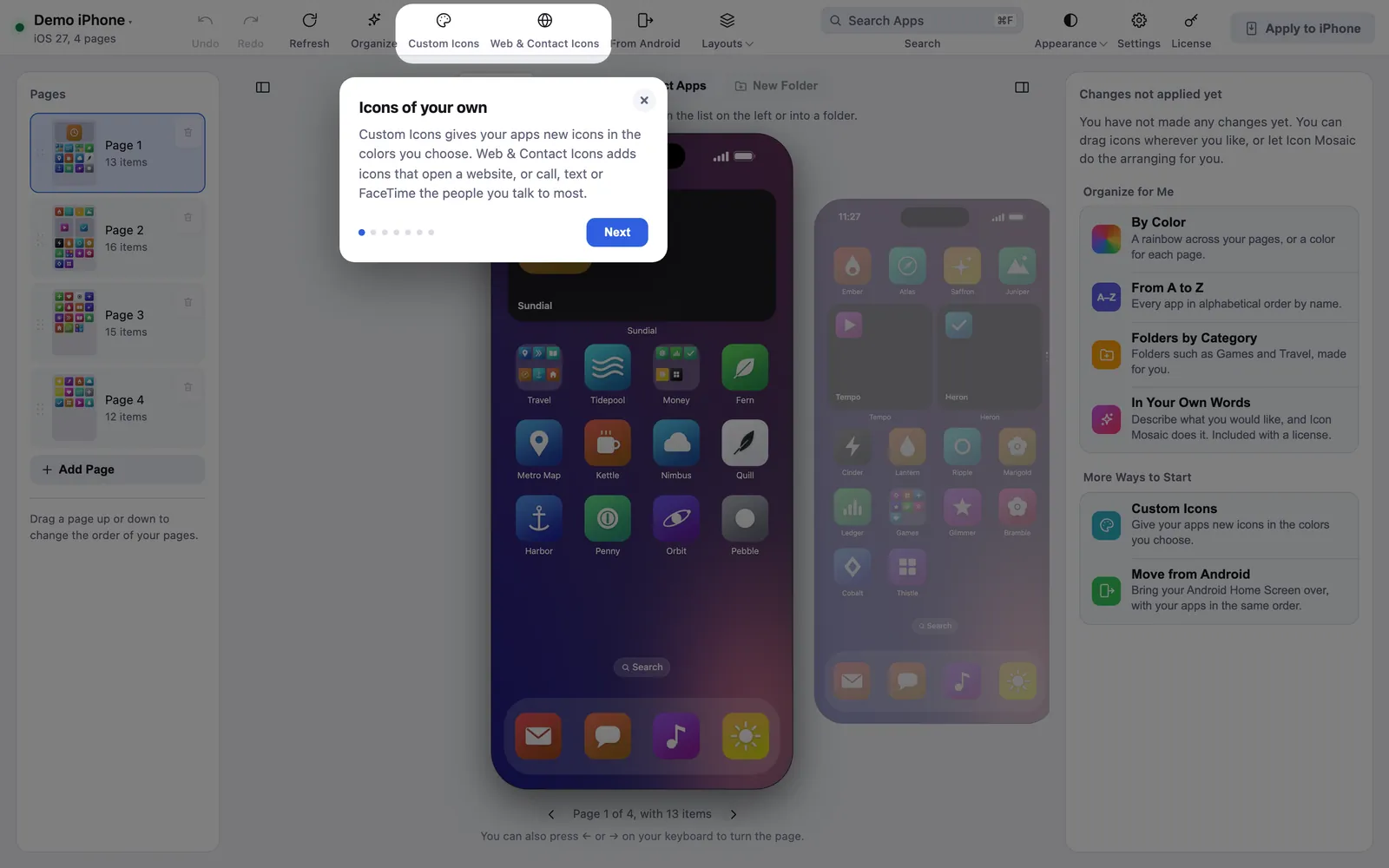
- The toolbar along the top has every everyday action, each with its name under it: Undo and Redo, Refresh, Organize, Custom Icons, Web & Contact Icons, From Android, Layouts, Search, Appearance, Settings and License, with Apply to iPhone at the end.
- The list of pages on the left shows every page, with Hidden Apps and the App Library below. Drag a page up or down to reorder it.
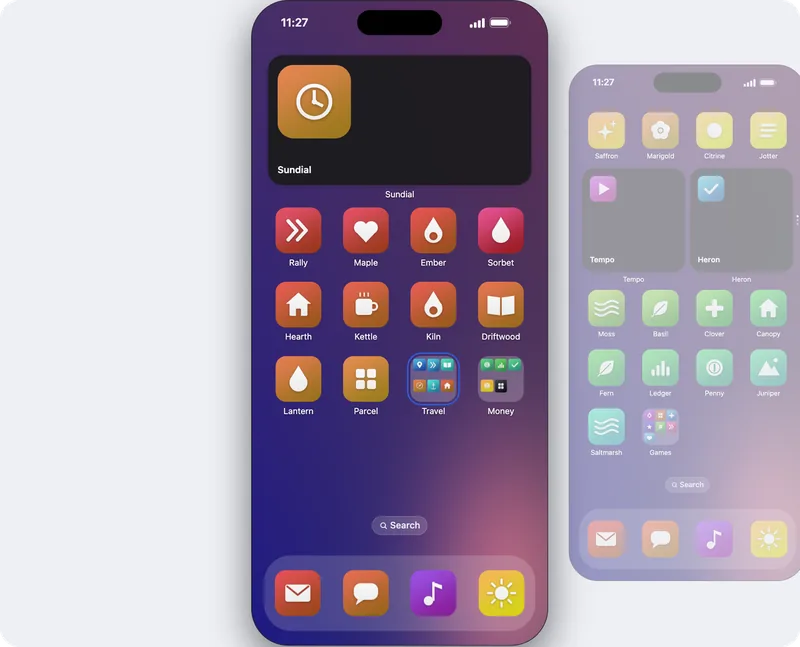
- The phone in the middle is your Home Screen, with your own wallpaper and the pages before and after it beside it. Click All Pages to see every page at once.
- The panel on the right suggests ways to start, and lists every change you make.

4. Make your first changes
Drag an app somewhere new, or let Icon Mosaic do the work: in the panel on the right, click By Color or From A to Z. Every change stays on your Mac, and Undo goes back as many as 60 steps, so try whatever you like.

5. Apply it to your iPhone
- Press Apply to iPhone. Icon Mosaic lists the apps that are moving and the pages that will
change.
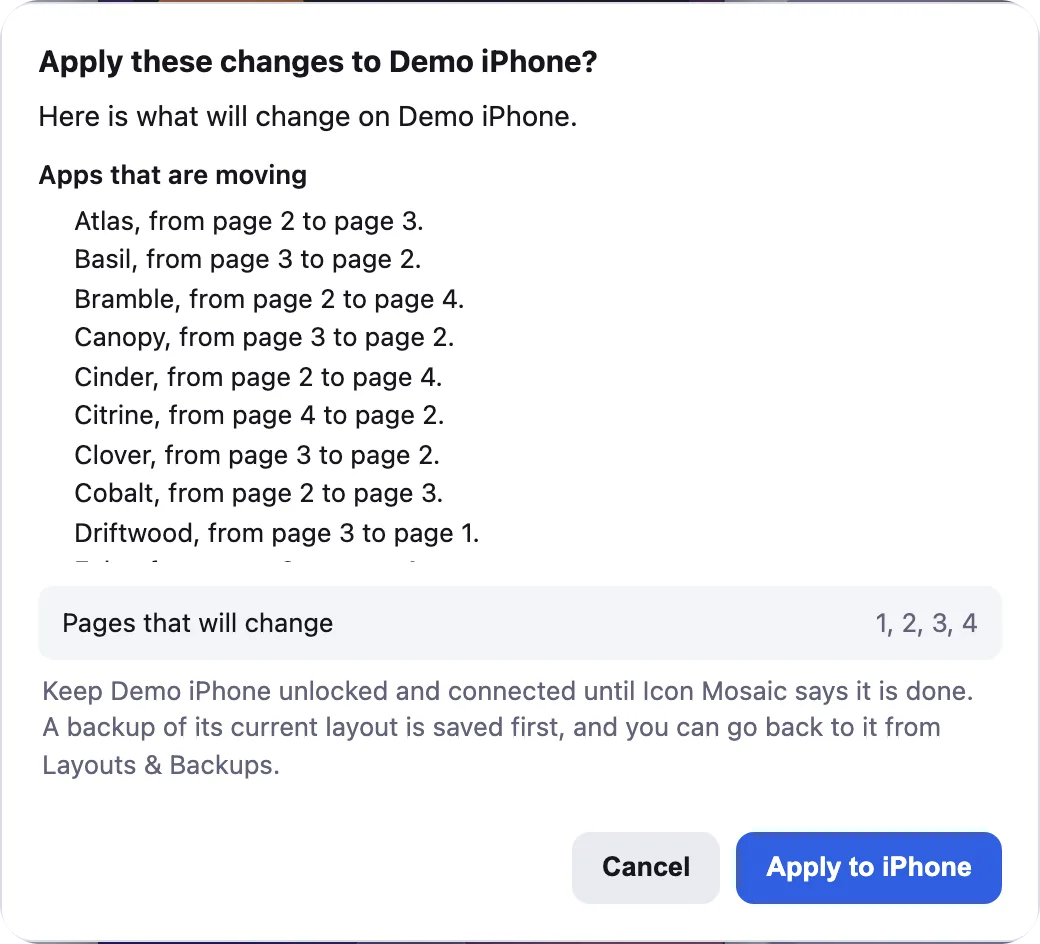
Look it over first. - Keep your iPhone unlocked and connected until Icon Mosaic says it is done. A backup of your current layout is saved first, and Icon Mosaic reads the layout back from your iPhone to check it.

Putting a layout on your iPhone needs a license, which is a one-time $19 payment. See licenses and refunds.
6. Take the tour
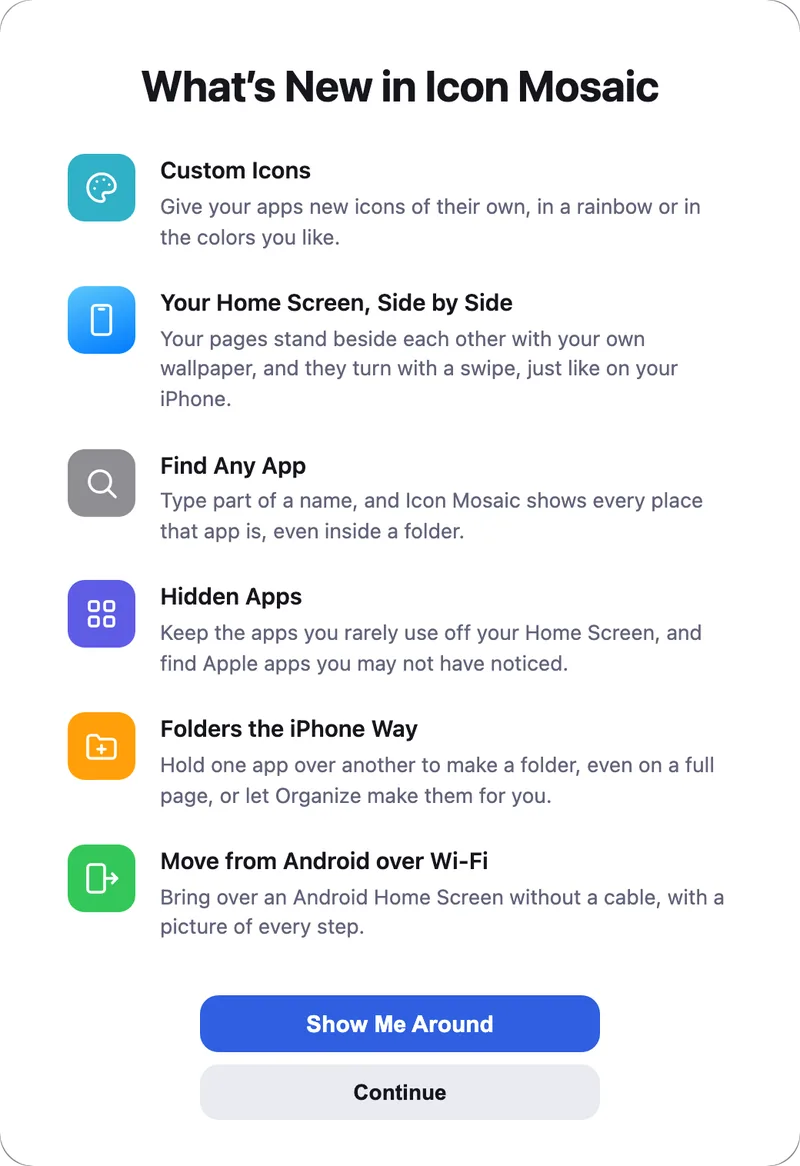
The first time you open a new version, a short What’s New sheet shows what has changed, and Show Me Around moves a spotlight across the window to each new thing. You can see it again from Settings or the Help menu.
Common questions
What do I need to use Icon Mosaic?
A Mac with macOS 12 or later, on Apple silicon or Intel, and an iPhone with a cable to connect it. Icon Mosaic has been tested with iPhones running iOS 27. You do not need to install anything on your iPhone.
Why is Icon Mosaic not on the Mac App Store?
Apps from the Mac App Store are not allowed to talk to an iPhone over the cable in the way Icon Mosaic needs to. Icon Mosaic is signed and checked by Apple through its notarization service, so it opens like any other Mac app you download from the web.
How do I see the What's New tour again?
Open Settings in Icon Mosaic, or the Help menu, and choose What's New. Show Me Around takes the tour again.
Do it all on your Mac, in minutes.
Icon Mosaic shows every page of your iPhone’s Home Screen side by side on your Mac, so you can drag apps anywhere, sort them by color or from A to Z, make folders, and send the result to your phone in one step.
Free to download and try. A one-time $19 license puts your new layout on your iPhone. A version for Windows is coming to the Microsoft Store soon.
Keep reading