 Icon Mosaic
How to organize your iPhone apps by color
Sorting your apps by color turns a cluttered Home Screen into a rainbow, and many people find they can spot an app faster by its color than by its name. Here is how to do it.
Updated October 4, 2026
Decide on your color order first
The classic order is the rainbow: red, orange, yellow, green, blue, purple and pink, followed by the black, gray and white icons. Some people prefer to put the grays first, start with the cool colors, or run the rainbow backwards. It helps to settle on the order before you start moving anything.
You also need to decide whether the colors run down each page or carry on from one page to the next. A rainbow that starts on page one and continues across all of your pages is the easiest to keep tidy, because a new app just slots into its color.
How to sort apps by color on your iPhone
- Make some room. Touch and hold an empty part of the Home Screen until the apps jiggle. It helps to drag a handful of apps onto a new, empty page at the end, so you have space to work with.
- Gather one color at a time. Start with red. Drag each red app onto the first page. To move several at once, start dragging one app, and while you keep holding it, tap the other red apps with another finger so they stack up. Our guide to moving several apps at once explains this in detail.
- Work through the rest of the colors. Orange goes after red, then yellow, and so on. When a page fills up, the apps flow onto the next one.
- Put the grays at the end. Black, gray and white icons usually look best grouped together after pink.
- Decide what to do with folders. Folder icons show tiny previews of several apps, so they rarely fit a color. You can move folders to the last page, or empty them so every app joins the rainbow.
What color is an icon with several colors?
This is the hardest part of doing it by hand. A good rule is to ask what color you would call the app if a friend asked. A red logo on a white background is red, not white, because the logo is what you notice. An icon that is mostly one color with a small accent goes with the main color. Truly multicolored icons, like a rainbow-striped logo, can go wherever you think they look best.
If you use tinted Home Screen icons, every icon is drawn in the same color, so a rainbow will not show up. Switch your icons back to the default look in the Home Screen's Customize menu to see their real colors.
How to sort your apps by color automatically
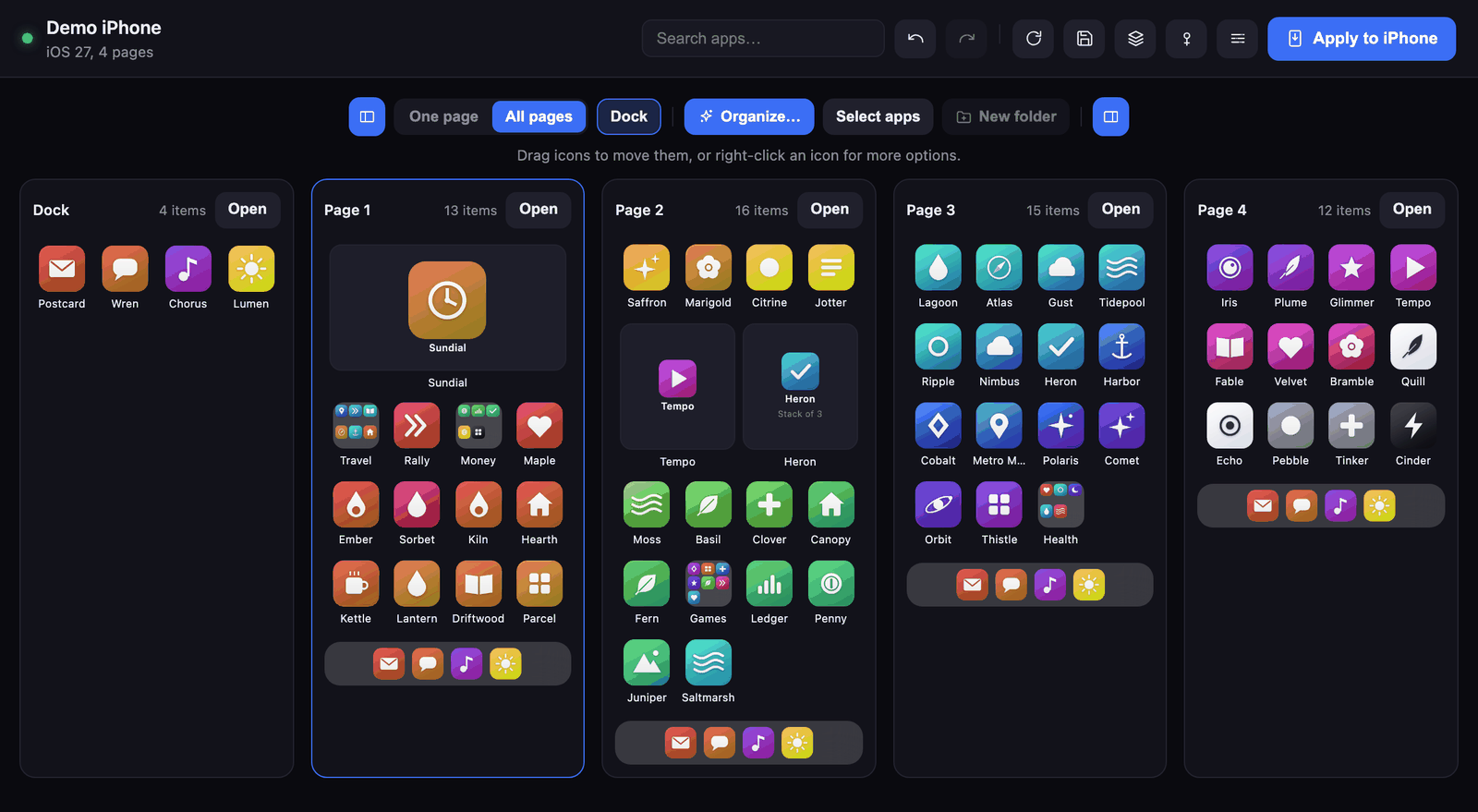
Doing a rainbow by hand can take an hour if you have a lot of apps. Icon Mosaic does it in a few seconds on your Mac. It looks at the actual artwork of every icon and works out the color you would call it, so a red logo on a white background counts as red.
- Connect your iPhone to Icon Mosaic on your Mac.
- Press Organize and choose Arrange by color.
- Choose whether to sort all of your pages, just one page, or only the apps you selected.
- Pick a color order: the rainbow, the reverse rainbow, grays first, cool colors first, or your own order. If you want every app in the rainbow, turn on Take apps out of their folders first.
- Look over the result, change anything you like by dragging, and press Apply to iPhone. A backup of your old layout is saved first.
Sorting by color is free in Icon Mosaic, so you can try it and see the result on your Mac before deciding anything.
Common questions
Can the iPhone sort apps by color on its own?
No. iOS has no setting to sort apps by color. You can do it by hand in jiggle mode, or use a Mac app like Icon Mosaic to do it automatically.
What do I do with folders on a rainbow Home Screen?
Folder icons show several small app icons, so they rarely match one color. Most people move folders to the last page, or take the apps out of their folders so every app joins the rainbow.
Does sorting by color change anything else on my iPhone?
No. It only changes where your app icons sit. Your apps, data and settings are untouched.
Sort every page into a rainbow in one step.
Icon Mosaic is a Mac app that shows every page of your iPhone's Home Screen at once. You can drag apps anywhere, sort them by color or from A to Z, and make folders, and nothing changes on your phone until you apply it. It is free to download and try.
Download Icon Mosaic for MacSee how it worksMore guides
- How to rearrange your iPhone apps from your MaciTunes used to do this. Here is what works now.
- How to move several apps at once on iPhoneThe hidden multi-finger trick, and moving whole pages.
- How to put your iPhone apps in alphabetical orderThe reset trick, what it costs you, and a gentler way.
- Ideas for organizing your iPhone Home ScreenEight layouts that people actually stick with.