 Icon Mosaic
How to move several apps at once on iPhone
Moving apps one at a time gets tiring fast. The iPhone can actually carry a whole stack of apps at once, but the gesture is not obvious. Here is how to do it.
Updated October 4, 2026
How to pick up several apps at once
- Start jiggle mode. Touch and hold an empty part of the Home Screen until the apps start to jiggle. You can also touch and hold any app and choose Edit Home Screen.
- Start dragging one app. Put a finger on the first app you want to move and drag it a little way, so it lifts off the grid. Keep your finger on the screen.
- Tap the other apps with a second finger. While still holding the first app, tap each of the other apps you want with another finger. They fly over and join a stack under your first finger, and a small badge shows how many apps you are carrying.
- Carry the stack where you want it. Move to another spot on the page, or drag to the edge of the screen to turn the page. You can also drop the stack onto a folder.
- Let go. The apps are placed together, in the order you picked them up.
It is easiest with the phone flat on a table, using one finger to hold the stack and another to tap the apps. If you lift the first finger by accident, the apps you have gathered are put down where they are.
How to move an app to a different page
Drag the app (or your stack of apps) to the left or right edge of the screen and hold it there. After a moment the page turns. Keep holding at the edge to go further, then drop the app where you want it. Moving an app from your first page to your sixth page means waiting for five page turns.
How to rearrange, hide or delete whole pages
- Start jiggle mode, then tap the row of dots just above the dock. You will see small pictures of all of your Home Screen pages.
- To reorder pages, drag a page to a new position.
- To hide a page, tap the check mark under it. Its apps stay in your App Library.
- To delete a page, hide it first, then tap the minus button that appears on it.
- Tap Done when you are finished.
An easier way for big changes
The stacking trick is handy, but you can still only see one page at a time. If you want to move apps across several pages, or do a big reorganization, Icon Mosaic lets you do it on your Mac with a mouse.
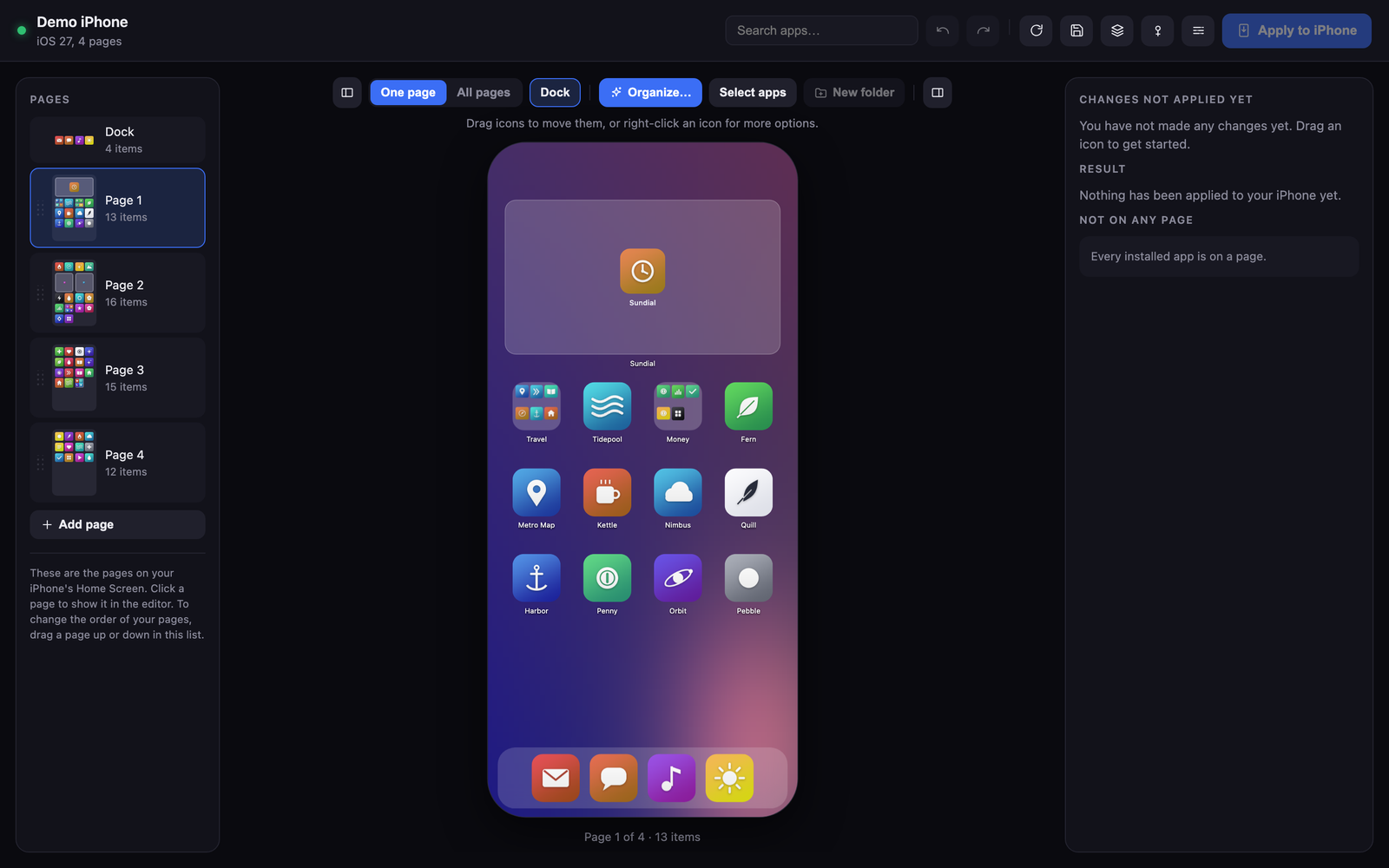
- All of your pages are shown side by side, so you drag an app straight from one page to another without waiting for pages to turn.
- Press Select apps, click every app you want, even on different pages, and drag them all together.
- Search for any app by name, including apps hidden inside folders.
- Undo works for everything, and nothing changes on your phone until you press Apply to iPhone.
Common questions
Why do my apps stop jiggling when I try to move several?
Your first finger probably left the screen. Keep holding the first app the whole time, and use a different finger to tap the other apps.
Can I select apps from different pages at once on iPhone?
Yes. While holding the stack, drag to the edge of the screen to turn the page, and tap more apps on the new page to add them to the stack.
Can I move apps between pages on a computer?
Yes, with Icon Mosaic on a Mac. It shows every page at once, so you can drag apps between any pages.
Move apps between any pages with your mouse.
Icon Mosaic is a Mac app that shows every page of your iPhone's Home Screen at once. You can drag apps anywhere, sort them by color or from A to Z, and make folders, and nothing changes on your phone until you apply it. It is free to download and try.
Download Icon Mosaic for MacSee how it worksMore guides
- How to rearrange your iPhone apps from your MaciTunes used to do this. Here is what works now.
- How to organize your iPhone apps by colorMake a rainbow Home Screen by hand or in a few seconds.
- How to put your iPhone apps in alphabetical orderThe reset trick, what it costs you, and a gentler way.
- Ideas for organizing your iPhone Home ScreenEight layouts that people actually stick with.