How to hide apps from your iPhone Home Screen
Most of us have far more apps than we use. You do not have to delete the ones you rarely open: the iPhone can keep them off your Home Screen, ready in the App Library and in Search. Here is how to hide one app, a page, or dozens at once, and how to bring them back.
Updated

How to hide one app on your iPhone
- Touch and hold the app until its menu appears.
- Tap Remove App.
- Tap Remove from Home Screen. Be sure not to tap Delete App. The app leaves your Home Screen and waits in the App Library.
How to hide a whole page
Start jiggle mode, tap the row of dots just above the dock, and tap the check mark under any page you would like to hide. Its apps stay in the App Library, and you can show the page again the same way. This is quick, but it hides everything on the page, including the apps you wanted to keep.
Stop new apps landing on your Home Screen
Open Settings, tap Home Screen & App Library, and choose App Library Only for newly downloaded apps. New apps then go straight to the App Library.
Hide exactly the apps you choose, from any page
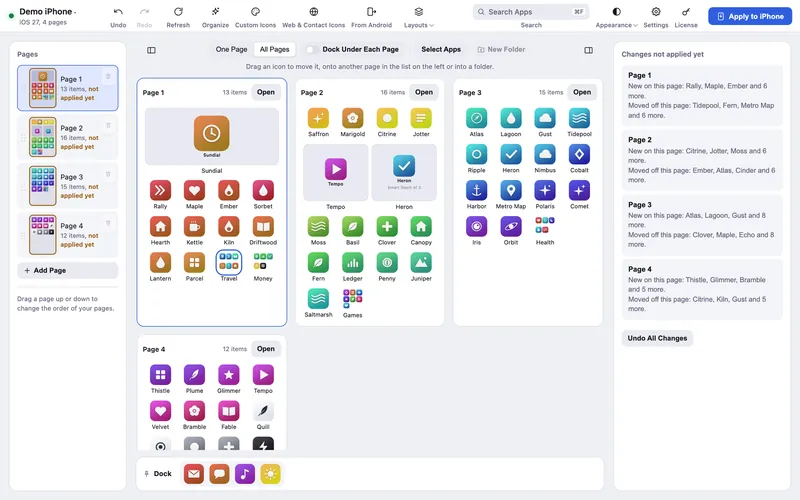
Icon Mosaic lets you pick apps from all of your pages and hide them together, then puts them all in the App Library in one step.
- Connect your iPhone to Icon Mosaic.
- Drag apps onto Hidden Apps. It is in the list of pages on the left. Drag one app, a whole
folder, or a group you chose with Select Apps.
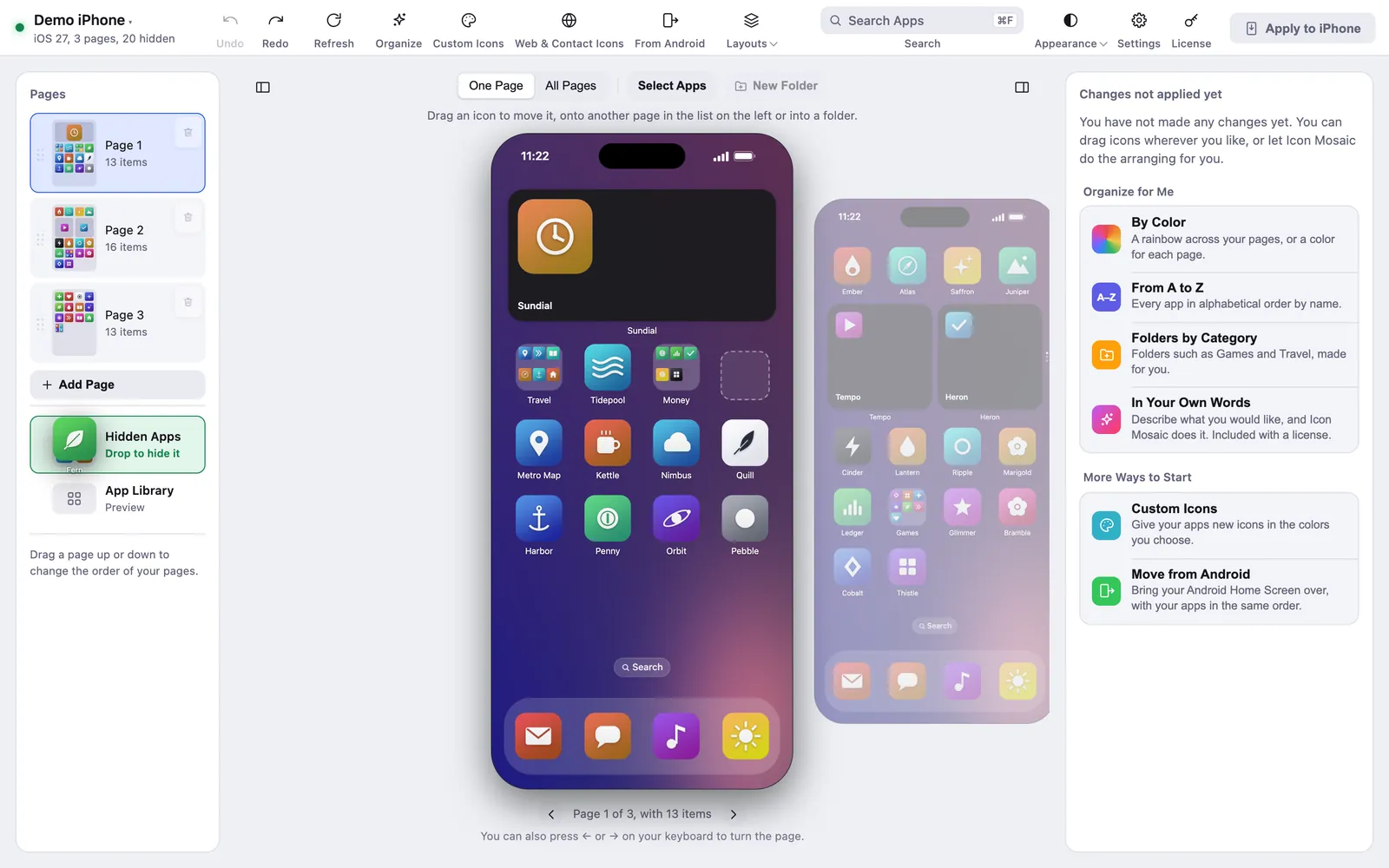
Drop apps on Hidden Apps to take them off your Home Screen. - Or choose them from a list. Open Hidden Apps and press Hide Apps to pick
apps from every page at once, or right-click any app and choose Hide from Home Screen.
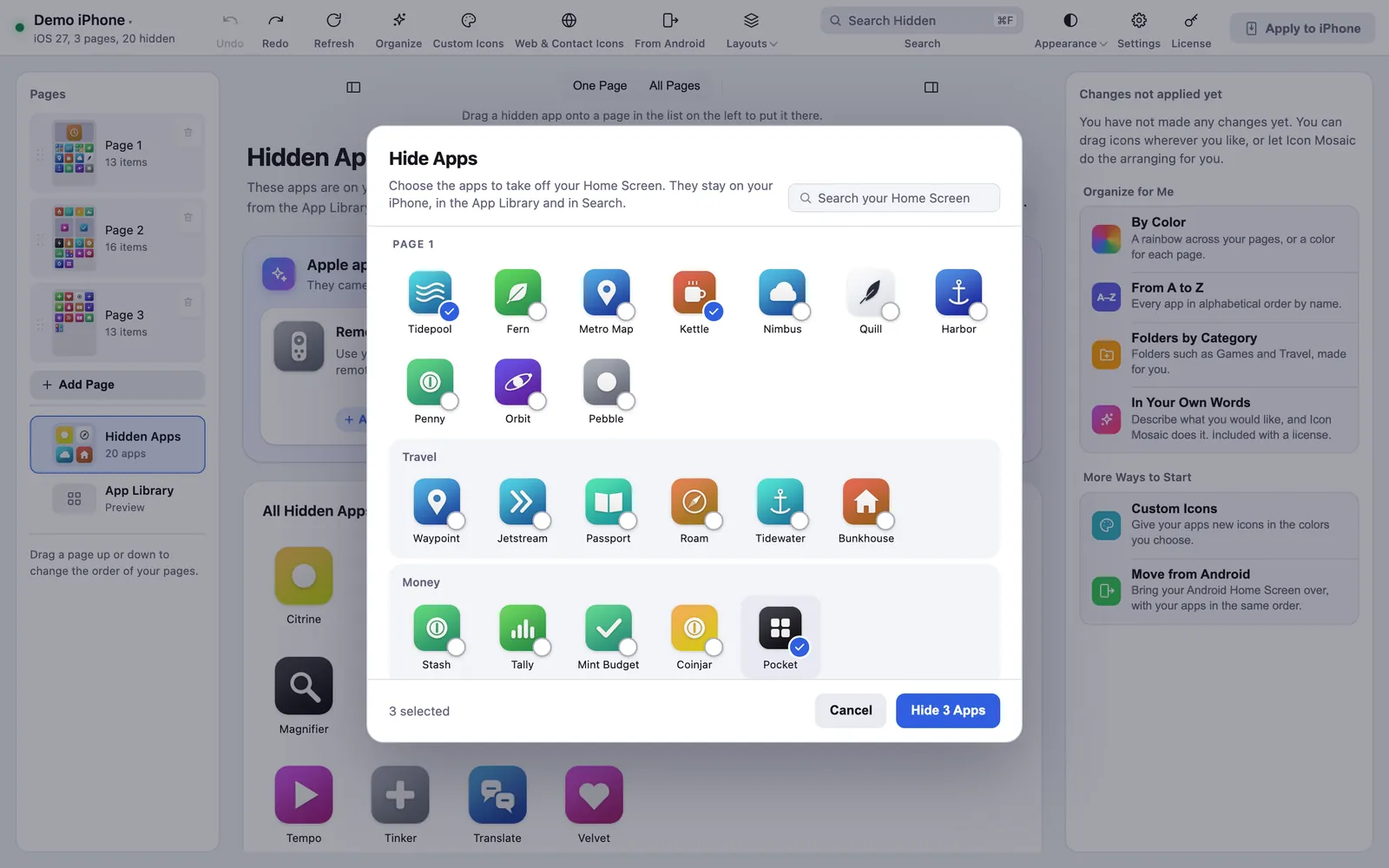
Hide Apps: tick the apps you rarely use, from every page. - Press Apply to iPhone. Those apps leave your Home Screen and stay on your iPhone, ready in the App Library and in Search.
Find the Apple apps you never knew you had
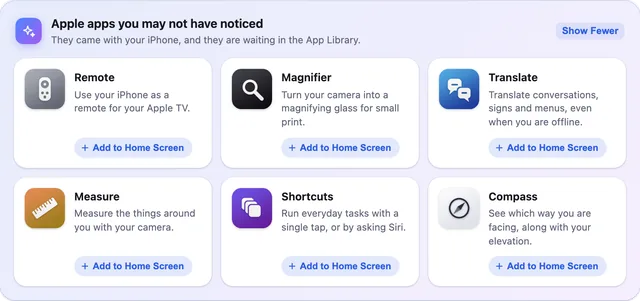
Your iPhone comes with handy Apple apps that start out in the App Library, so many people never see them. Hidden Apps shows them, such as Remote, Magnifier, Translate, Measure, Shortcuts and Compass, with a short description, and one click adds any of them to your Home Screen.
How to bring a hidden app back
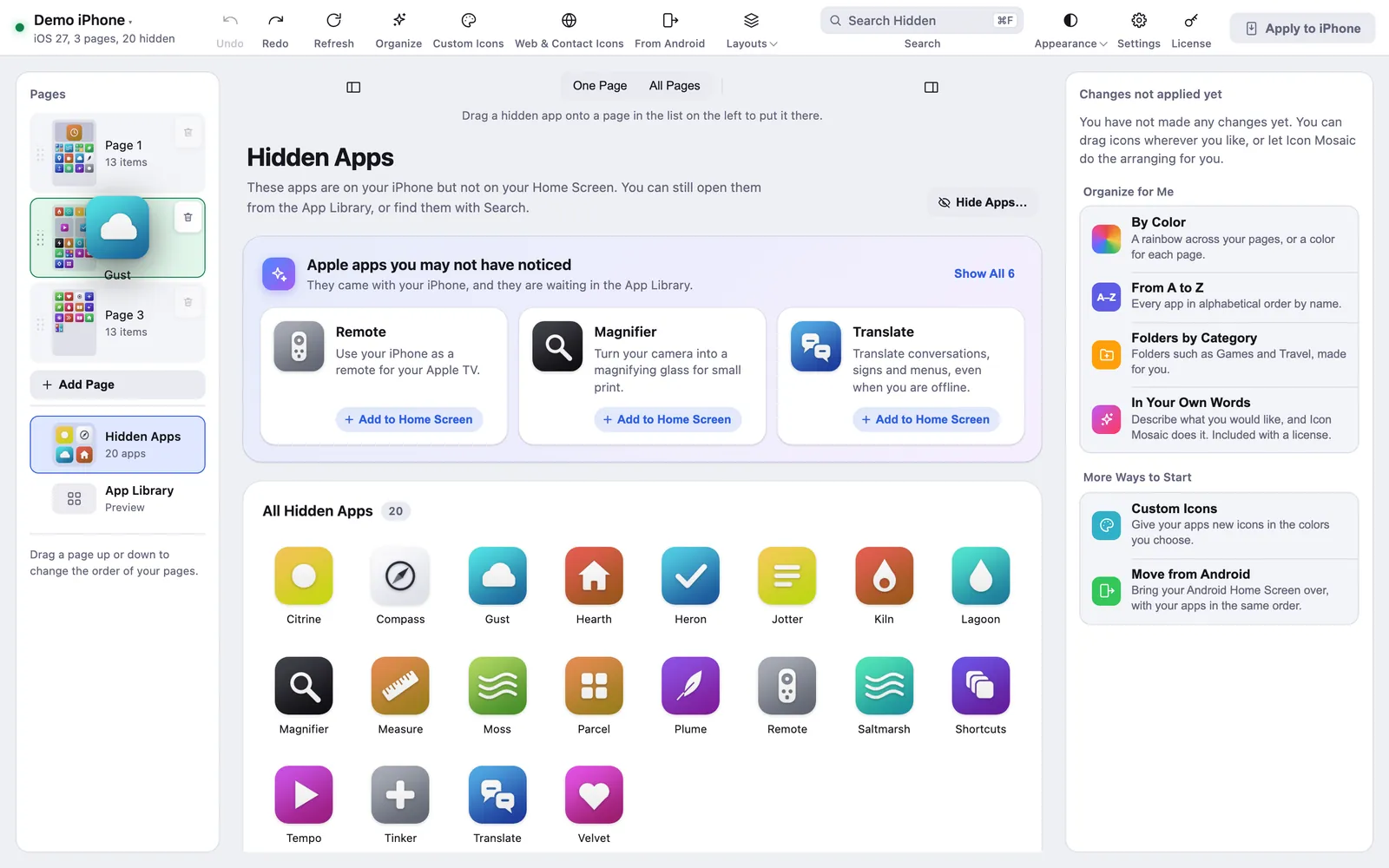
On your iPhone, swipe left past your last page to the App Library, touch and hold the app, and tap Add to Home Screen. In Icon Mosaic, open Hidden Apps, choose one or more apps, and drag them onto any page, or press Add to Home Screen.
See roughly how your App Library will look
Below Hidden Apps, App Library shows a preview of how your iPhone groups your apps into categories. Your iPhone arranges its App Library on its own, so it may look a little different there.

Common questions
How do I remove an app from my Home Screen without deleting it?
Touch and hold the app, tap Remove App, and then tap Remove from Home Screen. The app stays on your iPhone, in the App Library and in Search.
Where do hidden apps go?
Into the App Library, which you reach by swiping left past your last Home Screen page. They also show up when you search.
How do I hide many apps at once?
On the iPhone you can hide a whole page at a time. To choose exactly which apps to hide, from any page, use Icon Mosaic on a Mac: select the apps, drag them onto Hidden Apps, and press Apply to iPhone.
How do I get a hidden app back on my Home Screen?
Open the App Library, touch and hold the app, and tap Add to Home Screen. In Icon Mosaic, open Hidden Apps and drag the app onto any page.
Is this the same as locking an app?
No. The iPhone also has a separate option that hides an app behind Face ID in a locked Hidden folder. Taking an app off your Home Screen, as described here, simply keeps it in the App Library, where it opens like any other app.
Do it all on your Mac, in minutes.
Icon Mosaic shows every page of your iPhone’s Home Screen side by side on your Mac, so you can drag apps anywhere, sort them by color or from A to Z, make folders, and send the result to your phone in one step.
Free to download and try. A one-time $19 license puts your new layout on your iPhone. A version for Windows is coming to the Microsoft Store soon.
Keep reading