How to manage your iPhone apps on a Mac
Your Mac has a big screen, a mouse and a keyboard, which makes it a far better place than your phone to look after a Home Screen full of apps. Here is everything you can do with your iPhone’s apps from your Mac, and how.
Updated

Get started in a minute
- Download and open Icon Mosaic. It is free to download and runs on macOS 12 or later.
- Connect your iPhone. Plug it in with a cable, unlock it, and tap Trust if it asks. After the first time, it can connect over Wi-Fi too.
- Manage away. Every change stays on your Mac until you press Apply to iPhone, so you can try things freely. Undo goes back as many as 60 steps.
Move apps between pages
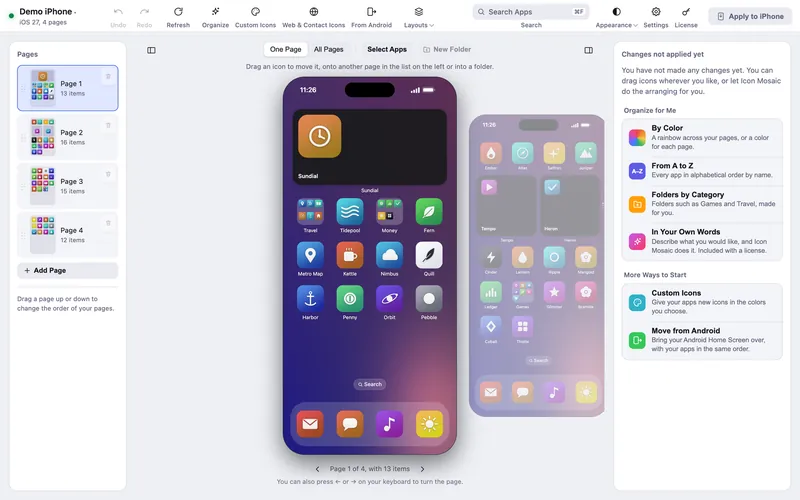
Drag an app onto the page beside the phone, onto any page in the list on the left, or, in All Pages, straight onto any page you can see. To move a group, press Select Apps, click each app, and drag any of them. You can also right-click an app and choose Move to to send it to the dock or to a page without dragging at all.

Rearrange, add and remove pages
The list on the left shows a small picture of every page. Drag a page up or down to change the order of your pages, press Add Page for a fresh, empty one, or press the trash button on a page to remove it.
Make, rename and empty folders
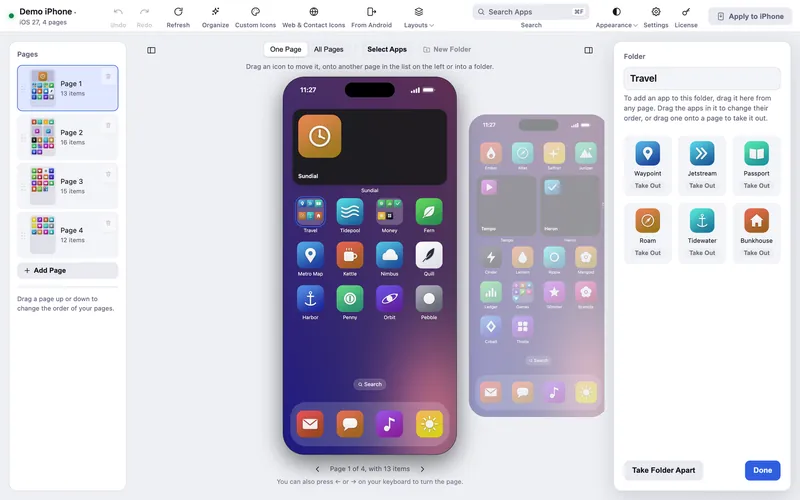
Hold one app over another for a moment, and they open up into a folder when you let go, just like on your iPhone, even when the page is full. Or select some apps and press New Folder. Click a folder to open it: type a new name at the top, drag apps in and out, or press Take Folder Apart. Our guide to making folders has more.

Hide apps without deleting them
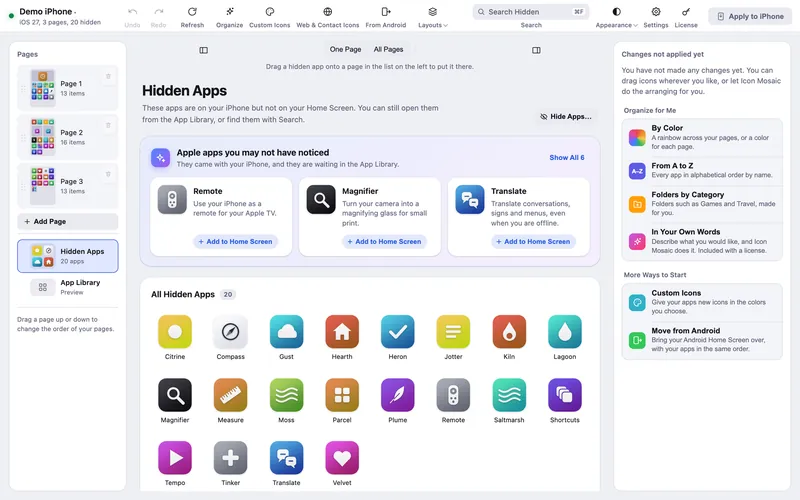
Drag an app, a folder or a selection onto Hidden Apps in the list of pages, or right-click an app and choose Hide from Home Screen. When you apply, those apps leave your Home Screen but stay on your iPhone, in the App Library and in Search. See how to hide apps.

Find any app
Type part of a name into Search Apps at the top of the window, or press ⌘ F. Icon Mosaic lists every place the app is, on a page, inside a folder, or in Hidden Apps, and shows you where it is when you choose it.

Organize everything at once
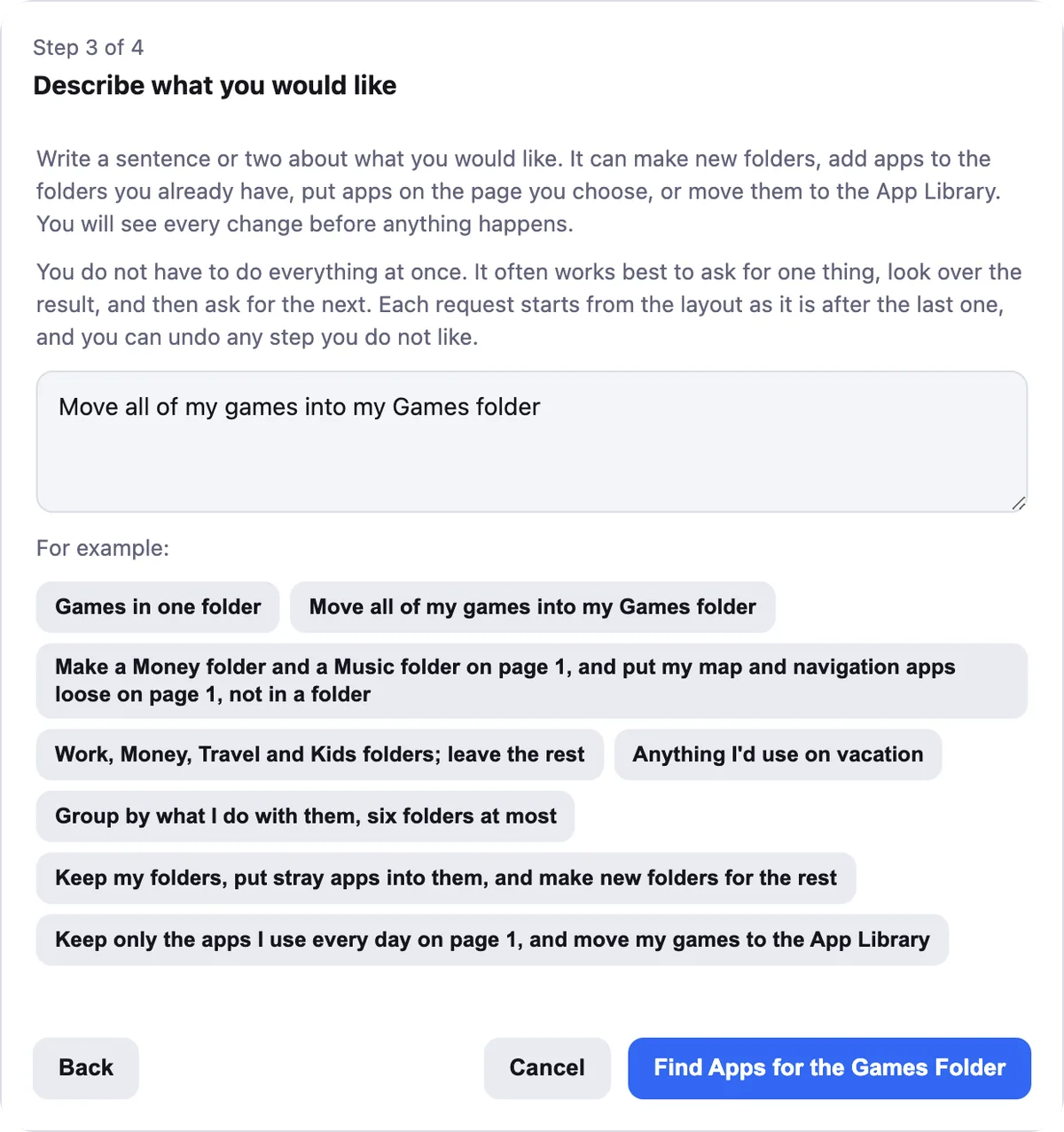
Press Organize and Icon Mosaic can sort your apps by color, from A to Z, make folders by App Store category, or follow a request in your own words, such as “Work, Money, Travel and Kids folders; leave the rest.” You see every change before it happens.
Delete apps you no longer need
With a license, right-click an app and choose Delete from iPhone. Icon Mosaic asks you to confirm first, because a deleted app cannot come back from a layout backup. You can always download it again from the App Store.
Save your layout, and go back any time
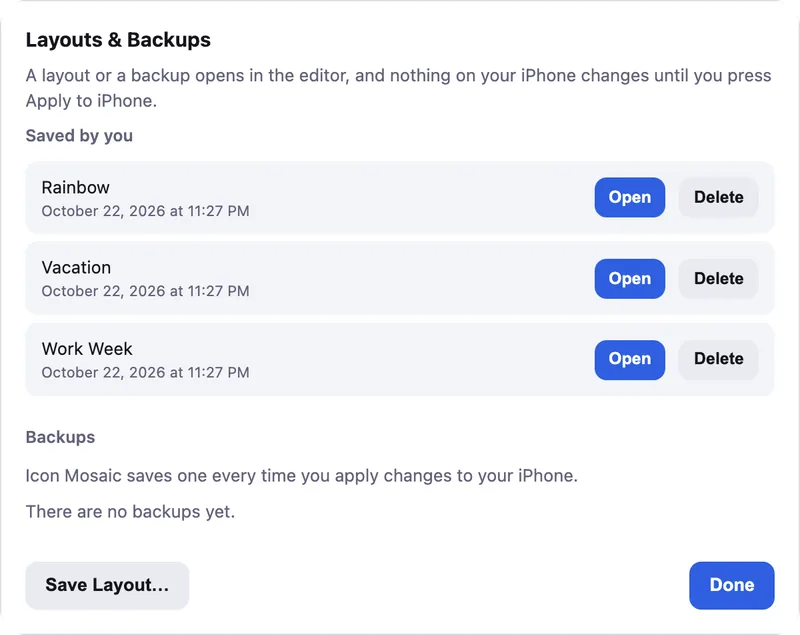
Every time you apply changes, Icon Mosaic saves a backup of the layout your iPhone had. You can also save layouts of your own, such as one for work and one for vacation. Open either from Layouts in the toolbar. See how to back up and restore your Home Screen layout.
See what will change, then apply
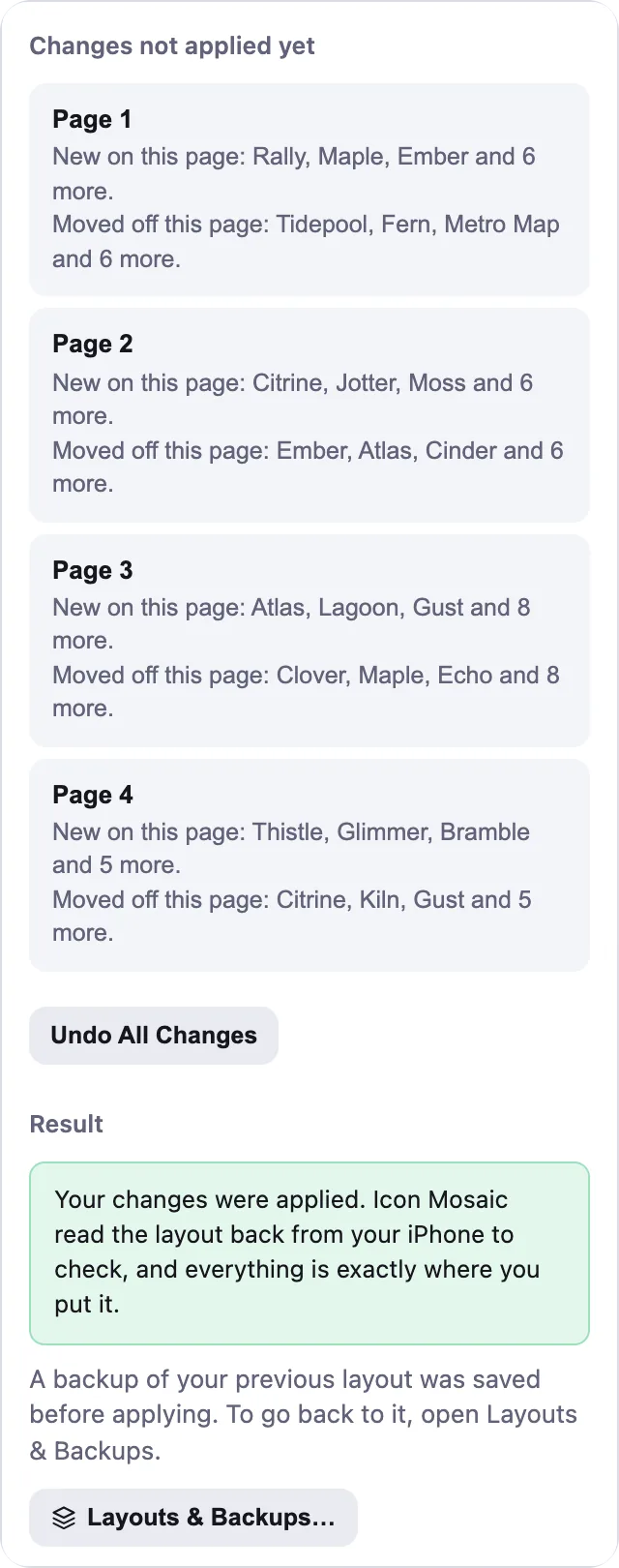
The panel on the right lists every page you have changed. When you press Apply to iPhone, Icon Mosaic shows which apps are moving, saves a backup, writes the new layout, and then reads it back from your iPhone to check that everything is where you put it.

Common questions
How do I manage iPhone apps on my Mac?
Apple's Finder can back up and update your iPhone, but it cannot show or change your Home Screen. Icon Mosaic can: it shows every page of your Home Screen on your Mac, and lets you move, hide, delete, find and organize your apps with a mouse, then applies the changes to your iPhone.
Can I delete iPhone apps from my Mac?
Yes, with a license. Right-click an app in Icon Mosaic and choose Delete from iPhone. Icon Mosaic always asks you to confirm, because a deleted app cannot come back from a layout backup. You can download it again from the App Store.
Can I install apps on my iPhone from my Mac?
Icon Mosaic arranges the apps that are already on your iPhone. To install a new app, download it from the App Store on your iPhone, and then press Refresh in Icon Mosaic to see it.
Can I manage more than one iPhone?
Yes. Connect another iPhone and unlock it, and click the iPhone's name at the top left of the window to choose which one to work on.
Do it all on your Mac, in minutes.
Icon Mosaic shows every page of your iPhone’s Home Screen side by side on your Mac, so you can drag apps anywhere, sort them by color or from A to Z, make folders, and send the result to your phone in one step.
Free to download and try. A one-time $19 license puts your new layout on your iPhone. A version for Windows is coming to the Microsoft Store soon.
Keep reading