 Icon Mosaic
How to rearrange your iPhone apps from your Mac
For years you could plug your iPhone into iTunes and drag your apps around on a big screen. Apple removed that in 2017, and Finder never brought it back. Here is what you can do instead.
Updated October 4, 2026
What happened to arranging apps in iTunes?
Older versions of iTunes had an Apps tab that showed every page of your iPhone's Home Screen. You could drag icons between pages, make folders, and press Sync to send the new layout to your phone. Apple removed the whole Apps section in iTunes 12.7, in September 2017, so that apps would only be managed on the phone itself.
Since macOS Catalina, Finder has taken over from iTunes for backing up and syncing an iPhone. Finder can back up your phone, update it, and sync music and photos, but it has no way to see or change your Home Screen.
Your options today
1. Rearrange the apps on the iPhone itself
This always works, and it is fine for small changes. Touch and hold an empty part of the Home Screen until the apps start to jiggle, then drag icons where you want them. To move an app to another page, drag it to the edge of the screen and wait for the page to turn. Our guide to moving several apps at once explains a trick that saves a lot of dragging.
The trouble is that you can only see one page at a time, so a big reorganization means a lot of holding, waiting and dragging across page after page.
2. Use iPhone Mirroring
On recent Macs and iPhones, iPhone Mirroring shows your phone's screen in a window on your Mac, and you can control it with your mouse and keyboard, including jiggle mode. It saves you from using your thumb, but you are still looking at one small page at a time, exactly as you would on the phone. iPhone Mirroring also needs a fairly new Mac and is not available in every country.
3. Apple Configurator, if your iPhone is managed by a company
Apple Configurator can set a Home Screen layout through a configuration profile, but only on supervised iPhones. Supervision is meant for schools and businesses, and turning it on erases the phone, so it is not a practical choice for your own iPhone.
4. Use Icon Mosaic
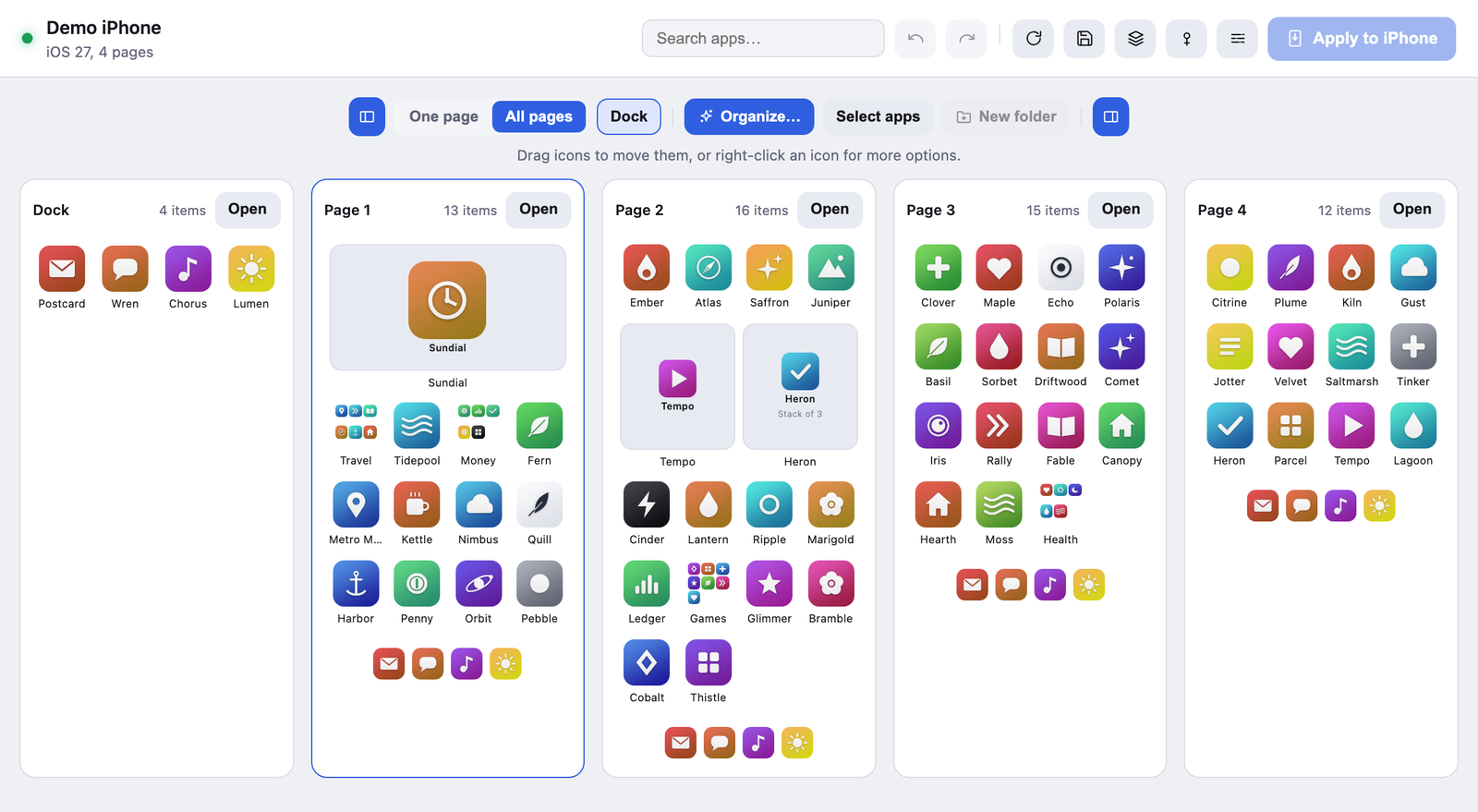
Icon Mosaic brings back the big-screen editor that iTunes used to have, and adds a few things iTunes never did. It reads your real Home Screen over the cable, including your folders, widgets and dock, and shows every page side by side.
How to rearrange your iPhone apps with Icon Mosaic
- Download Icon Mosaic from iconmosaicapp.com and open it. It runs on macOS 12 or later, on Apple silicon and Intel Macs.
- Plug in your iPhone and unlock it. If it asks whether to trust this computer, tap Trust and enter your passcode. After the first time, you can also connect over Wi-Fi.
- Drag apps wherever you want them. Drag from one page straight onto another, drop apps into folders, or press Select apps to move a whole group at once. You can also search for any app by name, even one hidden inside a folder.
- Let it tidy up for you if you like. The Organize button can sort everything by color or from A to Z, or gather apps into folders by category.
- Press Apply to iPhone. Icon Mosaic shows you which pages will change and saves a backup of your current layout first, so you can always go back.
You do not need to jailbreak your iPhone or install anything on it. Icon Mosaic talks to your phone the same way Finder does when it backs it up.
Common questions
Can I still arrange iPhone apps in iTunes?
No. Apple removed the Apps section, including Home Screen arranging, in iTunes 12.7 in September 2017. Finder, which replaced iTunes for iPhone syncing on newer Macs, does not offer it either.
Can I rearrange my iPhone Home Screen from a Windows PC?
iTunes for Windows lost the feature at the same time as the Mac version. Icon Mosaic is available for the Mac.
Will rearranging my apps from a computer delete anything?
No. Moving apps only changes where icons sit. Icon Mosaic never installs, deletes or opens apps, and it saves a backup of your layout before every change.
Arrange your whole Home Screen on your Mac.
Icon Mosaic is a Mac app that shows every page of your iPhone's Home Screen at once. You can drag apps anywhere, sort them by color or from A to Z, and make folders, and nothing changes on your phone until you apply it. It is free to download and try.
Download Icon Mosaic for MacSee how it worksMore guides
- How to organize your iPhone apps by colorMake a rainbow Home Screen by hand or in a few seconds.
- How to move several apps at once on iPhoneThe hidden multi-finger trick, and moving whole pages.
- How to put your iPhone apps in alphabetical orderThe reset trick, what it costs you, and a gentler way.
- Ideas for organizing your iPhone Home ScreenEight layouts that people actually stick with.