If your iPhone does not connect
Almost every connection problem comes down to one of a few simple things: the phone is locked, it has not been asked to trust your computer yet, or the cable needs plugging in again. Here is how to put each one right.
Updated
Start with these three
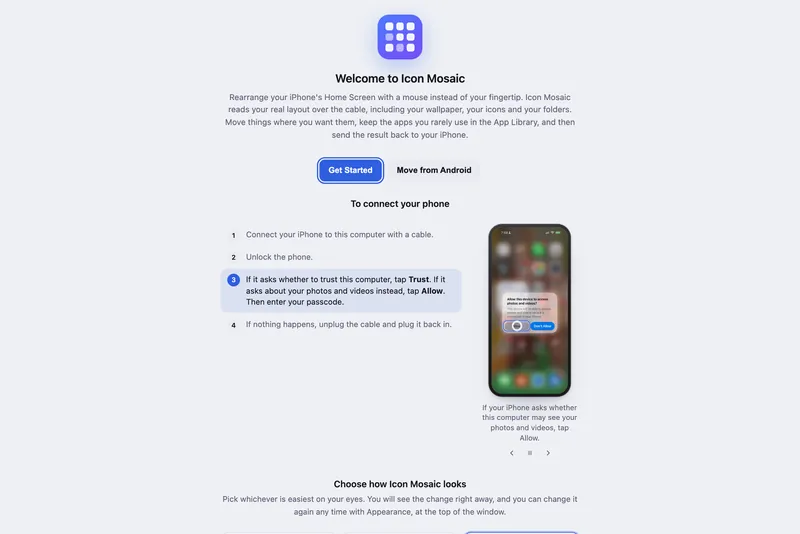
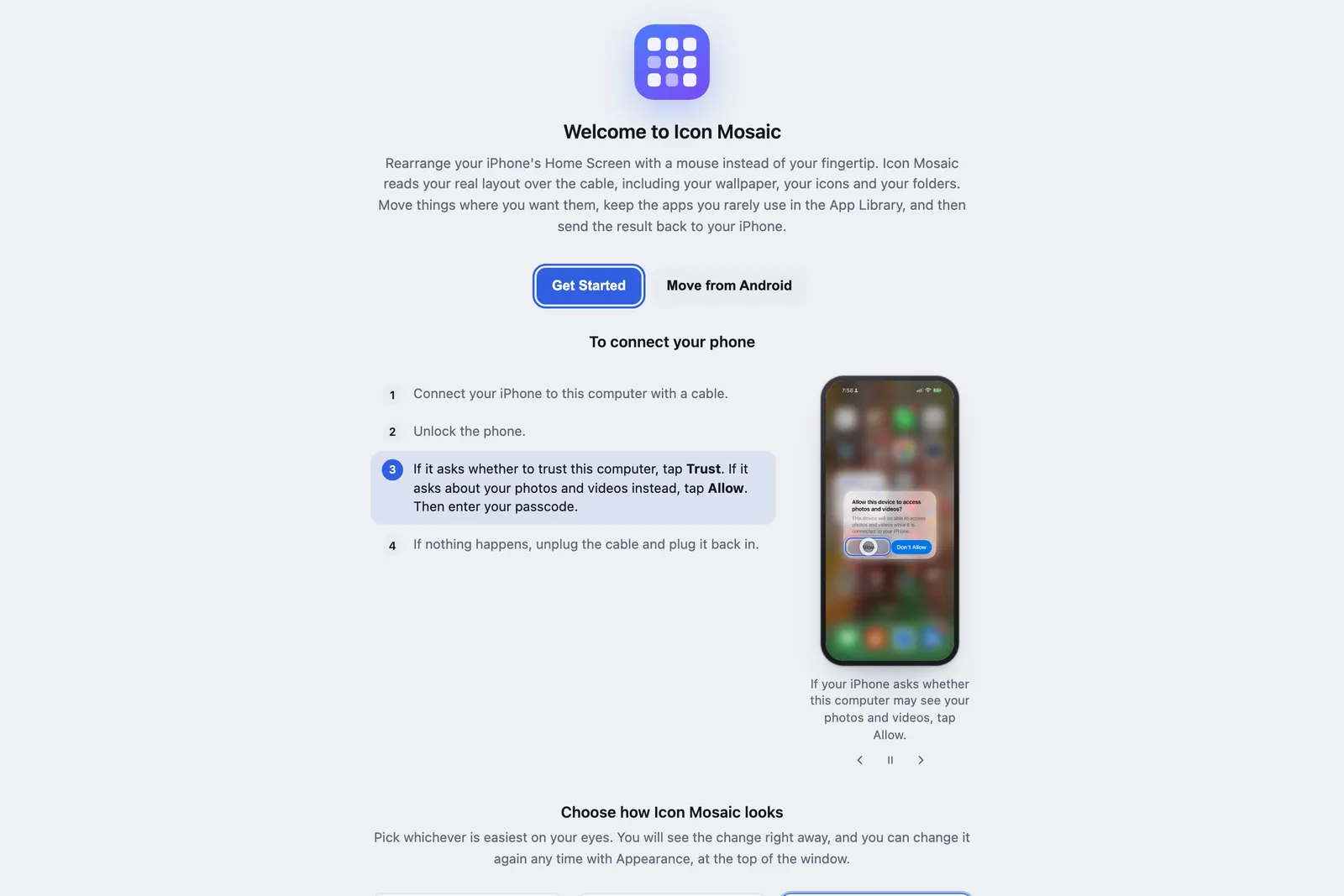
- Unlock your iPhone. Your iPhone will not share its Home Screen with a computer while it is locked. Unlock it and stay on the Home Screen for a moment while Icon Mosaic reads it.
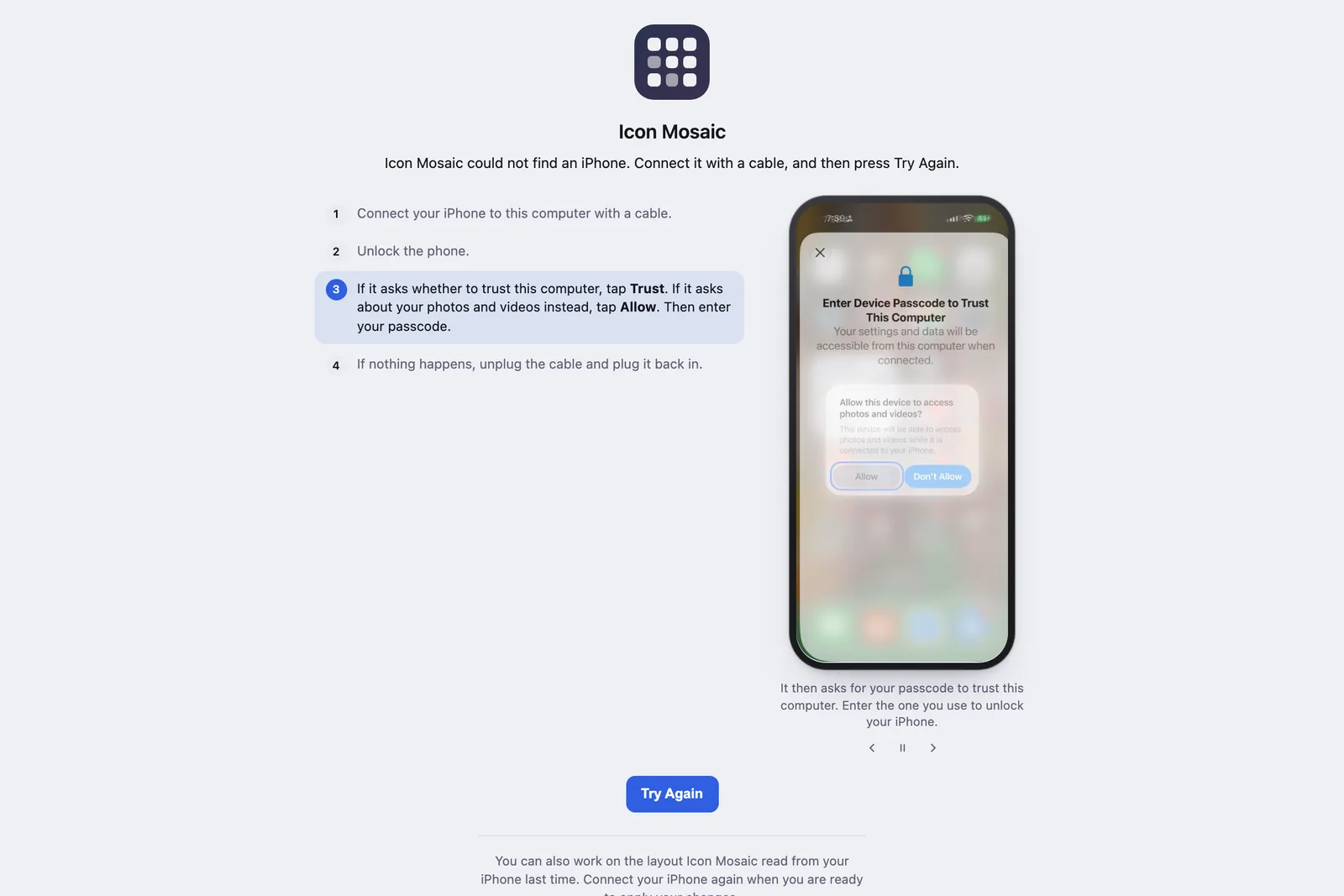
- Tap Trust, or Allow. The first time you connect, your iPhone may ask whether this computer may
see your photos and videos; tap Allow. It then asks for your passcode to trust this computer.
Enter the one you use to unlock your iPhone.

Enter your passcode to trust your Mac. - Unplug the cable, and plug it back in. If nothing appears on your iPhone, this almost always brings the question back.
What Icon Mosaic’s messages mean
| If Icon Mosaic says | Do this |
|---|---|
| No iPhone was found | Connect your iPhone with a cable, unlock it, and tap Trust if it asks. If nothing appears on your iPhone, unplug the cable and plug it back in. |
| Your iPhone has not been paired with this computer yet | Unlock your iPhone, tap Trust when it asks, and then try again. If your iPhone does not ask, unplug the cable and plug it back in. |
| Your iPhone is locked | Unlock it, and then try again. |
| The connection to your iPhone was interrupted | Make sure it is still connected and unlocked, and then try again. |
| Your iPhone answered, but nothing on it changed | This usually means it was locked. Unlock your iPhone, and press Apply to iPhone again. |
Still not connecting?
- Try another cable or port. Some cables only charge and cannot carry data. The cable that came with your iPhone is the most reliable.
- Skip hubs and adapters. Plug the cable straight into your Mac if you can.
- Check that Finder sees your iPhone. Open a Finder window and look for your iPhone in the sidebar, under Locations. If Finder cannot see it either, the cable, the port or the Trust step is the problem.
- Restart both. Restart your iPhone and your Mac, then connect again.
- Update your Mac. Icon Mosaic needs macOS 12 or later.
Connecting over Wi-Fi
After you have connected once with a cable, Icon Mosaic can reach your iPhone over Wi-Fi.
- Plug in your iPhone and open Finder. Select your iPhone in the sidebar.
- Turn on “Show this iPhone when on Wi-Fi.” It is on the General tab. Click Apply.
- Unplug, and connect over Wi-Fi. Keep your Mac and iPhone on the same network, and unlock your iPhone.
Now and then macOS loses track of a phone on Wi-Fi. Unlocking the phone, or plugging it in once, usually brings it back.
More than one iPhone
Connect each iPhone and unlock it, then click the iPhone’s name at the top left of the Icon Mosaic window to choose which one to work on.
On Windows
A version of Icon Mosaic for Windows is coming to the Microsoft Store soon. On Windows, Icon Mosaic will use Apple Devices, Apple’s free app for connecting an iPhone to Windows, so install Apple Devices from the Microsoft Store and open it with your iPhone connected before you begin.
Still stuck?
Email us at hello@iconmosaicapp.com with what Icon Mosaic says, and we will help. See contacting us for what to include.
Common questions
Why does Icon Mosaic say no iPhone was found?
Your iPhone needs to be connected with a cable, unlocked, and trusted. Unlock it, tap Trust if it asks, and if nothing appears on your iPhone, unplug the cable and plug it back in.
My iPhone never asks to Trust This Computer. What do I do?
Unlock your iPhone and keep it on the Home Screen, then unplug the cable and plug it back in. If you tapped Don't Trust by mistake, unplugging and plugging in again usually asks once more. Try another cable or another USB port if it still does not ask.
Why does Icon Mosaic say my iPhone is locked?
Your iPhone will not share its Home Screen with a computer while it is locked. Unlock it, and then try again.
Can Icon Mosaic connect over Wi-Fi?
Yes, once your Mac and iPhone are set up to sync over Wi-Fi in Finder. Plug your phone in once, select it in Finder, turn on Show this iPhone when on Wi-Fi, and after that it can connect without the cable while both are on the same network.
Apply to iPhone said nothing changed. Why?
This usually means your iPhone was locked while Icon Mosaic was writing to it. Unlock your iPhone, and press Apply to iPhone again.
Do it all on your Mac, in minutes.
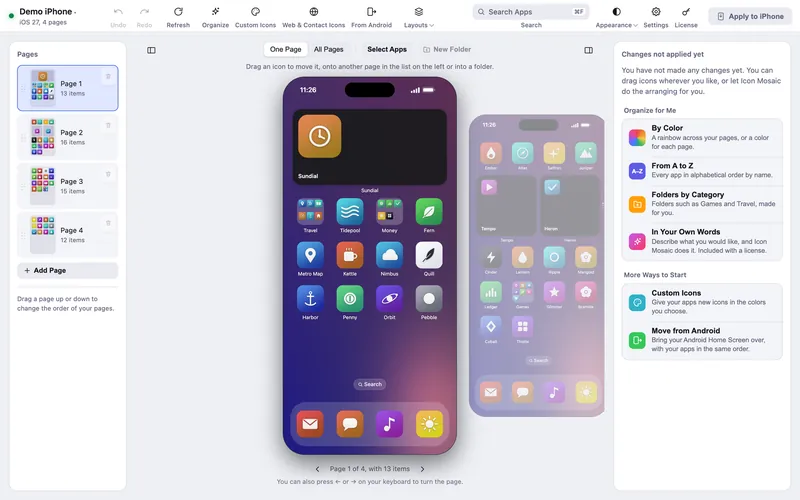
Icon Mosaic shows every page of your iPhone’s Home Screen side by side on your Mac, so you can drag apps anywhere, sort them by color or from A to Z, make folders, and send the result to your phone in one step.
Free to download and try. A one-time $19 license puts your new layout on your iPhone. A version for Windows is coming to the Microsoft Store soon.
Keep reading