How to move apps on your iPhone
Moving apps around your iPhone’s Home Screen is simple once you know the gestures, and a little tiring once you have a lot of them to move. Here is every way to do it on the phone, and the easiest way to move many apps at once.
Updated

How to move an app on the same page
- Start jiggle mode. Touch and hold an empty part of the Home Screen until the apps start to jiggle. You can also touch and hold any app and choose Edit Home Screen.
- Drag the app. Put your finger on the app and slide it to the spot you want. The other apps shuffle along to make room.
- Tap Done. Tap Done in the corner, or swipe up from the bottom of the screen, to stop the jiggling.
How to move an app to another page
Drag the app to the left or right edge of the screen and hold it there. After a moment the page turns. Keep holding at the edge to go further, then let go where you want it. To make a new page, drag an app past the right edge of your last page.
Moving an app from your first page to your sixth means waiting for five page turns while you hold it, which is where most people give up.
How to move an app into a folder or the dock
To put an app in a folder, drag it onto the folder and hold until the folder opens, then let go. To make a new folder, drag one app onto another. To add an app to the dock, drag it down into the dock. The dock holds four apps, so drag one out first if it is full.
How to move a whole page
- Open the page overview. In jiggle mode, tap the row of dots just above the dock. You see small pictures of all of your pages.
- Drag a page to a new position. The pages swap places.
- Tap Done.
The easy way: move apps with your Mac
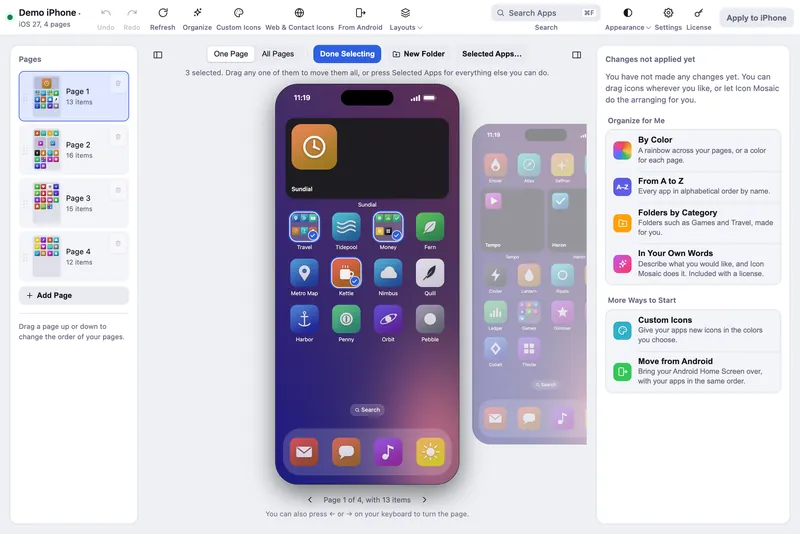
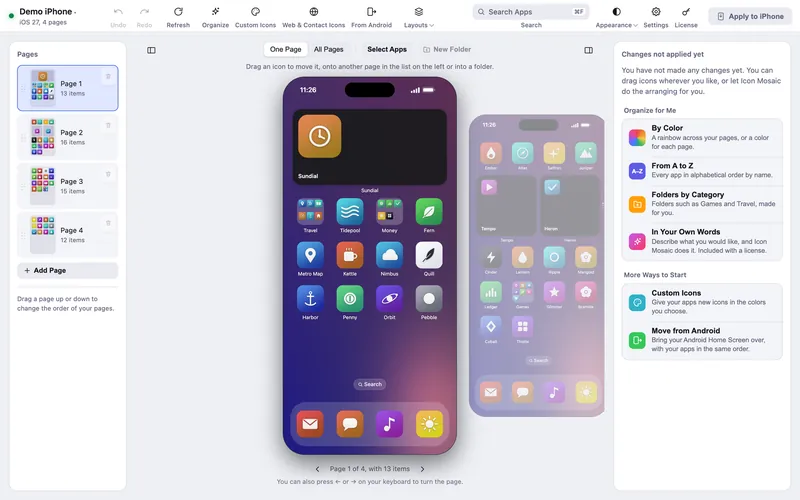
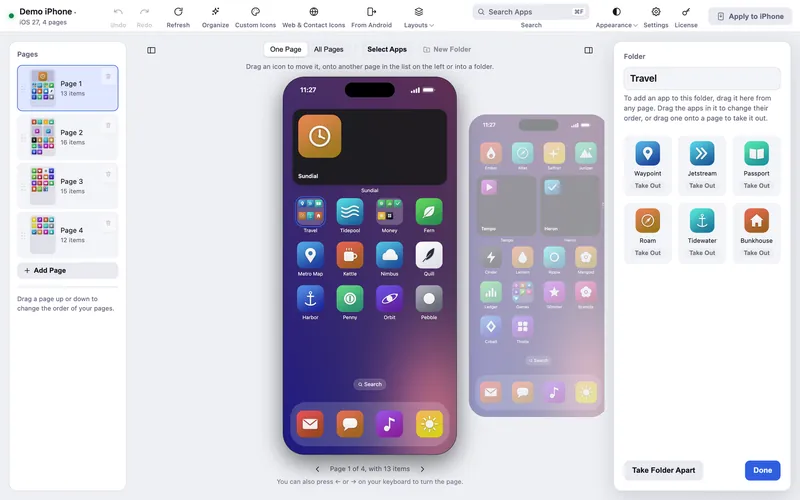
If you have more than a handful of apps to move, Icon Mosaic is much easier. It shows your iPhone’s Home Screen on your Mac, with the pages before and after standing beside the phone, and you move apps with a mouse.


- No waiting for pages to turn. Drop an app on any page you can see, or on a page in the list on the left.
- Move a group at once. Press Select Apps, click every app you want, even on different pages, and drag them together.
- Move without dragging. Right-click an app and choose Move to, then the dock or a page.
- Move whole pages. Drag a page up or down in the list of pages.
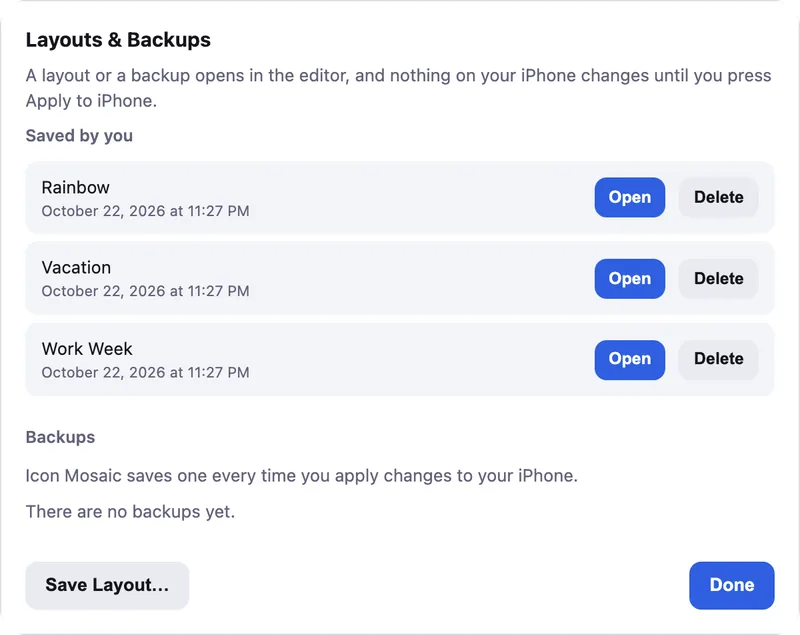
- Undo anything. Undo goes back as many as 60 steps, and nothing changes on your iPhone until you press Apply to iPhone.

Common questions
How do you move apps on your iPhone?
Touch and hold an empty part of the Home Screen until the apps jiggle, then drag an app where you want it and tap Done. To move it to another page, drag it to the edge of the screen and hold it there until the page turns.
What is the easiest way to move apps around on iPhone?
For a few apps, jiggle mode on the phone is fine. For many apps, or apps on different pages, Icon Mosaic on a Mac is far easier: every page is on screen, you drag with a mouse, and you can select a whole group of apps and move them together.
Why won't my app move to the next page?
Hold the app right at the left or right edge of the screen and keep holding. The page turns after a moment. If it still does not turn, make sure there is a next page; drag the app to the right edge of your last page to make a new one.
How do I move all my apps to the left or to the top?
The iPhone fills a page from the top left as you move apps around, so dragging the apps into the empty spots closes the gaps. In Icon Mosaic, sorting a page from A to Z or by color also packs its apps neatly from the top left.
Can I move several apps at once?
Yes. Start dragging one app, and while you keep holding it, tap other apps with another finger to stack them up. Our guide to moving multiple apps explains the trick.
Do it all on your Mac, in minutes.
Icon Mosaic shows every page of your iPhone’s Home Screen side by side on your Mac, so you can drag apps anywhere, sort them by color or from A to Z, make folders, and send the result to your phone in one step.
Free to download and try. A one-time $19 license puts your new layout on your iPhone. A version for Windows is coming to the Microsoft Store soon.
Keep reading