How to reset your iPhone Home Screen layout
Sometimes a Home Screen gets so muddled that starting over feels easier. The iPhone can put everything back the way Apple set it up. Here is what that does, what it takes away, and how to keep a copy of your layout so a reset is never a one-way trip.
Updated
Before you reset: save your layout
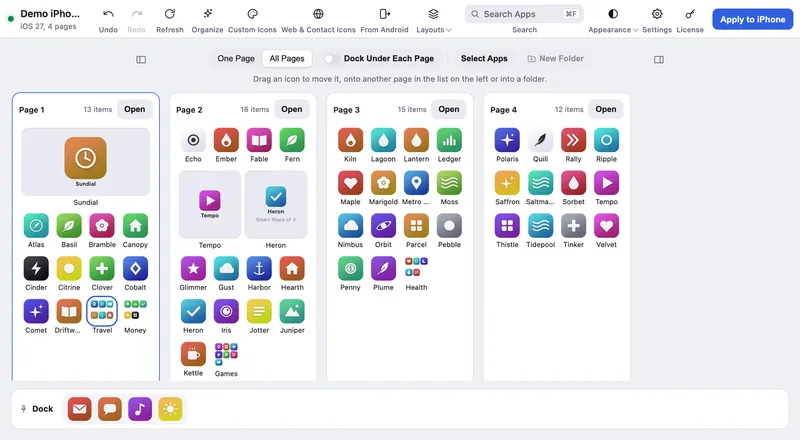
The iPhone has no way to undo a reset. If there is any chance you will miss your current Home Screen, save a copy of it first. In Icon Mosaic, connect your iPhone, open Layouts in the toolbar and choose Save Layout, or press ⌘ S, and give it a name. Saving does not change anything on your phone, and saving is free.

How to reset your Home Screen layout
- Open Settings and tap General.
- Tap Transfer or Reset iPhone. It is at the very bottom of General.
- Tap Reset, then Reset Home Screen Layout. Your iPhone asks you to confirm. Be careful not to tap any of the other reset choices, which reset far more than your Home Screen.
What changes, and what does not
| After a reset | What happens |
|---|---|
| Apple’s own apps | Back in their original places on the first pages and in the dock. |
| Apps you installed | In alphabetical order after Apple’s apps. |
| Your folders | Removed. Their apps are spread out with the rest. |
| Widgets | Reset, so you will need to add yours again. |
| Your apps and data | Untouched. Nothing is deleted. |
How to get your old layout back
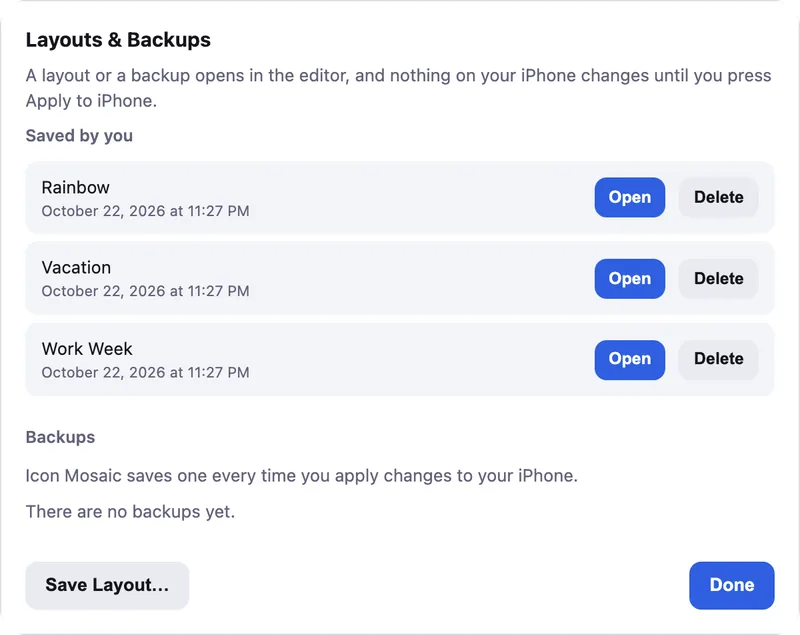
If you saved your layout in Icon Mosaic, or if you have applied changes with it before, your old Home Screen is waiting in Layouts & Backups. Every time you apply changes, Icon Mosaic saves a backup of the layout your iPhone had a moment before.
- Connect your iPhone and open Icon Mosaic.
- Open Layouts & Backups. Choose it from Layouts in the toolbar, or press ⌘ O.
- Open the layout you want. It opens in the editor, and nothing changes on your iPhone yet.
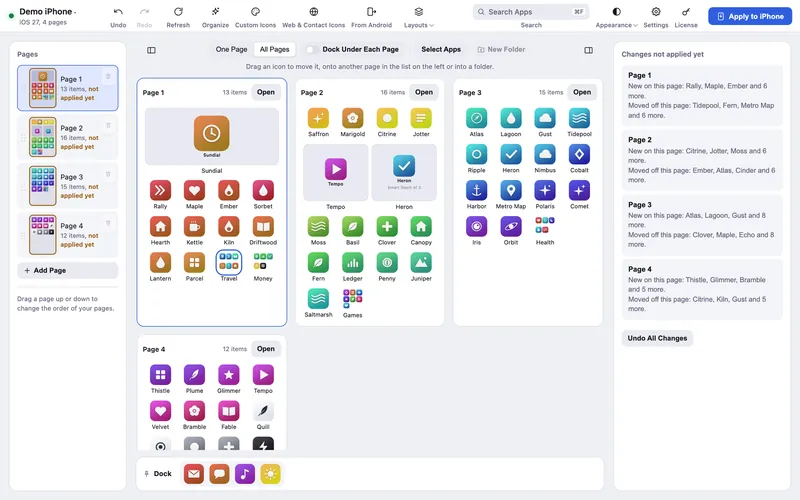
- Press Apply to iPhone. Your icons, folders and pages go back where they were. Putting a layout on your iPhone needs a license.
A gentler way to start fresh
If you were reaching for the reset because your Home Screen is a mess, you may not need it. Icon Mosaic can tidy everything in a few seconds while keeping the folders and widgets you like: sort from A to Z, sort by color, or make folders by category, and see the result on your Mac before you decide.

Common questions
What does Reset Home Screen Layout do?
It puts Apple's built-in apps back where they were when your iPhone was new, puts the other apps you installed in alphabetical order after them, removes the folders you made, and resets your widgets. It does not delete any apps or data.
What is the default Apple Home Screen layout?
It is the arrangement your iPhone had when it was new: Apple's own apps on the first pages and in the dock, in Apple's order. After a reset, every app you installed yourself follows, in alphabetical order.
Can I undo Reset Home Screen Layout?
Not on the iPhone itself. If you saved your layout in Icon Mosaic first, or applied a change with it before, you can open that layout or backup in Icon Mosaic and apply it to put your old Home Screen back.
Does resetting the Home Screen delete my apps or photos?
No. It only moves icons. Your apps, photos, messages and settings are untouched.
Do it all on your Mac, in minutes.
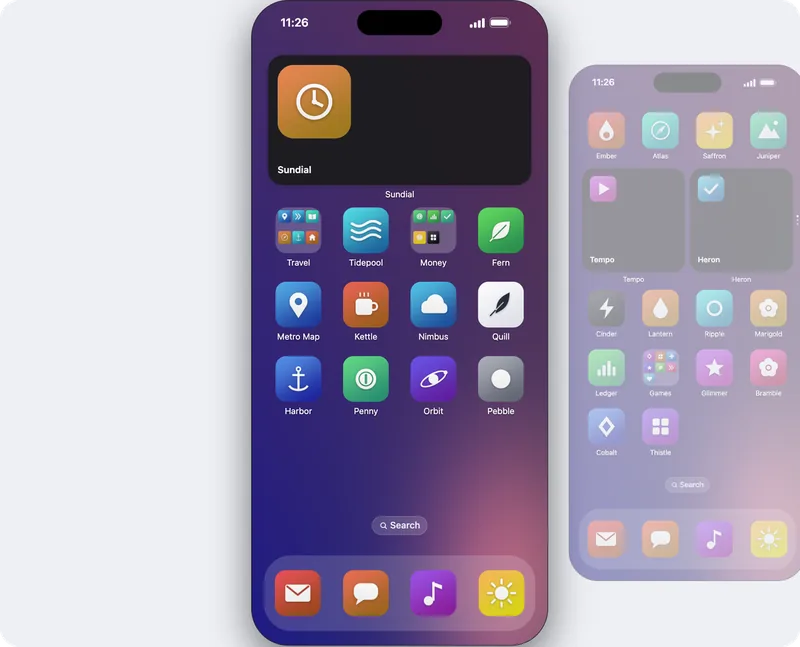
Icon Mosaic shows every page of your iPhone’s Home Screen side by side on your Mac, so you can drag apps anywhere, sort them by color or from A to Z, make folders, and send the result to your phone in one step.
Free to download and try. A one-time $19 license puts your new layout on your iPhone. A version for Windows is coming to the Microsoft Store soon.
Keep reading