How to make folders on your iPhone
Folders keep a lot of apps on very few pages. Making one on the iPhone takes a single drag, but filling a dozen of them by hand takes an afternoon. Here is how to do both, and how to let Icon Mosaic fill your folders for you.
Updated

How to make a folder on your iPhone
- Start jiggle mode. Touch and hold an empty part of the Home Screen until the apps jiggle.
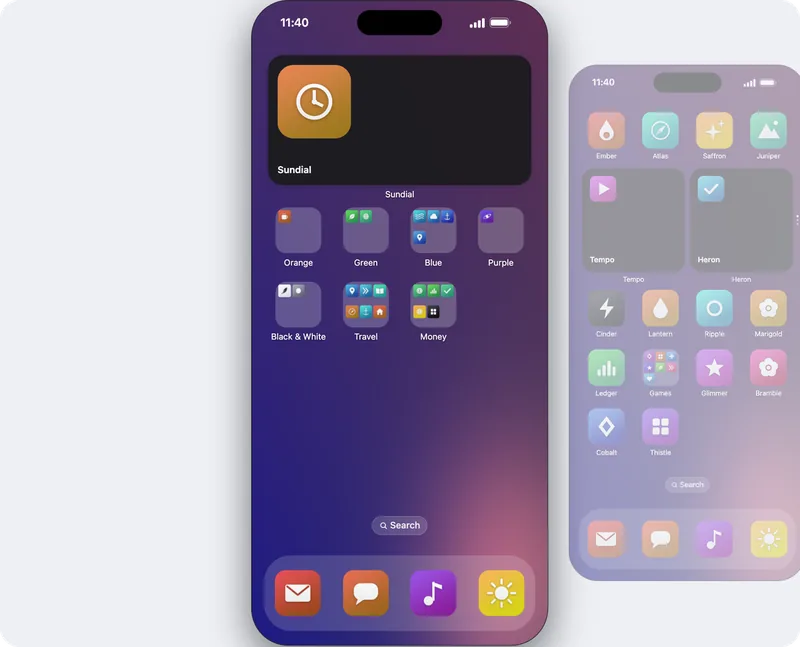
- Drag one app onto another. Hold it there for a moment, until a folder opens with both apps inside.
- Name it. The iPhone suggests a name. Tap it to type your own, and then tap outside the folder.
- Add more apps. Drag other apps onto the folder. Tap Done when you have finished.
To rename a folder later, touch and hold it and tap Rename. To delete a folder, drag every app out of it, and it disappears with the last one.
How to make folders on your Mac
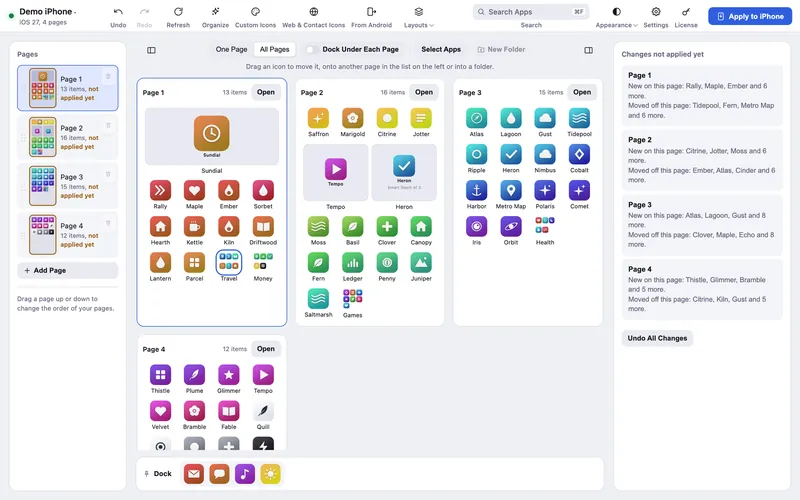
Icon Mosaic makes folders the iPhone way too: hold one app over another for a moment, and they open up into a folder when you let go, even on a full page. You can also press Select Apps, click the apps you want together, and press New Folder.
Click a folder to open it. Type a new name at the top, drag its apps into any order, take one out with Take Out, or press Take Folder Apart to put every app back on the page.
Let Icon Mosaic make the folders for you
Folders by App Store category
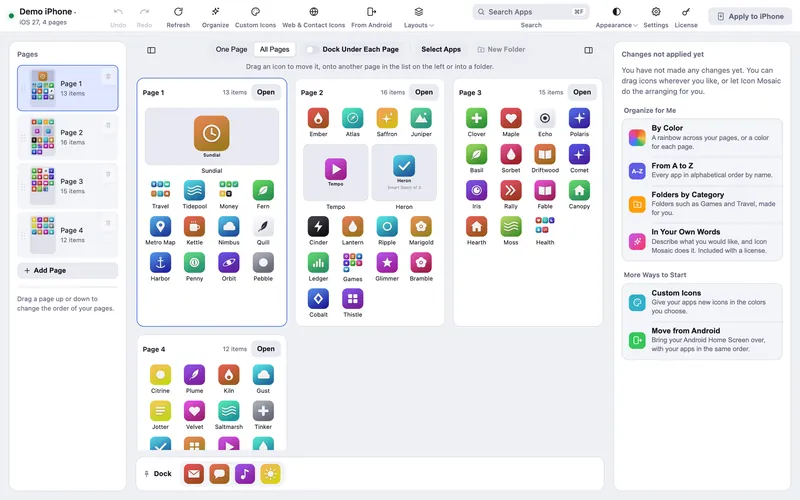
Press Organize and choose Make folders by category. Icon Mosaic looks up each app’s category in the App Store, such as Games, Travel, Health or Finance, and suggests a folder for each. You see every suggested folder and every app in it, and you can rename or skip any of them. This is free.
Folders described in your own words
Choose Describe it in your own words and write what you would like, such as “Work, Money, Travel and Kids folders; leave the rest,” or “Keep my folders, put stray apps into them, and make new folders for the rest.” Icon Mosaic suggests the folders, and you check every one before anything changes. This is included with a license.
- Press Organize, and choose how. By category, or in your own words.
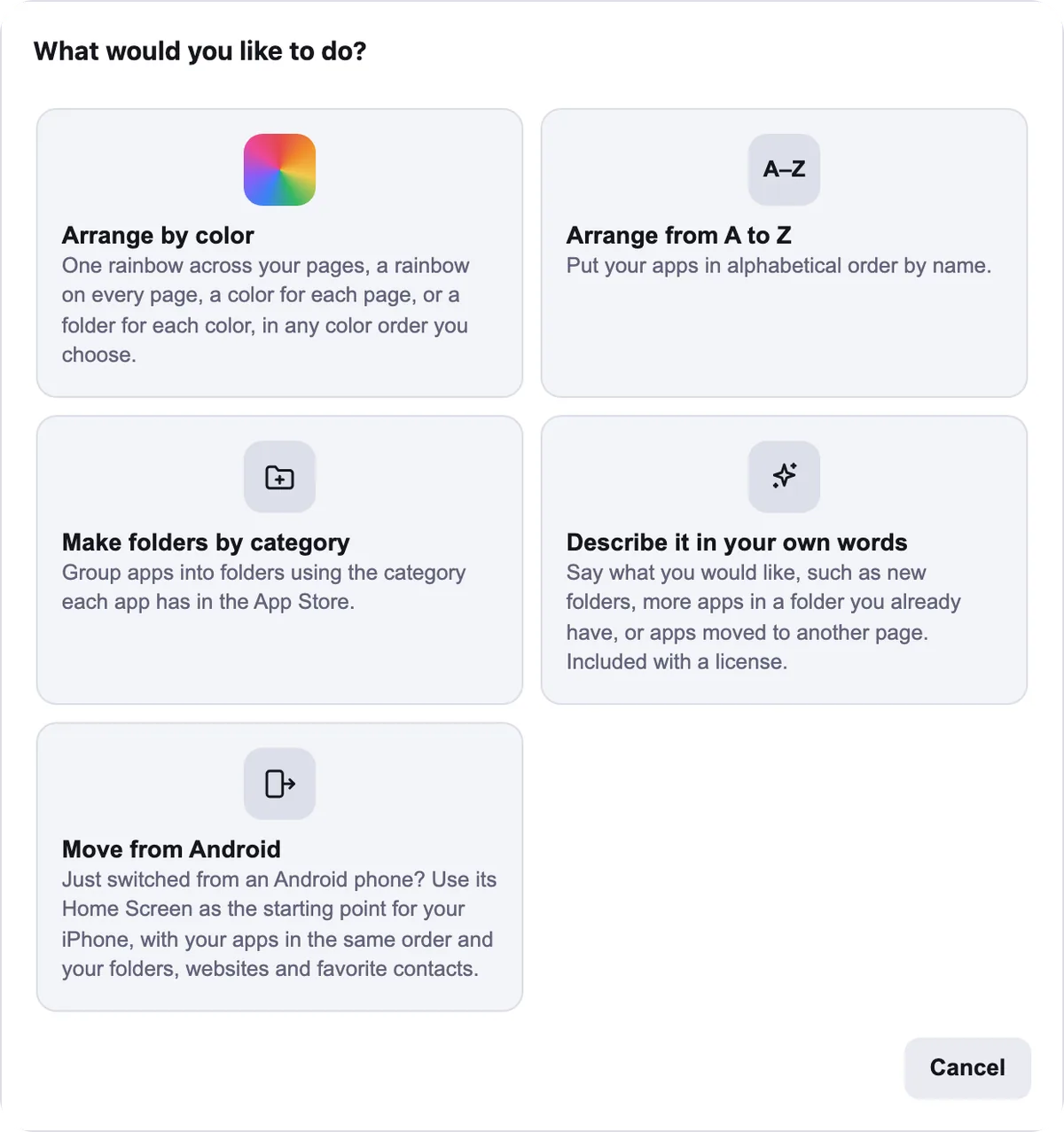
Two ways to make folders for you. - Choose which apps can move. All of your pages, one page, or only the apps you selected,
and whether apps already in folders may move too.
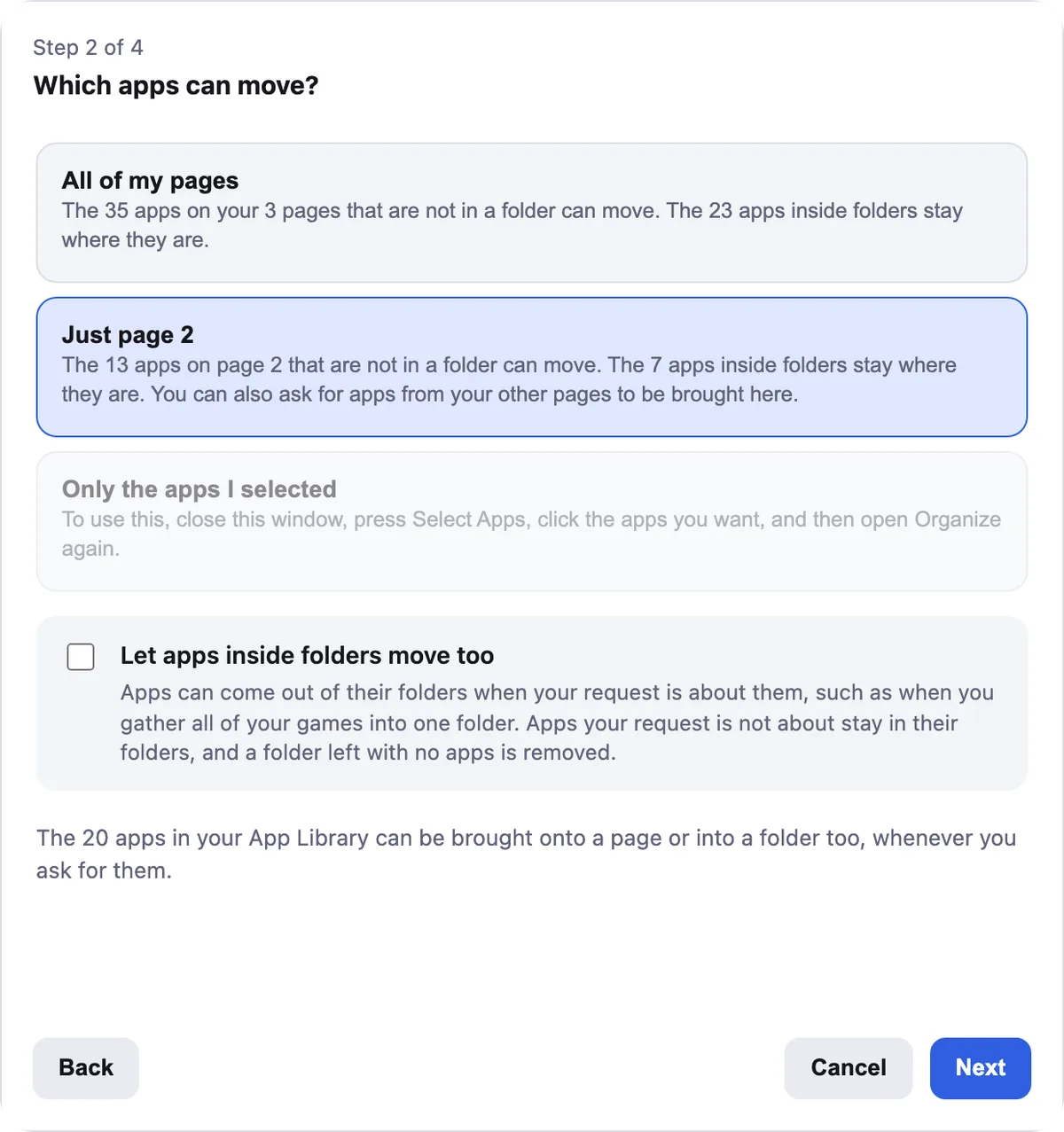
Choose which apps are included. - Describe what you would like, if you chose your own words. Example requests are shown to
get you started.
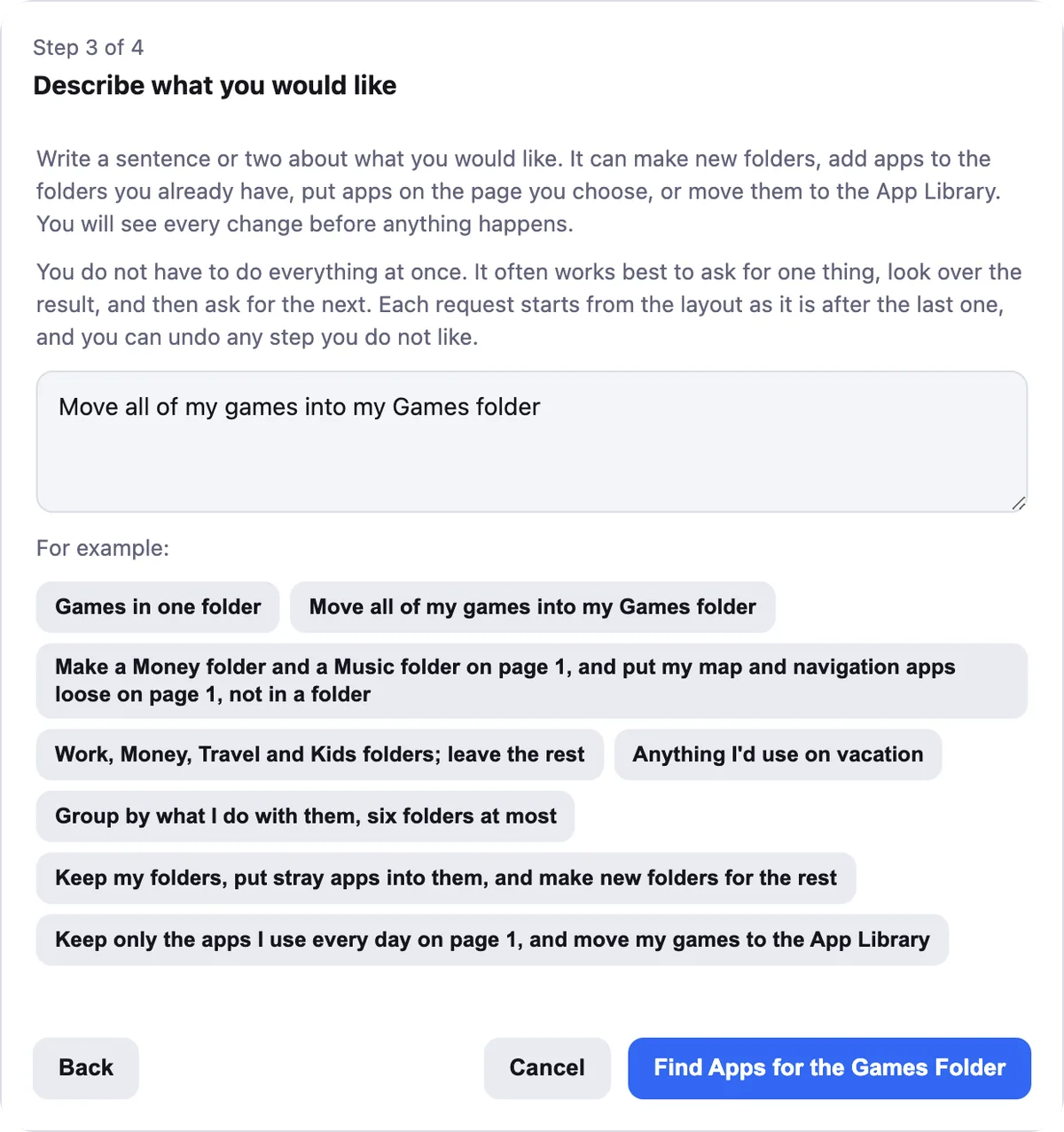
Write a sentence or two, or tap an example. - Check the folders. Uncheck anything you do not want, click a new folder’s name to change it,
and press the button to make the changes.
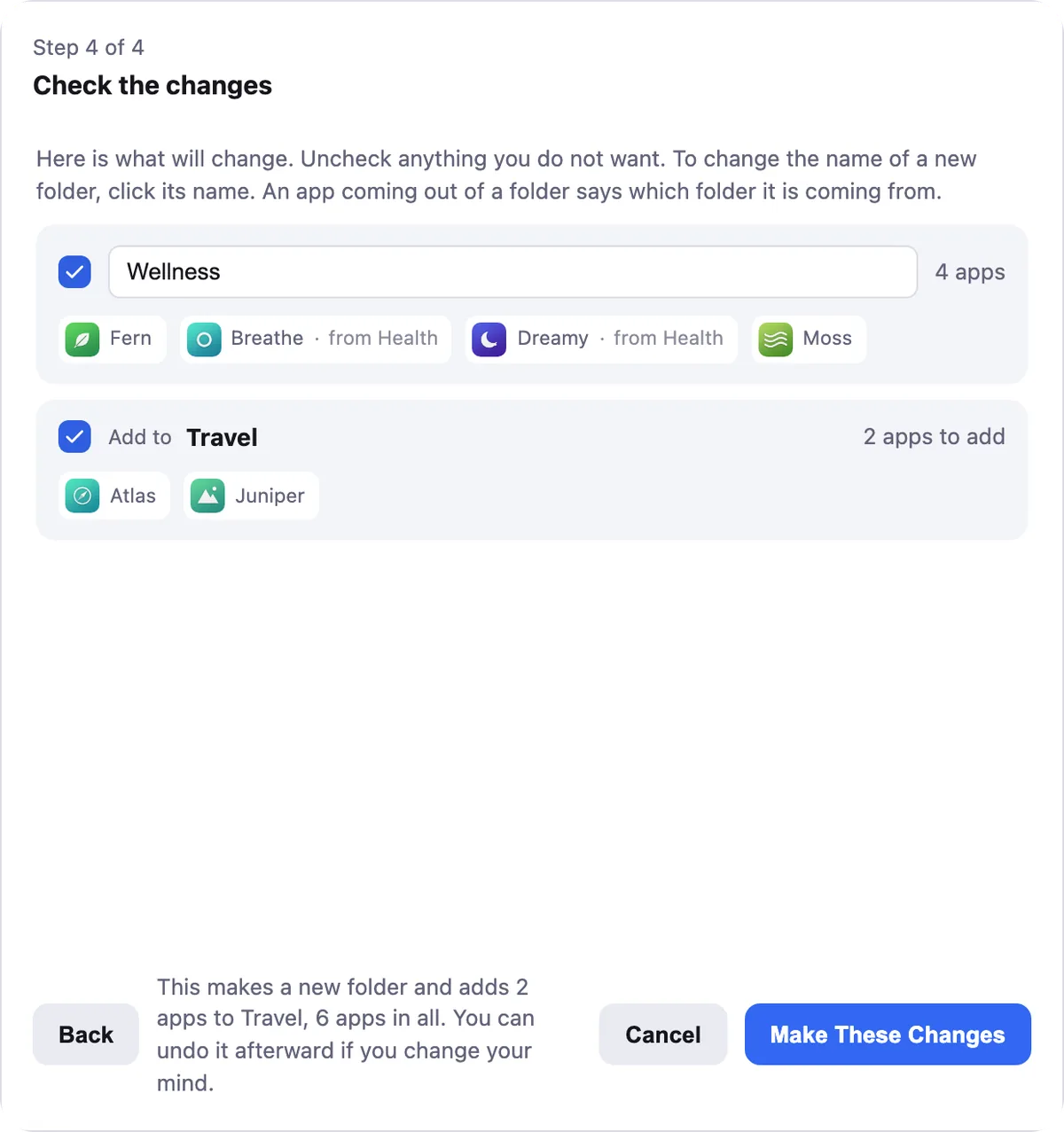
Every folder and every app, checked before anything changes. - Press Apply to iPhone. Look the result over first, and drag anything you like. A backup of your layout is saved before your iPhone changes.

Keep favorites out of foldersRight-click an app like Phone, Messages or Calendar and choose Always Keep Out of Folders. Icon Mosaic will never tuck it away when it makes folders for you.
Want your folders to stand out from each other? See how to color-code iPhone folders, or make a folder for each color.
Common questions
How do I make a folder on my iPhone?
Touch and hold an empty part of the Home Screen until the apps jiggle, then drag one app onto another and hold it there for a moment. A folder opens with both apps inside. Type a name, and tap outside the folder.
How do I rename a folder on iPhone?
Touch and hold the folder, and tap Rename. Or open it in jiggle mode and tap its name.
How do I delete a folder on iPhone?
Drag every app out of it. When the last app leaves, the folder disappears. In Icon Mosaic, open the folder and press Take Folder Apart.
Can my iPhone sort apps into folders automatically?
Not on its own. Icon Mosaic can: it groups your apps into folders using each app's App Store category, or makes the folders you describe in your own words, and shows you every folder before anything changes.
Can I keep some apps out of folders?
Yes. In Icon Mosaic, right-click an app such as Phone or Messages and choose Always Keep Out of Folders, and it is never put in a folder when Icon Mosaic makes folders for you.
Do it all on your Mac, in minutes.
Icon Mosaic shows every page of your iPhone’s Home Screen side by side on your Mac, so you can drag apps anywhere, sort them by color or from A to Z, make folders, and send the result to your phone in one step.
Free to download and try. A one-time $19 license puts your new layout on your iPhone. A version for Windows is coming to the Microsoft Store soon.
Keep reading