How to change the color of folders on iPhone
You cannot pick a color for a single Home Screen folder on an iPhone. Every folder is drawn the same way, from your wallpaper. You can still make folders easy to tell apart, though, and here is how.
Updated
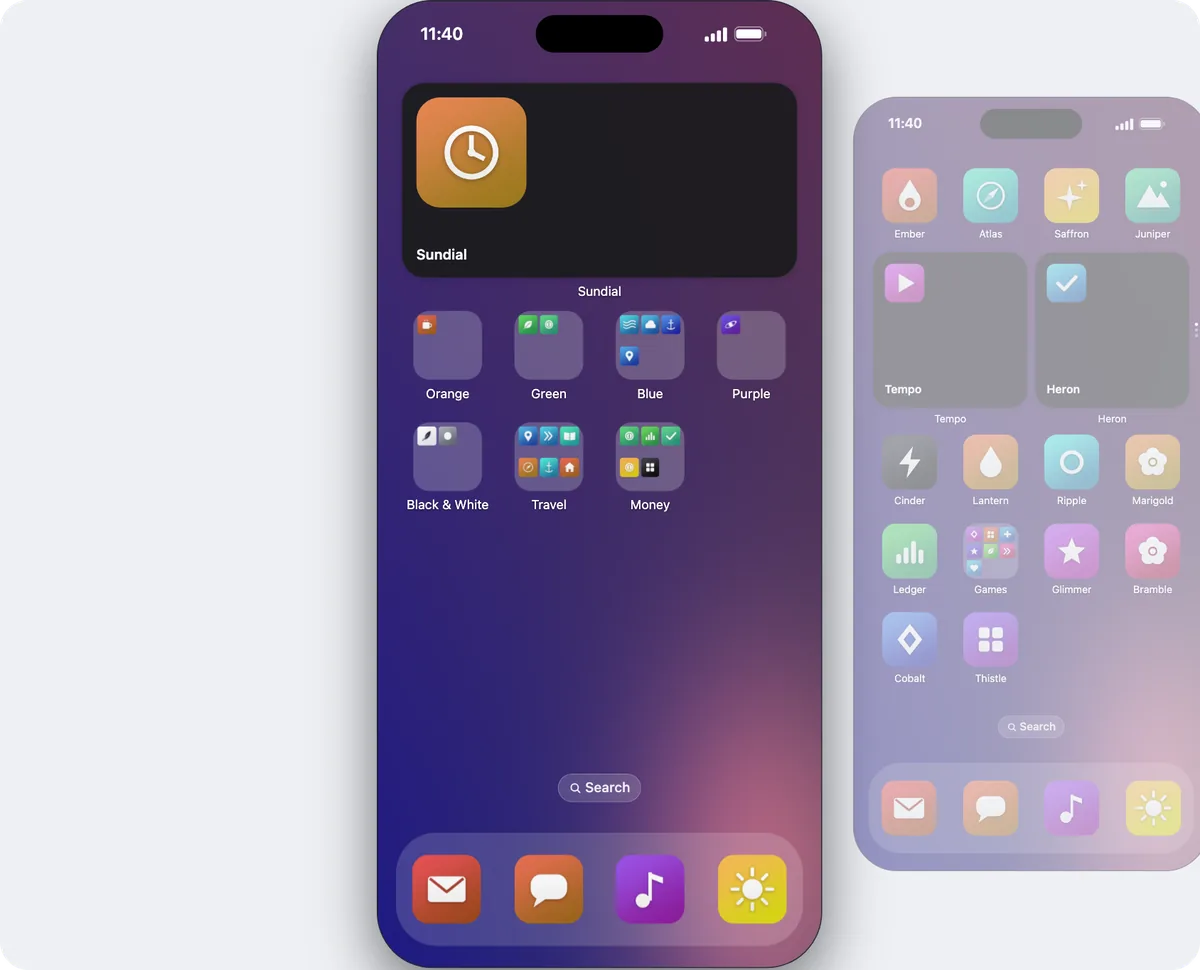
What decides the color of a folder
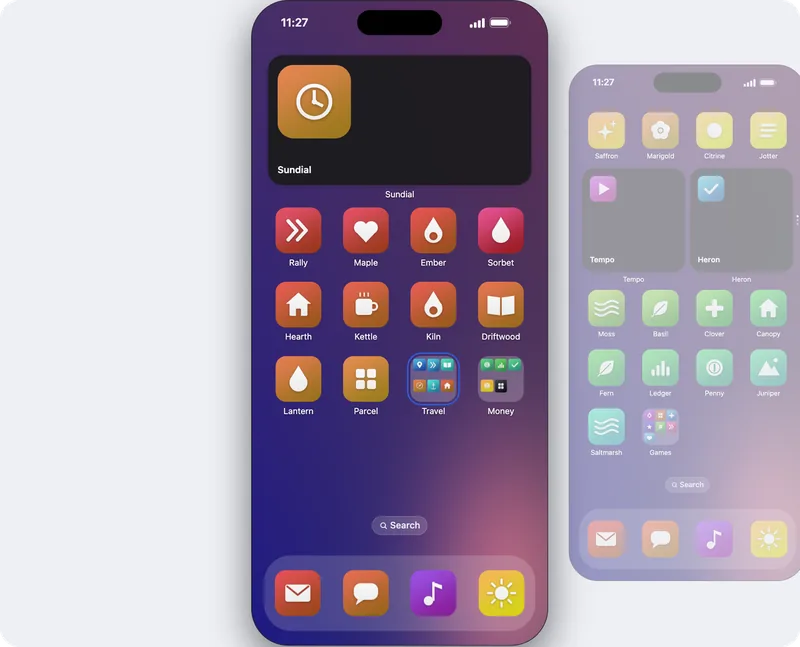
On iOS 26 and later, Home Screen folders are drawn in frosted glass. The glass picks up the colors of the wallpaper behind it, and inside the folder you see small previews of the first apps it holds. There is no setting for one folder’s color, and Apple’s own Home Screen options change every folder at once.
Change the look of every folder at once
- Start jiggle mode. Touch and hold an empty part of the Home Screen until the apps jiggle.
- Tap Edit, then Customize. Edit is in the corner of the screen.
- Choose a look. Default, Dark, Clear or Tinted. Dark and Clear change how the glass of your folders looks, and Tinted gives your icons one color that you choose.
If folders are hard to read against a busy wallpaper, open Settings, then Accessibility, then Display & Text Size, and turn on Reduce Transparency.
Four ways to color-code your folders
1. Fill each folder with apps of one color
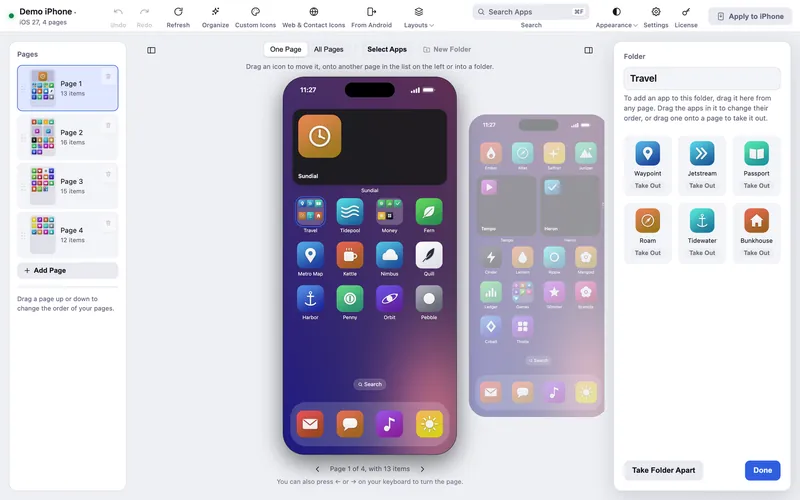
A folder’s icon shows tiny previews of the apps inside it, and those previews give the folder most of its color. Fill a folder with green apps and it reads as green. Icon Mosaic can do this for you: choose Arrange by color, then A folder for each color, and your apps go into folders named Red, Orange, Green, Blue and so on.

2. Put a color emoji in each folder’s name
Name your folders with a colored circle or square at the start, such as 🔴 Social, 🟢 Money and 🔵 Travel, and every folder gets a color you can spot at a glance. On your iPhone, touch and hold a folder, choose Rename, and pick an emoji from the emoji keyboard. In Icon Mosaic, open a folder and type the new name at the top; on a Mac, press the Globe key or Fn and E for emoji.

3. Give the apps inside one color with custom icons
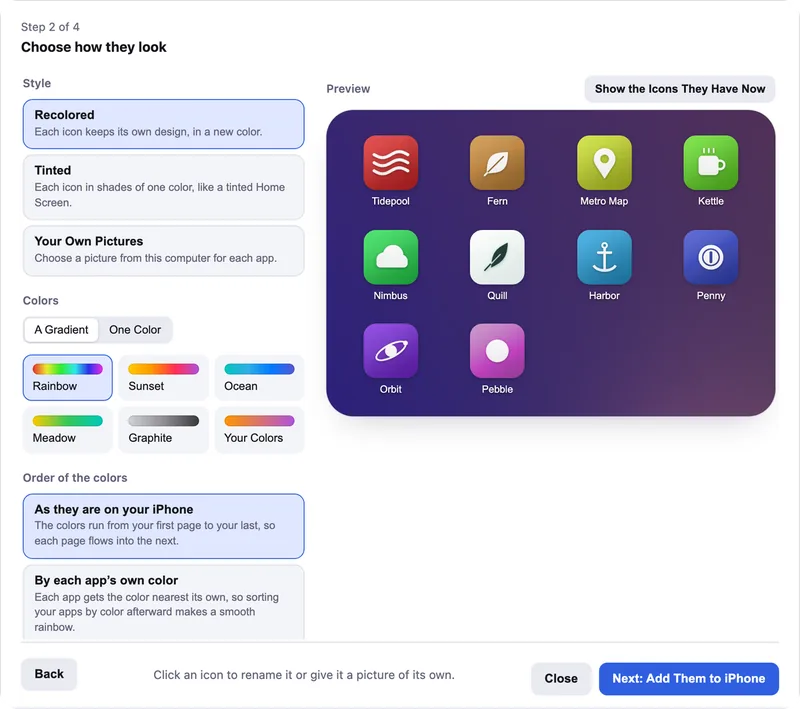
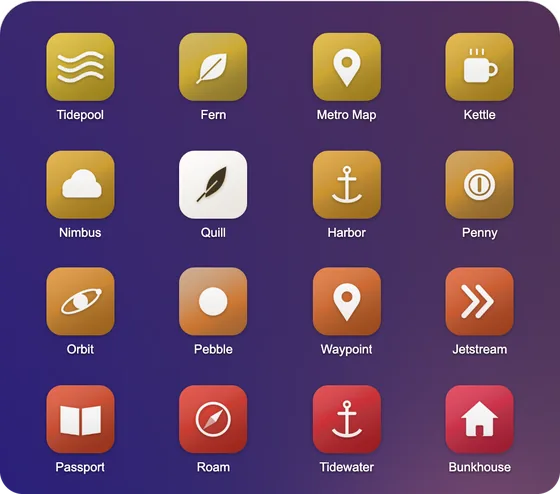
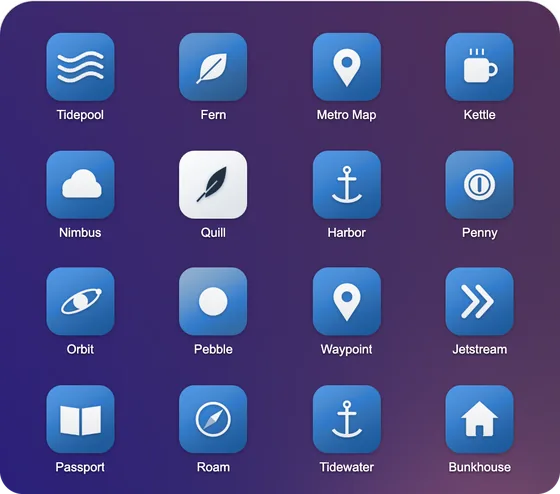
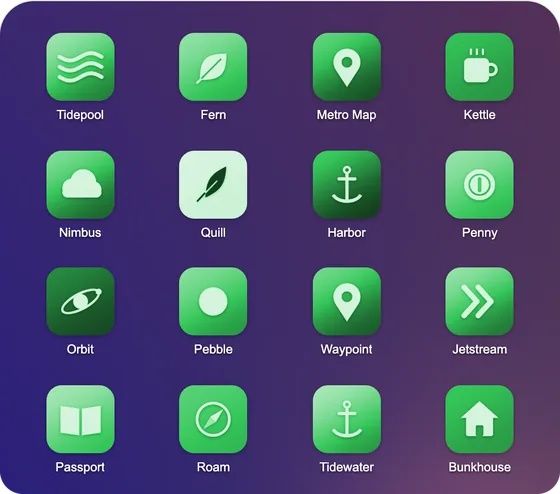
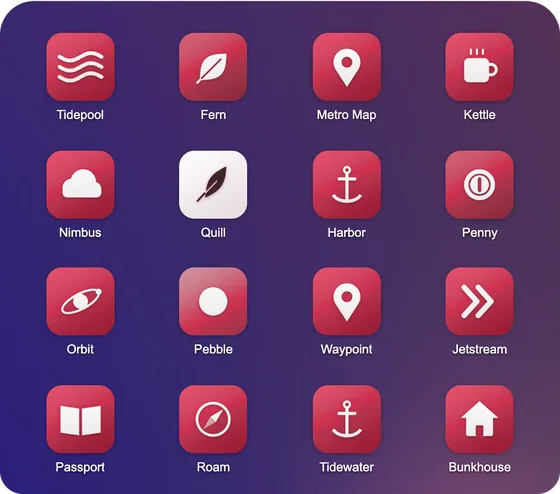
For folders that are completely one color, give their apps new icons. Icon Mosaic’s Custom Icons recolors or tints any apps you choose, so a Money folder can be all green and a Travel folder all blue.
4. Use a wallpaper with bands of color
Because folder glass picks up the wallpaper behind it, a wallpaper with soft horizontal bands of color can make folders on different rows take on different colors. Results depend on your wallpaper and icon look, so try it before you plan a whole Home Screen around it.
Which one should you use?
Filling folders by color looks the most natural, and Icon Mosaic does it in one step. Color emoji names work with any wallpaper and stay put when you add apps. Custom icons give the boldest result. They all work well together.
Common questions
Can you change the color of a folder on iPhone?
Not directly. Every Home Screen folder is drawn in frosted glass that takes its color from your wallpaper, and iOS has no setting for one folder. You can change all folders at once with the Home Screen Customize options, or color-code folders with emoji names, by filling them with apps of one color, or with custom icons.
Why did my iPhone folders change color?
Folders take their color from your wallpaper and from the look you choose in the Home Screen Customize options, such as Dark, Clear or Tinted. Changing either one changes every folder.
How do I make my iPhone folders less see-through?
Turn on Reduce Transparency in Settings, under Accessibility and then Display & Text Size. Folders become more solid and easier to read.
Can I color the folders in the Files app?
Yes. Touch and hold a folder in Files, choose Customize Folder & Tags, and pick a tag color. That only affects folders of files, not app folders on your Home Screen.
Do it all on your Mac, in minutes.
Icon Mosaic shows every page of your iPhone’s Home Screen side by side on your Mac, so you can drag apps anywhere, sort them by color or from A to Z, make folders, and send the result to your phone in one step.
Free to download and try. A one-time $19 license puts your new layout on your iPhone. A version for Windows is coming to the Microsoft Store soon.
Keep reading