New in Icon Mosaic 1.0.5
How to give your iPhone apps custom icons
Custom icons are the quickest way to make a Home Screen feel like yours. Doing it by hand means building one shortcut per app in the Shortcuts app. Icon Mosaic does every app you choose at once, in the colors you pick, and puts each new icon where its app used to be.
Updated

The hard way: one shortcut at a time
On the iPhone itself, a custom icon is a shortcut that opens an app. For each app you want to change, you open the Shortcuts app, make a new shortcut with the Open App action, choose the app, and then add the shortcut to your Home Screen, where you can choose a picture for its icon and type a name. You need a picture ready for every app, and you repeat every step for every icon. For a whole Home Screen, that is an evening’s work.
The easy way, with Icon Mosaic
Icon Mosaic does the same thing for you, for as many apps as you like. It draws the new icons from your apps’ own icons, in the colors you choose, makes the shortcuts, and once they are on your iPhone, puts each one where its app was.
- Choose your apps. Click Custom Icons in the toolbar. Pick apps by page,
by folder, by category or from A to Z, or press Every App. If you selected apps in the
editor first, they are already chosen. You can also right-click a single app and choose Give It a
Custom Icon.
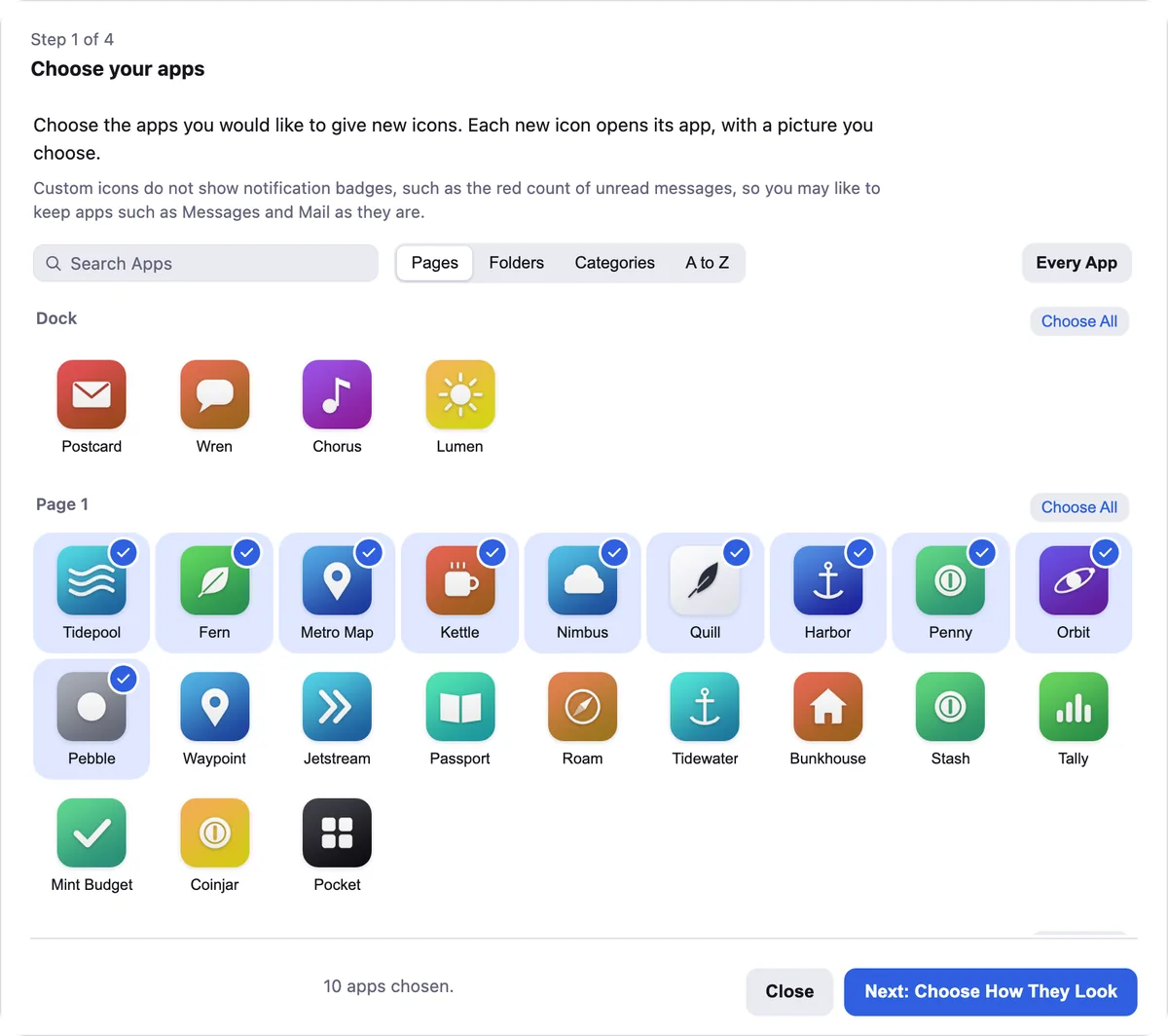
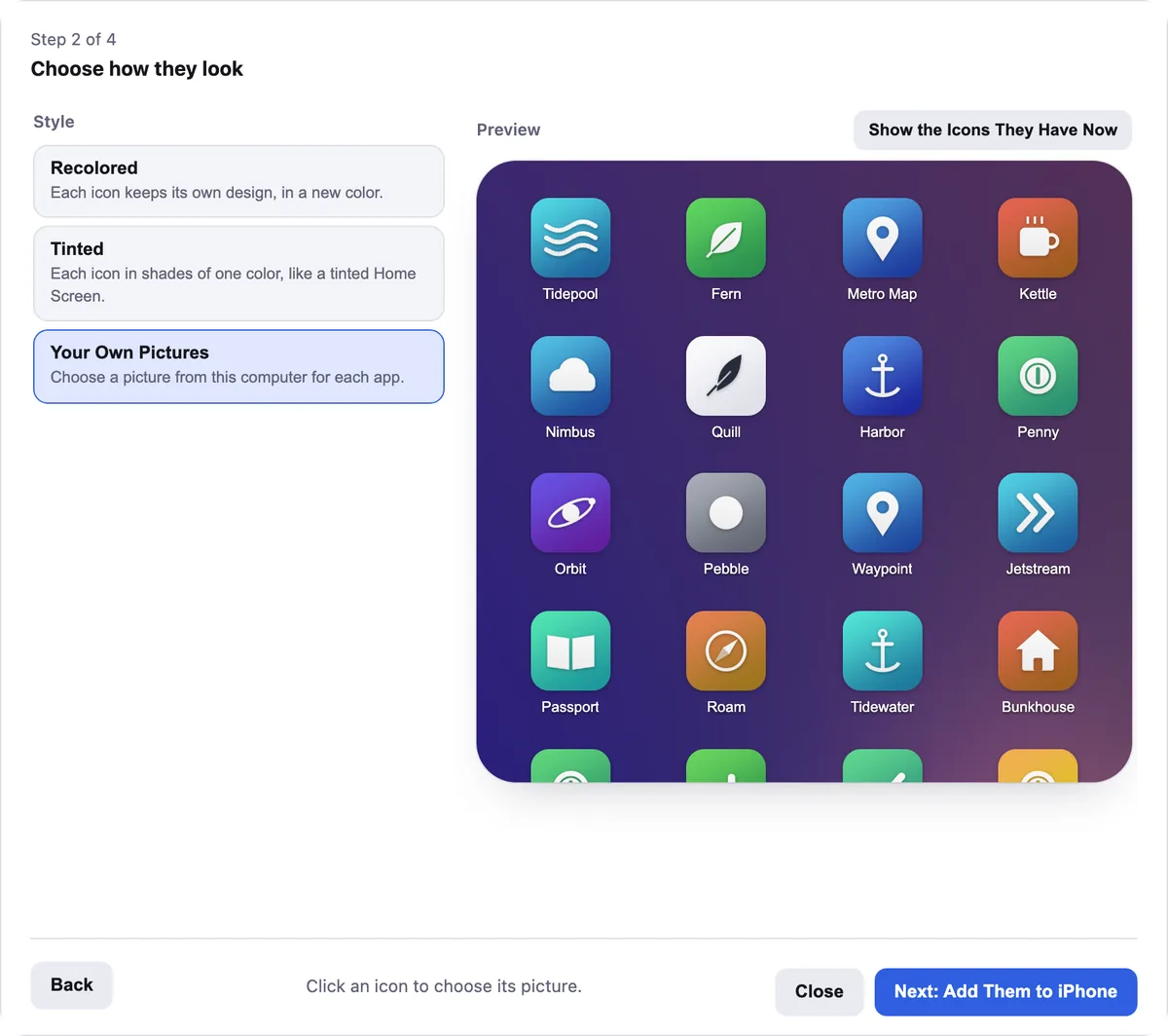
Choose apps from any page, folder or category. - Choose how they look. Pick a style, Recolored, Tinted or Your Own Pictures, and then
colors: a gradient such as Rainbow, Sunset or Ocean, or one color for every icon. The preview shows the
new icons on your own wallpaper. Click any icon to rename it or give it a picture of its own.
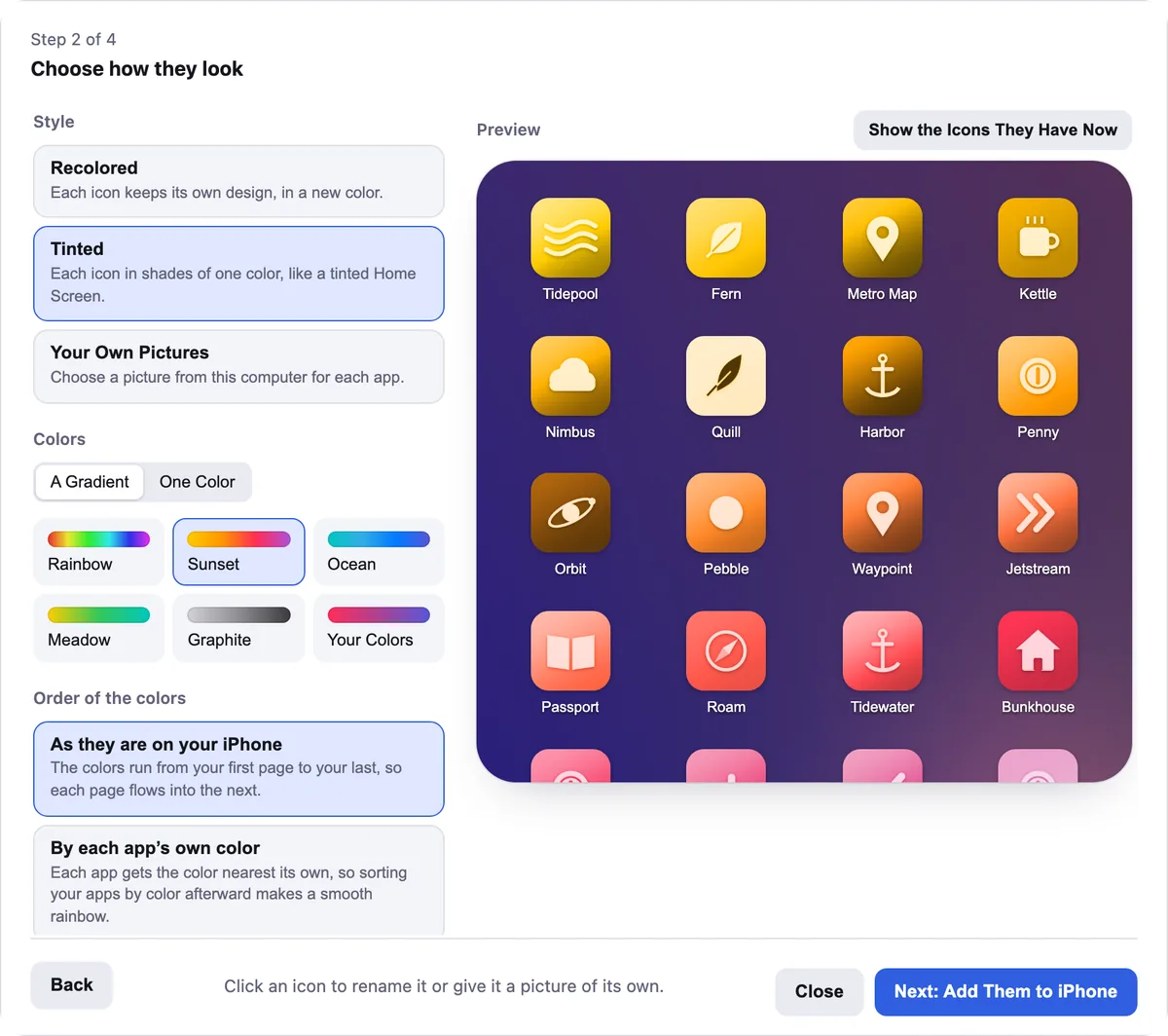
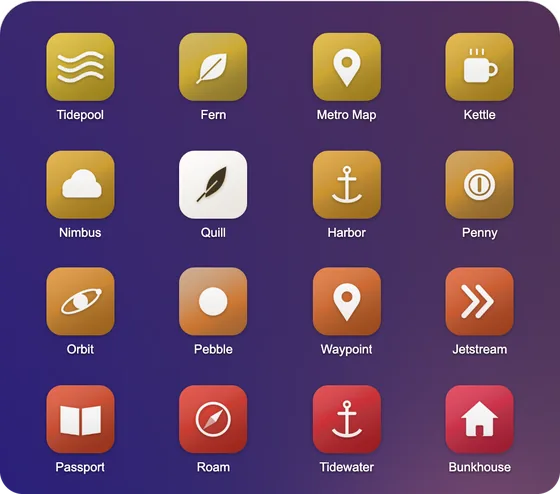
Tinted, in the Sunset gradient. - Add them to your iPhone. Choose how the shortcuts reach your phone. Send them through iCloud is the quickest: Icon Mosaic adds the shortcuts to Shortcuts on your Mac, and iCloud brings them to your iPhone, where you tap one shortcut and all of your icons appear. Or choose Send one setup shortcut, which you open on your iPhone and then tap Add Shortcut once for each icon. Icon Mosaic shows every step on your iPhone as you go.
- Put them in place. Icon Mosaic sees the new icons on your iPhone and offers to put each one where its app was. Turn on Hide the original apps if you would like the new icons to take their places, with the apps waiting in the App Library.
- Apply to iPhone. Look over the changes, and press Apply to iPhone. A backup of your layout is saved first, as always.

Sending through iCloudYour iPhone and Mac need to use the same Apple Account with iCloud turned on for Shortcuts, and macOS asks you to give Icon Mosaic Full Disk Access so it can add its shortcuts. Icon Mosaic only adds shortcuts of its own, never changes yours, and does not open your files, mail, messages or photos. You can turn Full Disk Access off again in System Settings, under Privacy & Security.
Recolored, Tinted, or your own pictures
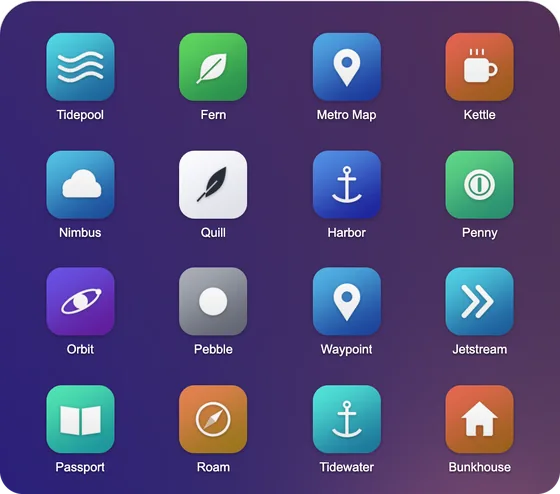
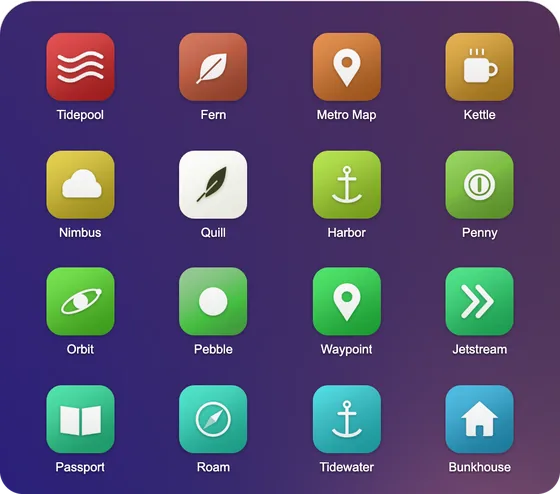
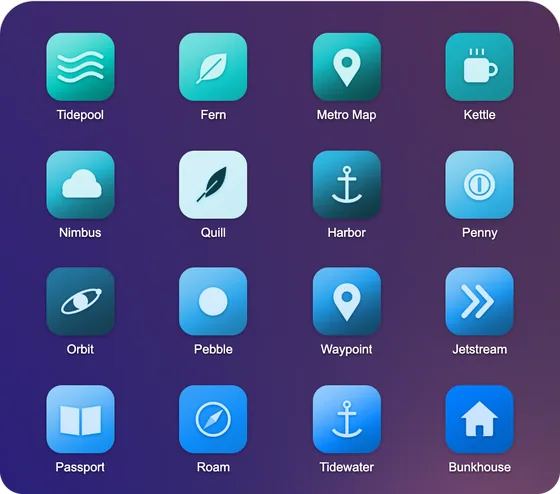
A palette for every taste
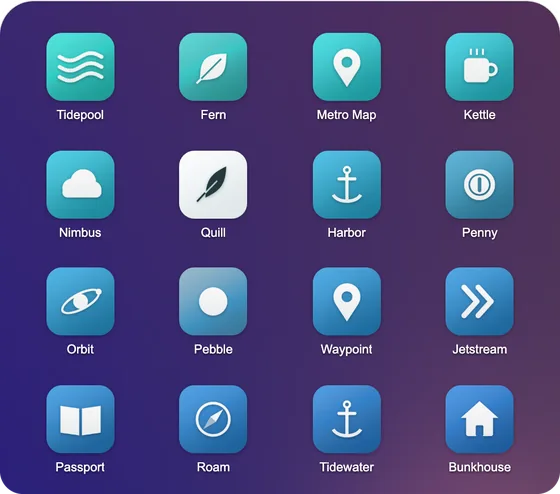
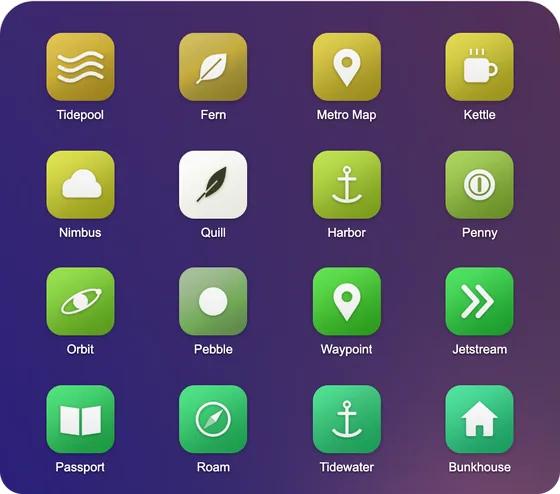
With A Gradient, the colors flow from icon to icon. They can follow the order your apps are in on your iPhone, so each page flows into the next, or each app can get the color nearest its own, so that sorting by color afterward makes a perfectly smooth rainbow.
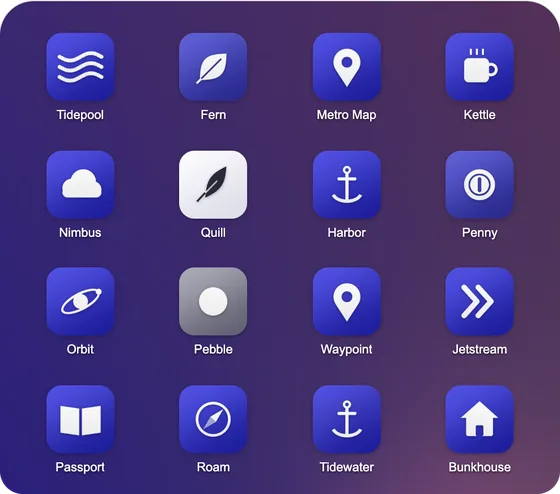
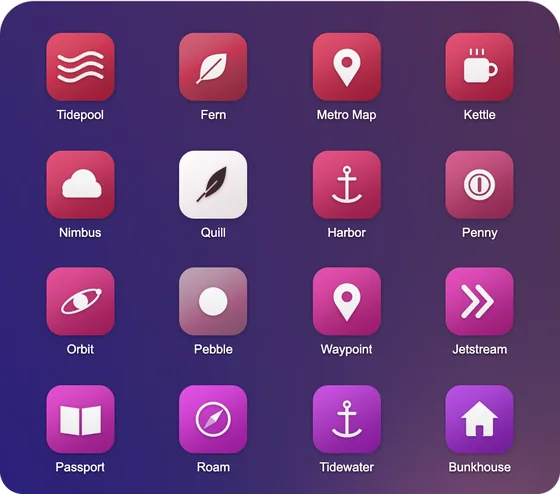
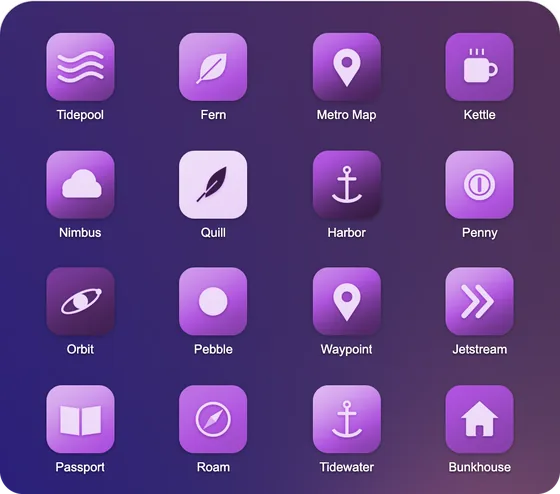
Icons for the people you love, and for websites
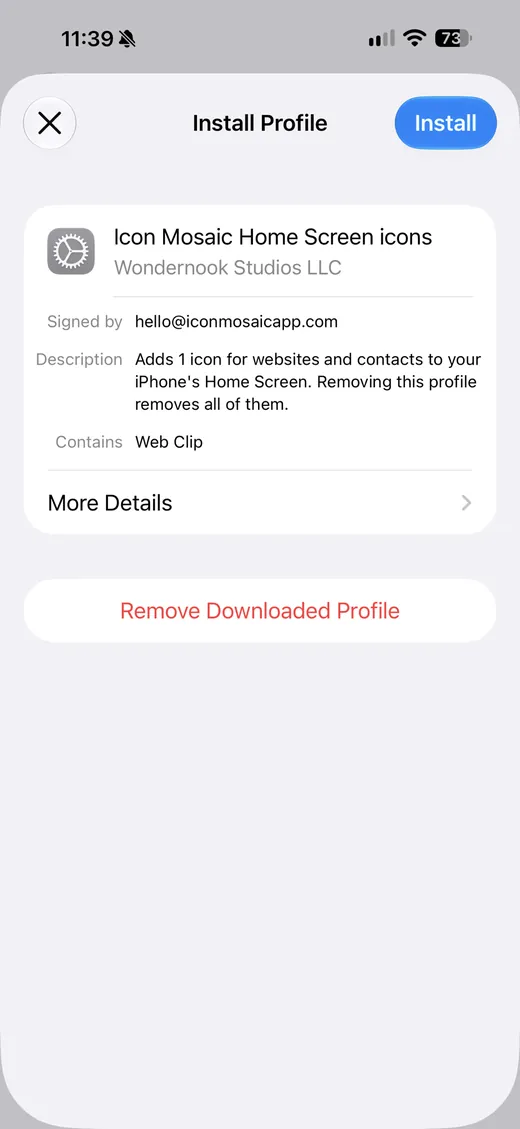
Next to Custom Icons in the toolbar, Web & Contact Icons adds icons that call, text or FaceTime someone, with their picture or initials, and icons that open a website. They reach your iPhone as one set that you approve once in Settings.

Common questions
Can I change app icons on iPhone without Shortcuts?
Apple's own way to give an app a new icon goes through the Shortcuts app, and Icon Mosaic uses that same way, so each icon opens its app straight away. The difference is that Icon Mosaic builds the shortcuts for you, for every app you choose at once, and puts each new icon where the app was.
Which iPhones can use custom icons?
Custom icons need an iPhone with iOS 18 or later. If your iPhone has an older version, Icon Mosaic tells you, and you can update it in Settings, under General and then Software Update.
Do custom icons show notification badges?
No. An icon made through Shortcuts does not show badges, such as the red count of unread messages, so you may like to keep apps such as Messages and Mail as they are.
What happens to the original apps?
They stay on your iPhone. When Icon Mosaic puts your new icons in place, you can choose Hide the original apps, and each new icon takes its app's place while the app waits in the App Library. Without that, each new icon goes next to its app.
Do I need a license for custom icons?
Yes. You can choose your apps and see the new icons in the preview for free, and adding them to your iPhone is included with a license.
Can I make icons that call or text someone?
Yes. Web & Contact Icons adds icons that call, text or FaceTime the people you talk to most, with their picture or initials, and icons that open a website.
Do it all on your Mac, in minutes.
Icon Mosaic shows every page of your iPhone’s Home Screen side by side on your Mac, so you can drag apps anywhere, sort them by color or from A to Z, make folders, and send the result to your phone in one step.
Free to download and try. A one-time $19 license puts your new layout on your iPhone. A version for Windows is coming to the Microsoft Store soon.
Keep reading