Ideas, with pictures
Aesthetic iPhone Home Screen ideas
A beautiful Home Screen is mostly a matter of color and calm. Here are seven looks that work on any iPhone, with a picture of each, and how to set each one up in minutes instead of an evening.
Updated
1. The rainbow
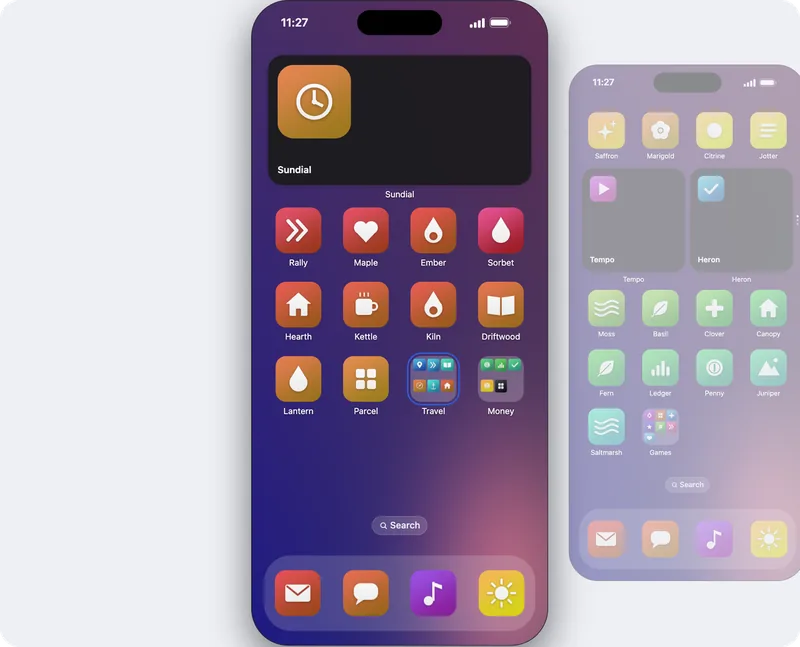
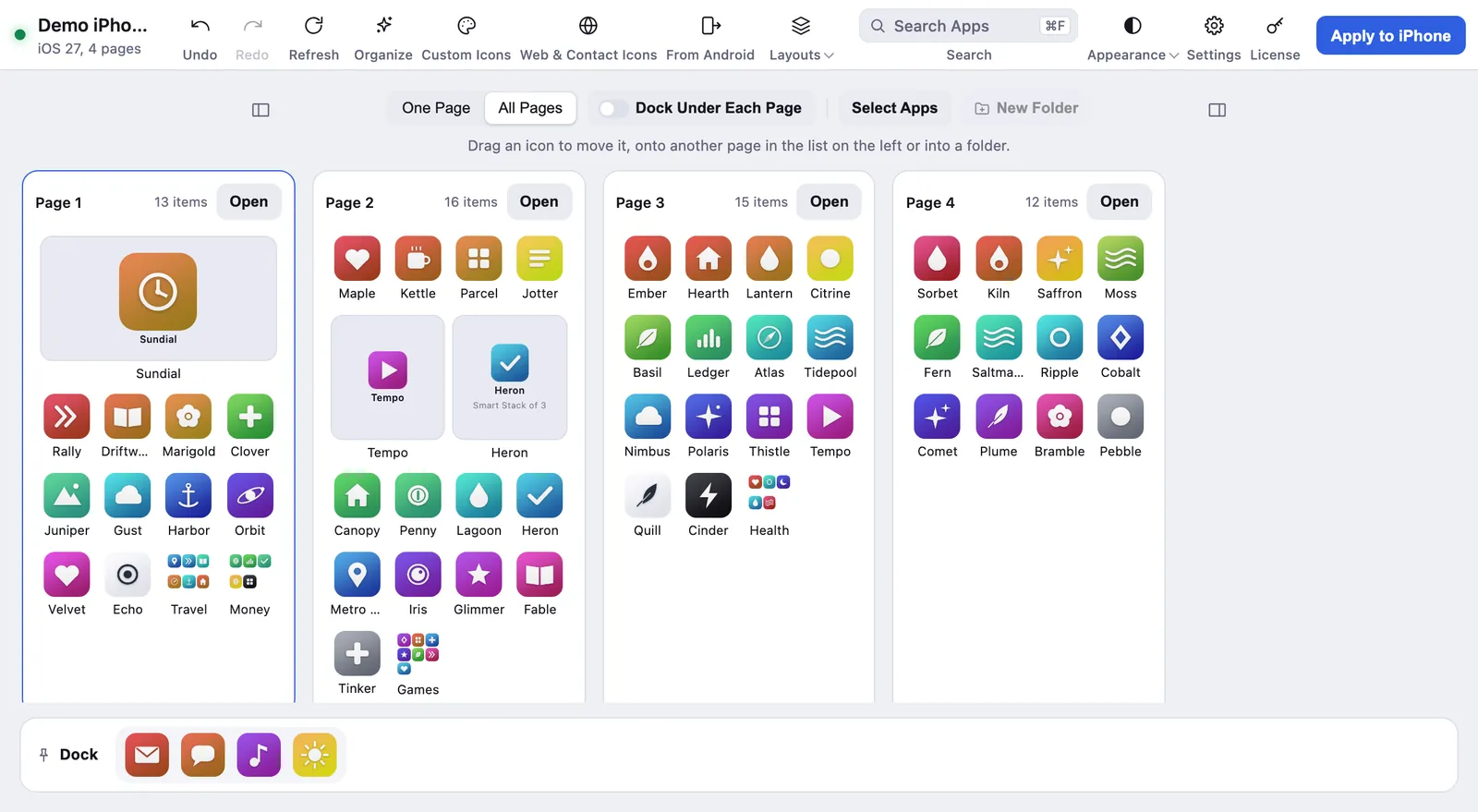
Every app in color order, from red on the first page to purple on the last. It is cheerful, and you will find apps by color without thinking about it. Icon Mosaic sorts every page into a rainbow in seconds, with the colors falling the way you like.

2. A rainbow on every page
Each page runs through every color on its own, so every swipe shows a little rainbow.
3. One color, everywhere
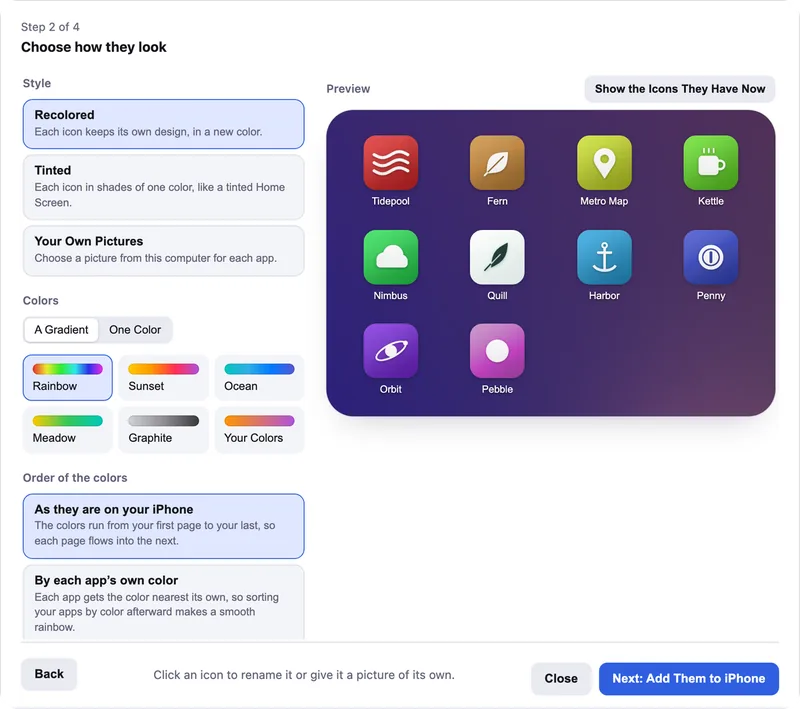
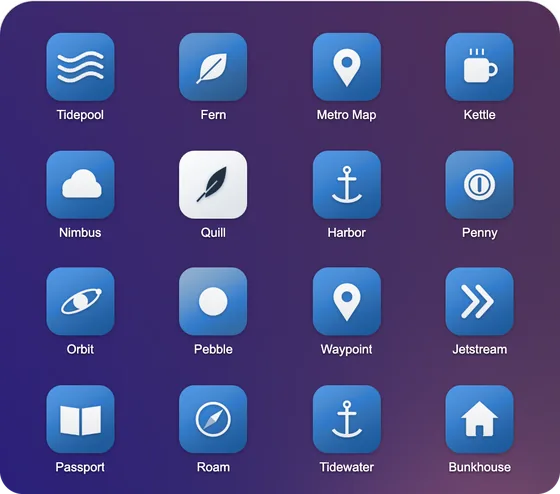
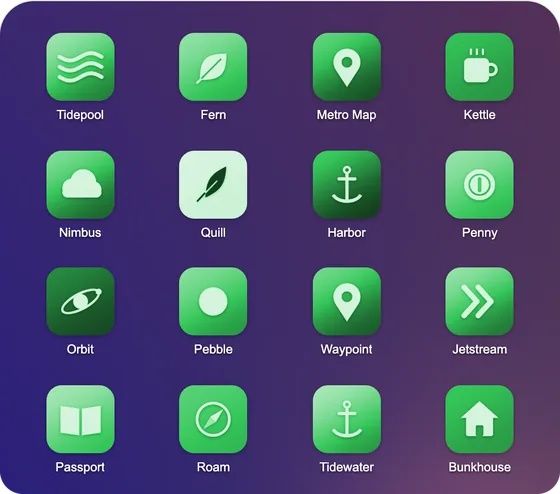
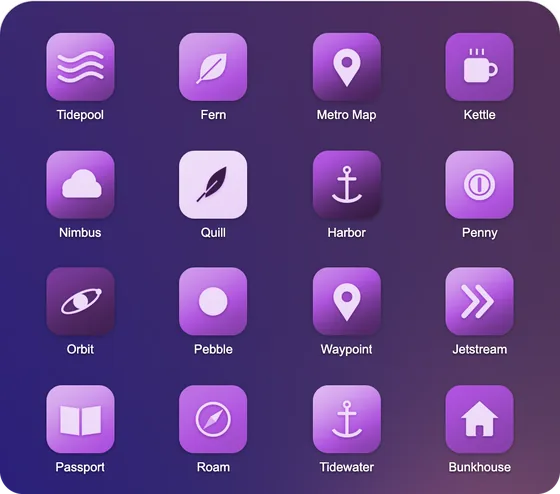
For a calm, matching look, give every icon the same color. Recolored keeps each icon’s design in the new color, and Tinted draws it in soft shades.
4. Sunset and pastel
A warm gradient from yellow through orange to pink feels like a summer evening. Tinted gives a softer, pastel version of the same colors.
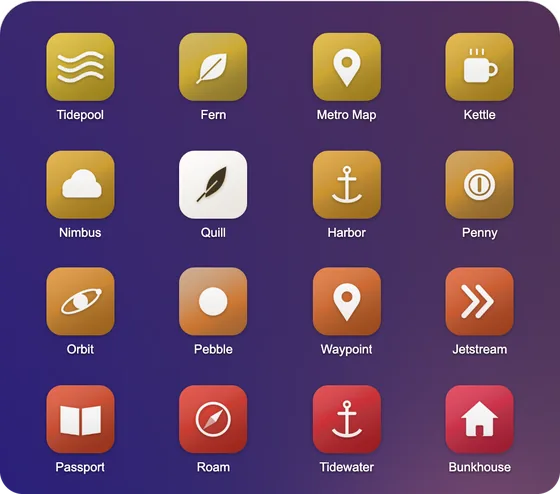
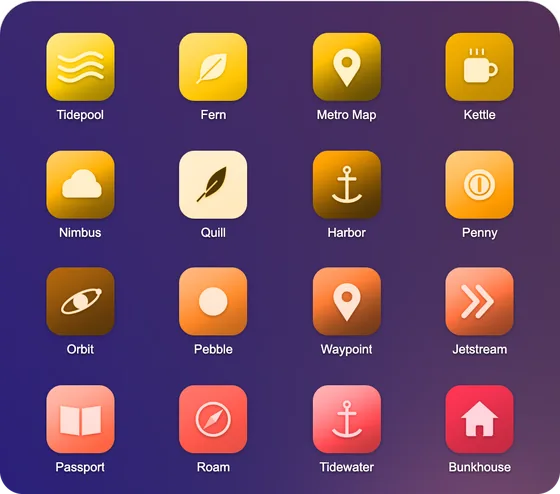
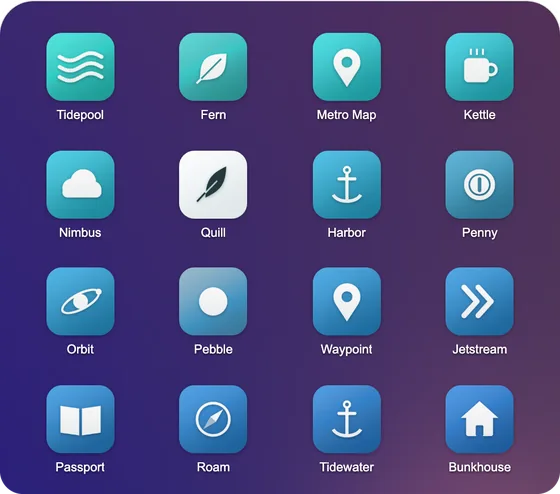
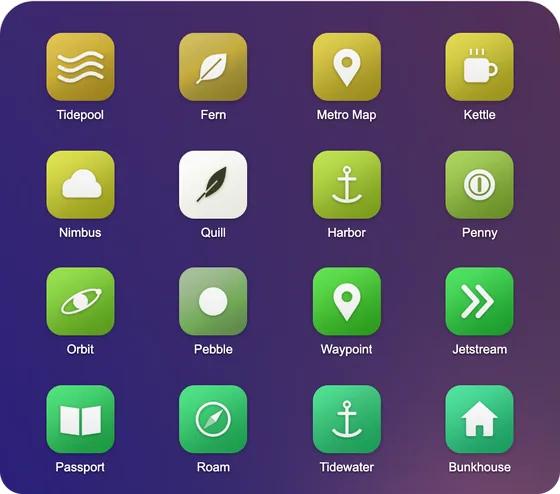
5. Ocean and meadow
Cool blues and teals are restful, and greens feel fresh. Both look lovely over a photo of the sea or the countryside.
6. Graphite
Grays from silver to charcoal make a quiet, grown-up Home Screen where your wallpaper and widgets do the talking.
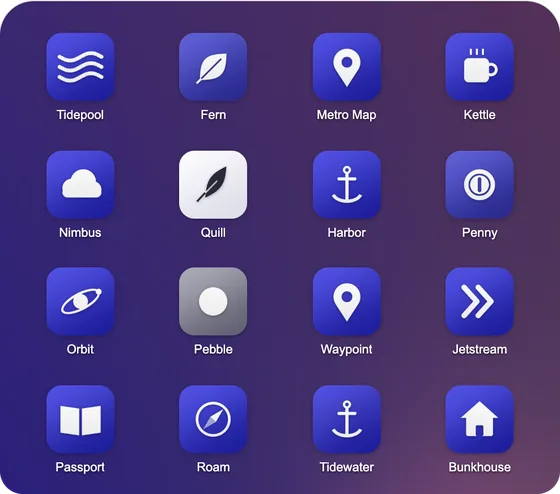
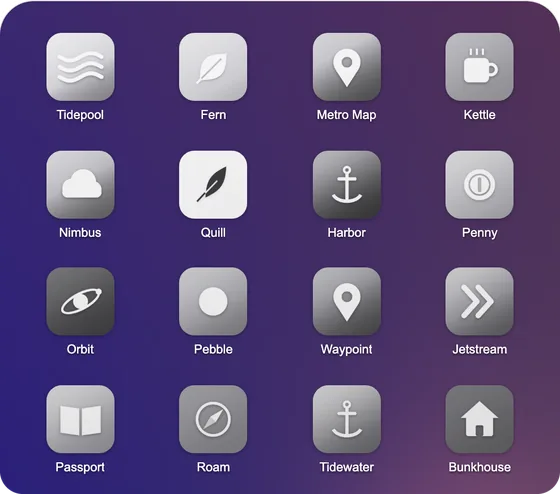
7. A color for each page, or a folder for each color
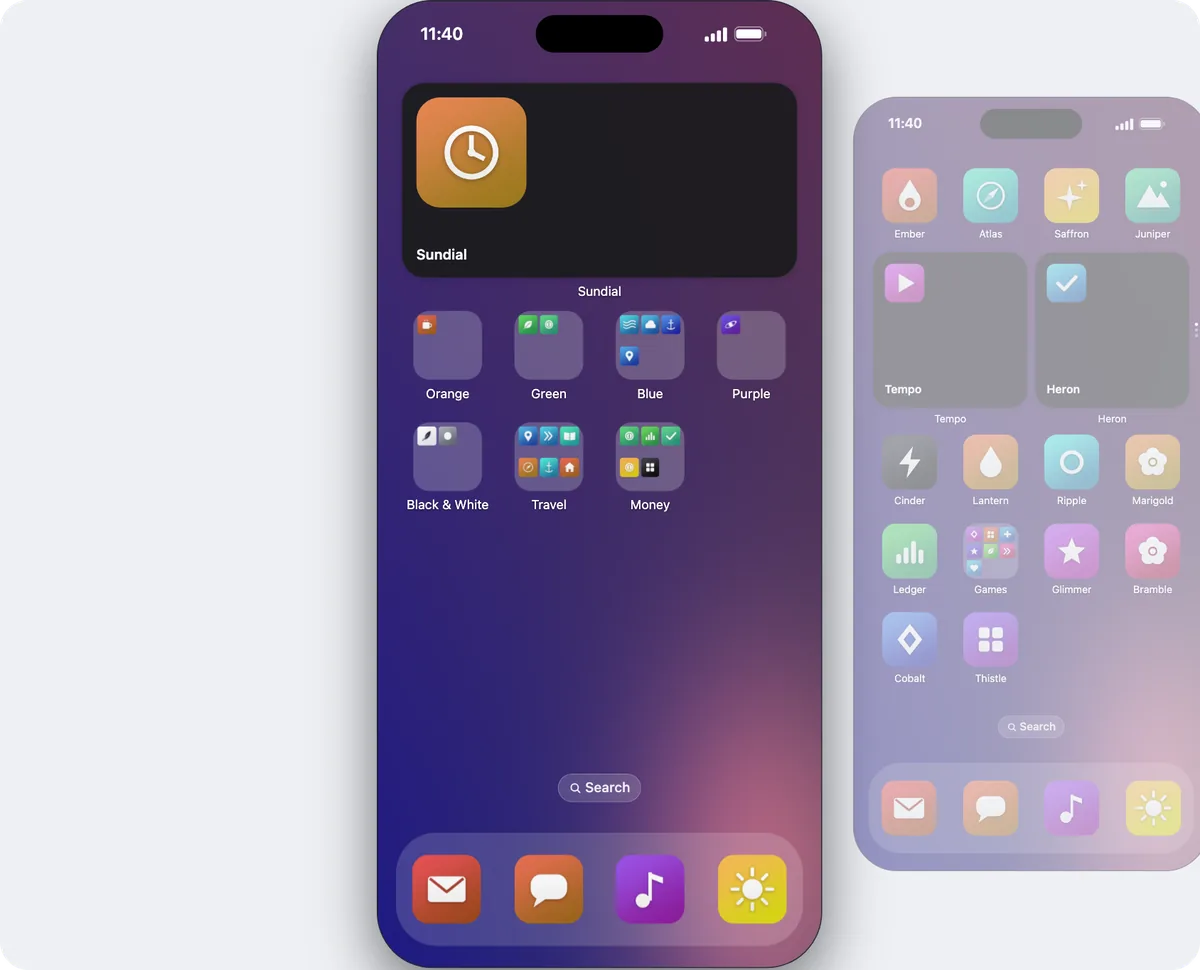
A page of reds, a page of greens, a page of blues: you always know where to swipe. Or gather every color into a folder of its own on one tidy page.
Finishing touches
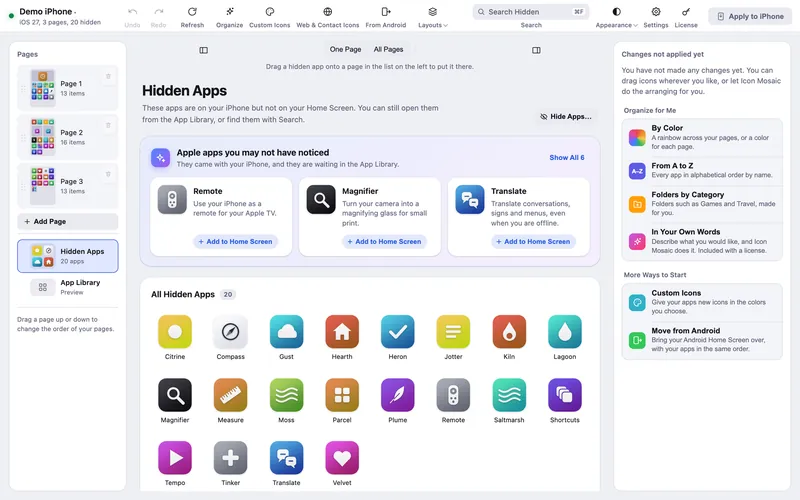
- Hide what you rarely use. Fewer icons always looks calmer. Hide apps in the App Library without deleting them.
- Match your wallpaper. Pick a palette that suits it. In Icon Mosaic, the preview shows your new icons on your own wallpaper before anything changes.
- Leave a little space. A widget at the top, and a few rows of apps below, is easier on the eye than four full pages.
- Keep badges where they matter. Custom icons do not show notification badges, so many people keep Messages and Mail as they are.
How to set up any of these in minutes
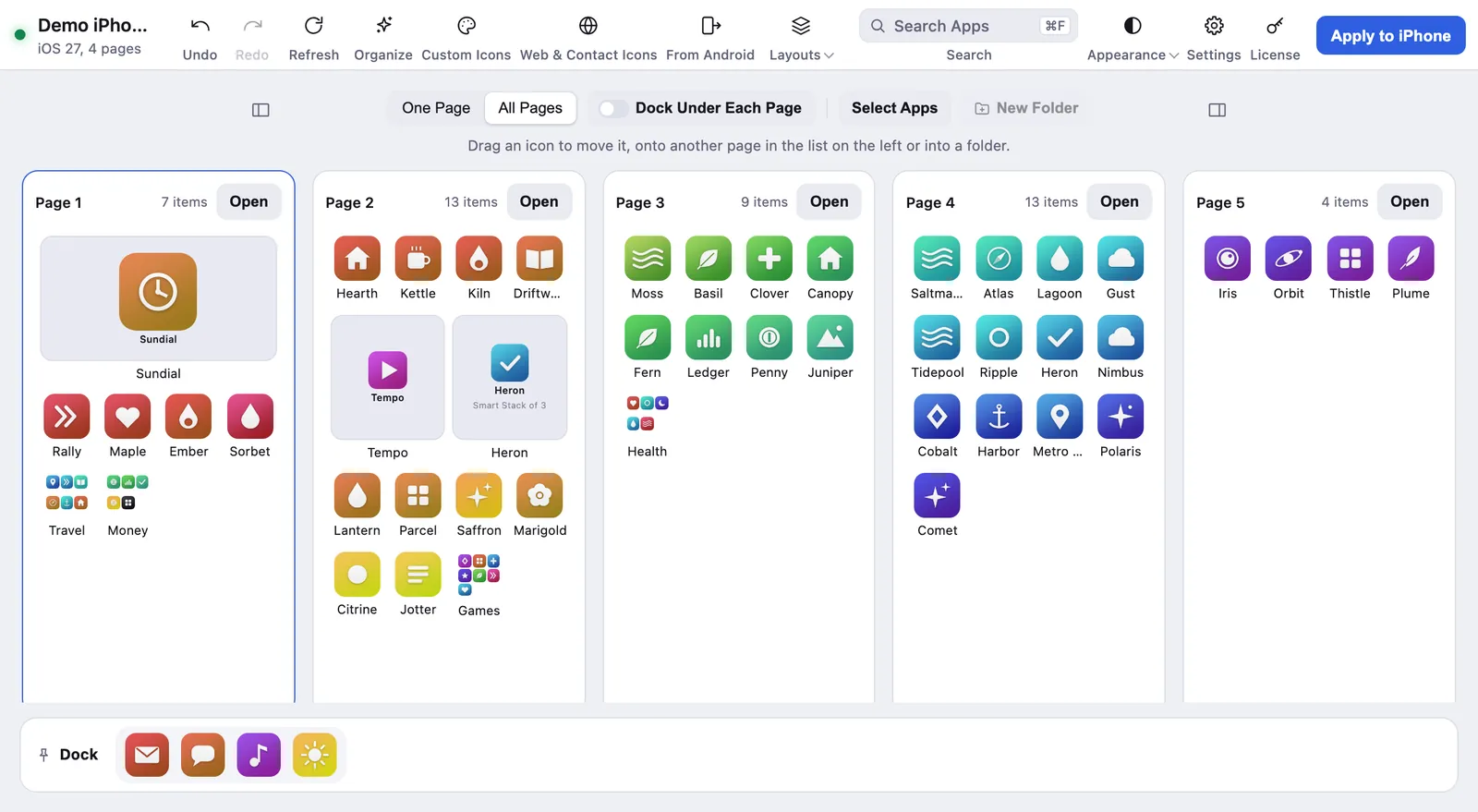
- Connect your iPhone to Icon Mosaic on your Mac.
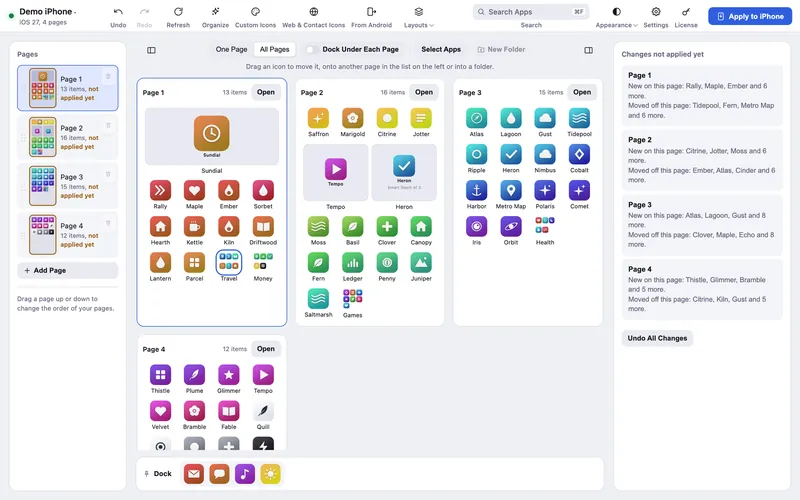
- Sort by color, with Organize, choosing how the colors fall.
- Give your icons a palette, with Custom Icons, if you would like them to match.
- Press Apply to iPhone. A backup of your current layout is saved first, so you can go back whenever you like.
Common questions
How do I make my iPhone Home Screen aesthetic?
Pick a color theme, then make your icons match it and arrange them neatly. Sorting your apps by color gives an instant rainbow, and custom icons in one palette, such as Sunset or Graphite, give a matching look. Hiding the apps you rarely use keeps it calm.
Can I change all my app icons to one color?
Yes, on an iPhone with iOS 18 or later. Icon Mosaic's Custom Icons can recolor or tint every app you choose in one color, or in a gradient such as Ocean or Meadow, and puts each new icon where its app was.
Do aesthetic icons stop apps from working?
No. Each custom icon opens its app straight away. The only difference is that custom icons do not show notification badges, so you may like to keep apps such as Messages and Mail as they are.
Do it all on your Mac, in minutes.
Icon Mosaic shows every page of your iPhone’s Home Screen side by side on your Mac, so you can drag apps anywhere, sort them by color or from A to Z, make folders, and send the result to your phone in one step.
Free to download and try. A one-time $19 license puts your new layout on your iPhone. A version for Windows is coming to the Microsoft Store soon.
Keep reading