 Icon Mosaic
Ideas for organizing your iPhone Home Screen
There is no single right way to organize a Home Screen. The best layout is the one that matches how you find apps. Here are eight approaches, and who each one suits.
Updated October 4, 2026
1. One page of essentials, and the App Library for the rest
Keep only the apps you open every day on your first page, and let everything else live in the App Library, which you reach by swiping left past your last page. This is the calmest setup, and it works well if you usually open apps by searching anyway.
Good for: people who want fewer distractions. Watch out for: new apps landing on your Home Screen. You can change that in Settings, under Home Screen & App Library.
2. Folders by category
Group apps into folders like Travel, Money, Health and Games. This is the most familiar approach, and it keeps a lot of apps on very few pages. Apple's App Store categories are a good starting point if you are not sure where something belongs.
Good for: people with a lot of apps. Watch out for: a growing “Other” folder. Icon Mosaic can make category folders for you in one step, using each app's App Store category.
3. Folders named by what you do
Instead of categories, name folders after actions: Read, Watch, Shop, Book, Pay. People often find it quicker to think “I want to pay for something” than to remember whether an app counts as Finance or Shopping.
4. A rainbow, sorted by color
Line up every app by the color of its icon, from red to purple, with the gray icons at the end. Many people remember an app's color better than its position, and it looks lovely. Our guide to organizing apps by color explains how to do it by hand or automatically.
5. Alphabetical order
If you think of apps by name, an A to Z layout makes every app easy to find without searching. See how to put your apps in alphabetical order for the built-in reset trick and a way to do it without losing your folders.
6. A page for each part of your day
Make one page for work, one for home, and one for travel or exercise. You can pair this with Focus, so that each Focus shows only the page that fits it. Your work page can be hidden on weekends, for example.
7. Most-used apps within reach of your thumb
The bottom rows of the screen and the dock are the easiest to reach with one hand. Put your most-used apps there and the ones you open less often at the top. Widgets work well across the top of the screen, where you look but rarely tap.
8. Keep your favorites out of folders
Whatever system you choose, a few apps, like Phone, Messages, Camera and Maps, are worth keeping one tap away. In Icon Mosaic you can right-click an app and choose Always keep out of folders, so every automatic tidy-up leaves it where it is.
How to try a layout without losing your current one
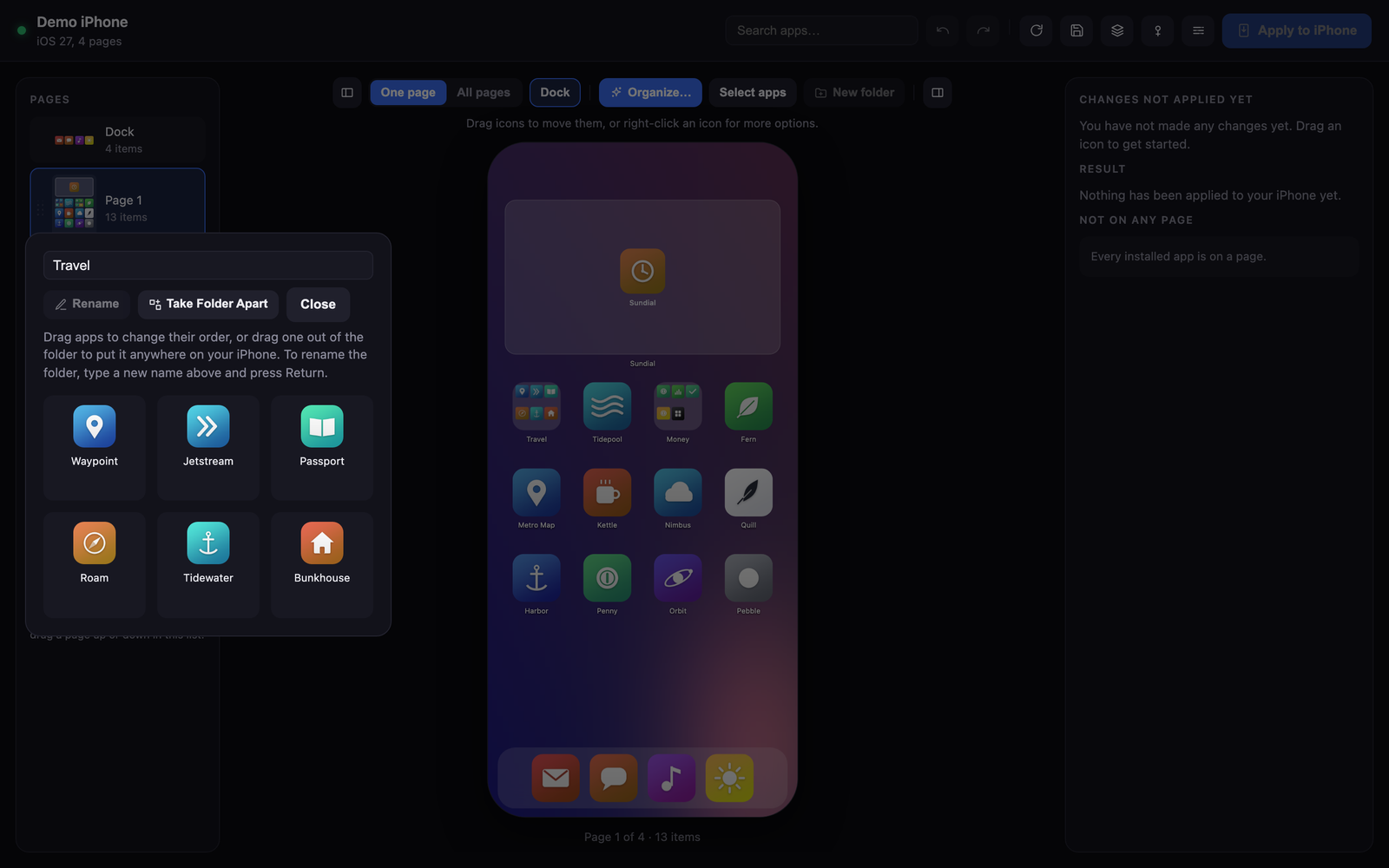
The hardest part of reorganizing is that it takes ages, and if you do not like the result, getting back to where you were takes just as long. Icon Mosaic saves a backup of your current layout every time you apply a change, and you can save layouts you like and switch between them later. That makes it easy to try a rainbow for a week and go back if it is not for you.
Common questions
What is the best way to organize iPhone apps?
It depends on how you find apps. If you search, keep one page of essentials and use the App Library. If you remember icons, sort by color. If you think by name, sort from A to Z. If you have many apps, use folders by category or by action.
How many apps should be on my first Home Screen page?
Most people do best with only the apps they use every day, often 12 to 20, plus a widget or two.
Can I save my Home Screen layout and restore it later?
Not on the iPhone itself, apart from a full iCloud or computer backup. Icon Mosaic can save layouts on your Mac and put them back on your iPhone later.
Try a new layout without risking your old one.
Icon Mosaic is a Mac app that shows every page of your iPhone's Home Screen at once. You can drag apps anywhere, sort them by color or from A to Z, and make folders, and nothing changes on your phone until you apply it. It is free to download and try.
Download Icon Mosaic for MacSee how it worksMore guides
- How to rearrange your iPhone apps from your MaciTunes used to do this. Here is what works now.
- How to organize your iPhone apps by colorMake a rainbow Home Screen by hand or in a few seconds.
- How to move several apps at once on iPhoneThe hidden multi-finger trick, and moving whole pages.
- How to put your iPhone apps in alphabetical orderThe reset trick, what it costs you, and a gentler way.