How to rearrange your iPhone apps from a Windows PC
For years you could plug your iPhone into iTunes on your PC and drag your apps around on a big screen. Apple took that away in 2017, and Apple Devices, the app that now looks after your iPhone on Windows, never brought it back. Here is how to rearrange and organize your iPhone apps on your PC today, step by step.
Updated

What happened to arranging apps in iTunes for Windows?
Older versions of iTunes had an Apps tab that showed every page of your iPhone’s Home Screen. You could drag icons between pages, make folders, and press Sync to send the new layout to your phone. Apple removed the whole Apps section in iTunes 12.7, in September 2017, on Windows and on the Mac alike.
Today, Apple Devices looks after your iPhone on Windows. It can back up your phone, update it, and sync music, photos and videos, but it has no way to see or change your Home Screen.
How to rearrange your iPhone apps with Icon Mosaic
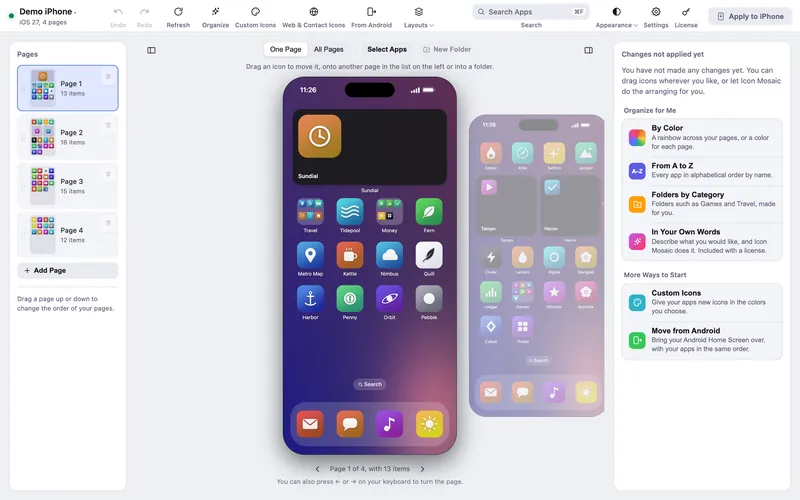
Icon Mosaic brings back a big-screen editor for your Home Screen, and goes much further than iTunes ever did. It reads your real Home Screen, including your folders, widgets, dock and wallpaper, and lets you rearrange everything with your mouse. It runs on Windows 10 and Windows 11, on PCs with an Intel or AMD processor.
- Install Apple Devices and open it once. It is Apple’s free app from the Microsoft Store, and Windows needs it to talk to an iPhone. If you already use it to back up your phone, you are all set.
- Get Icon Mosaic from the Microsoft Store and open it. Find it in the Microsoft Store and install it, the same way you installed Apple Devices. It is free to download and try.
- Plug in your iPhone and unlock it. If it asks whether to trust this computer, tap
Trust, or tap Allow if it asks about your photos and videos, and then enter
your passcode. After the first time, you can also connect over Wi-Fi.
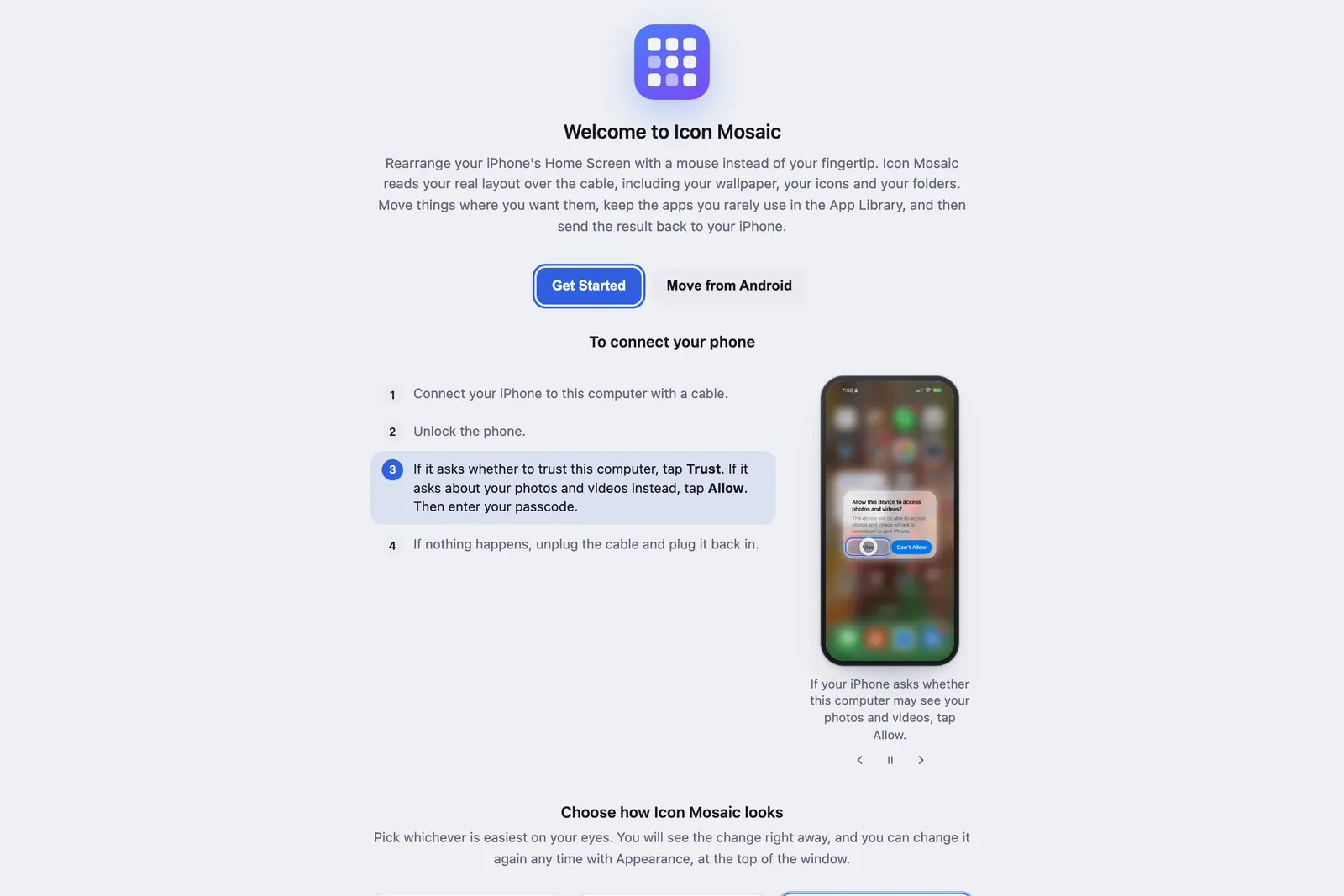
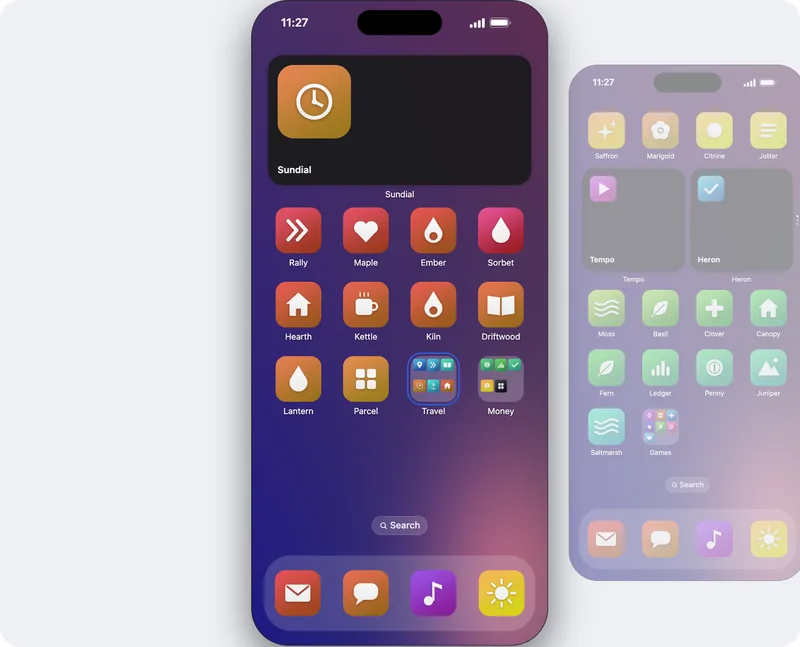
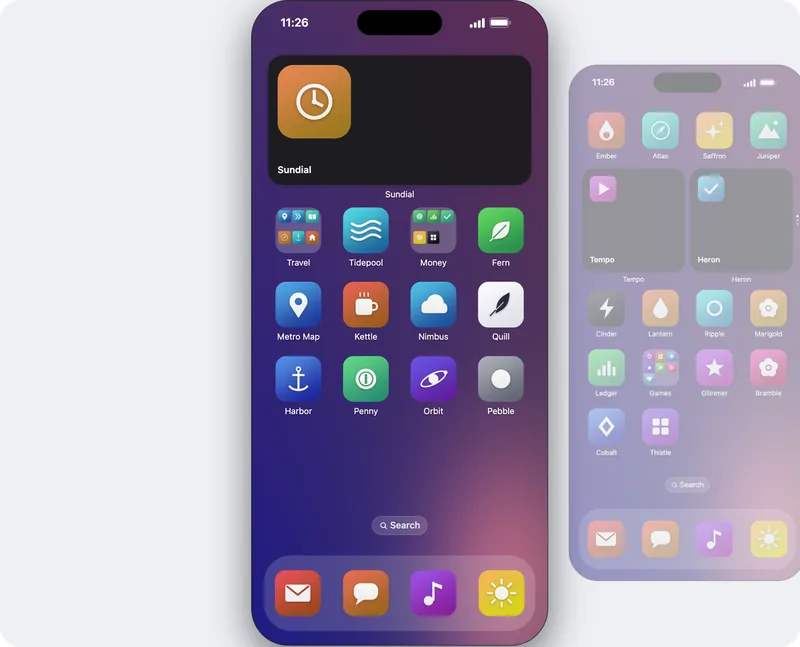
The first time, Icon Mosaic shows you exactly what to tap on your iPhone. - Drag apps wherever you want them. Drag an app within a page, onto the page beside the
phone, or onto any page in the list on the left. Turn pages by dragging the wallpaper, clicking the page
beside the phone, or pressing the arrow keys.
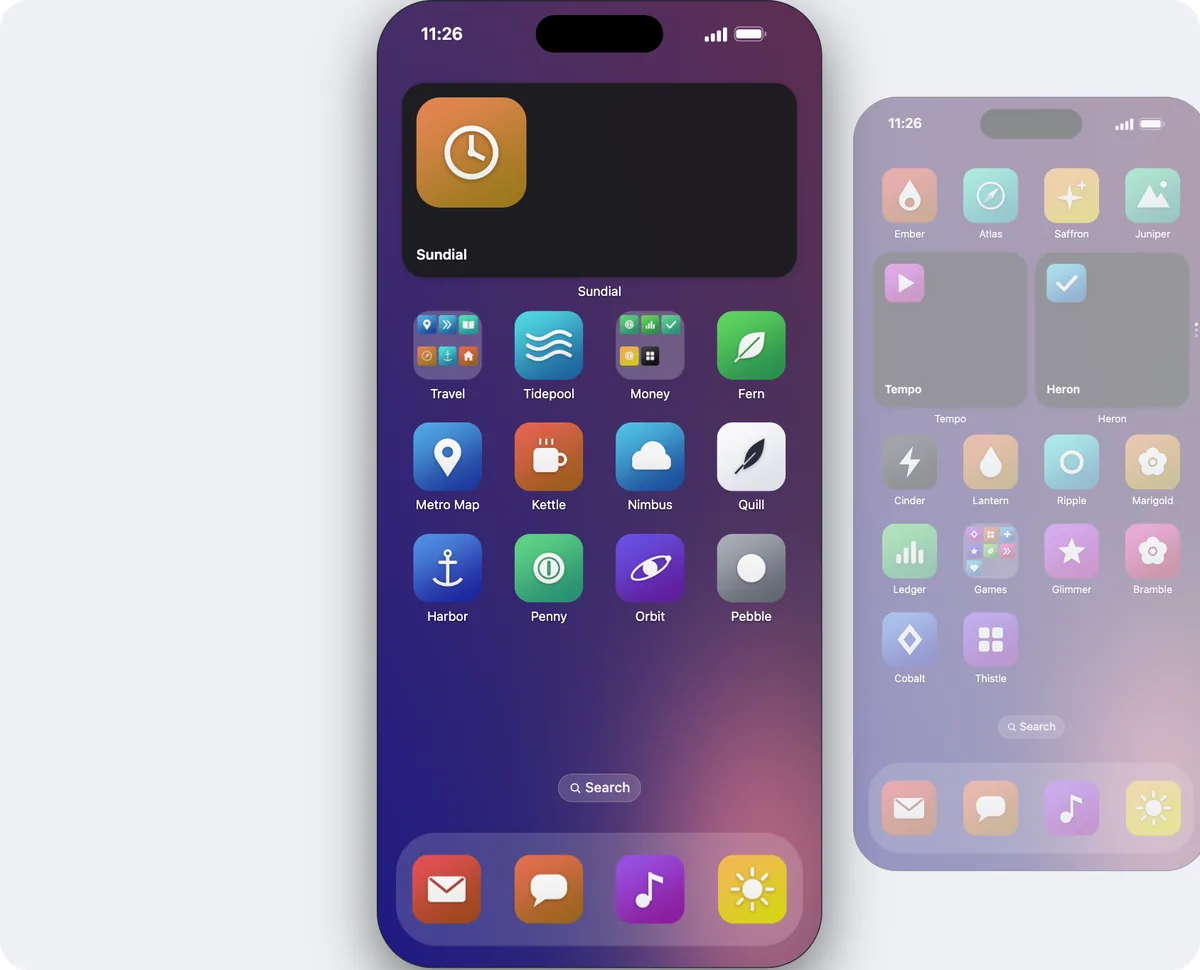
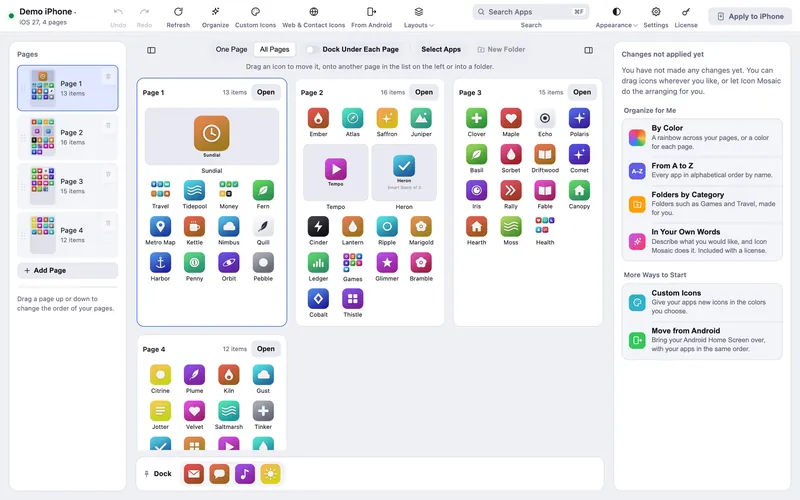
The pages before and after stand beside the phone, so you can drag straight onto them. - See every page at once when you need to. Click All Pages to lay out
every page side by side, and drag an app from your first page straight onto your fifth in one move.
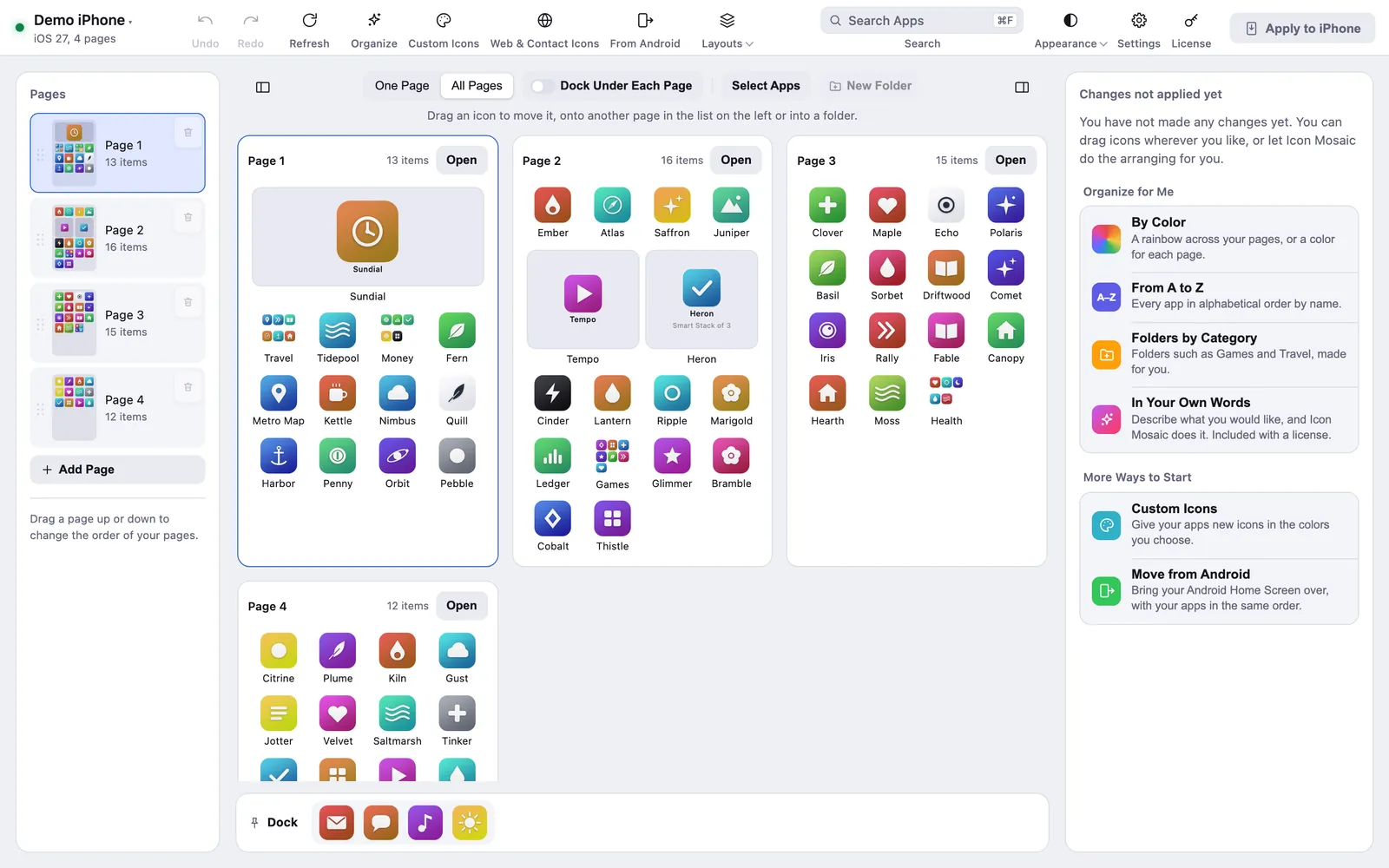
All Pages: every page of your Home Screen at once. - Move several apps together. Press Select Apps, click the apps you
want, even on different pages, and drag any of them. They all move together.
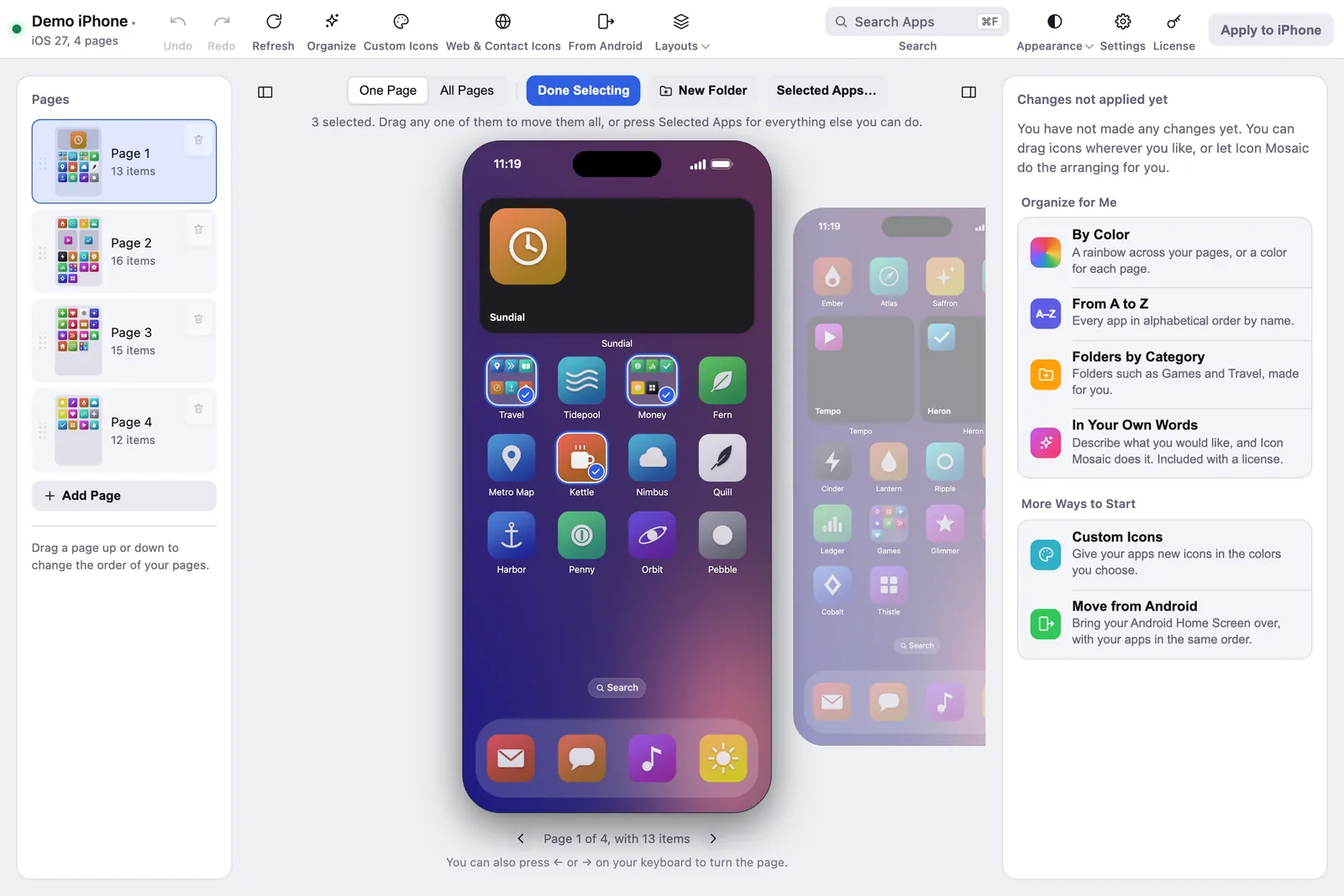
Select Apps lets you carry a whole group at once. - Let it tidy up for you, if you like. Press Tidy Up to sort everything into a rainbow with the app color organizer, put it in order from A to Z, gather apps into folders by category, or describe what you would like in your own words.
- Press Apply to iPhone. Icon Mosaic shows you exactly which apps are moving and which
pages will change, saves a backup of your current layout, and then sends the new layout to your phone.
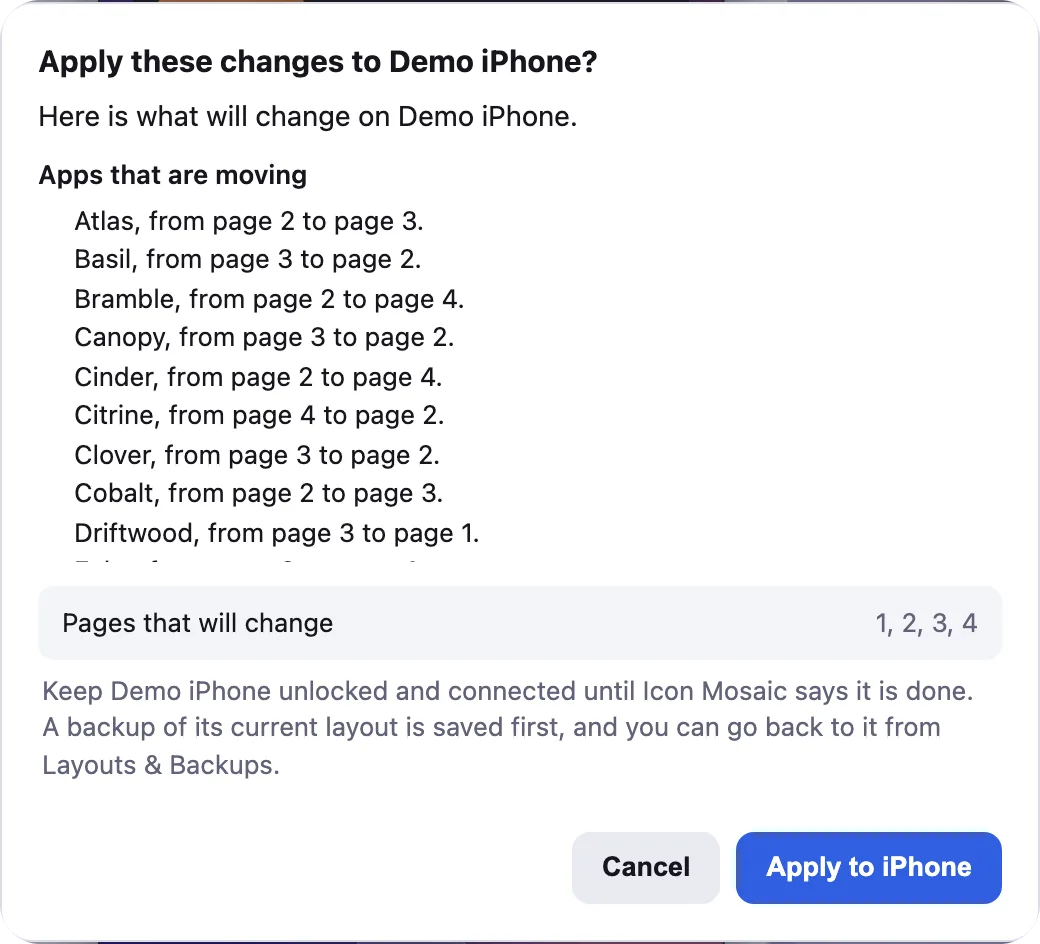
Nothing changes on your iPhone until you have seen exactly what will.


You do not need to jailbreak your iPhone or install anything on it. Icon Mosaic talks to your phone the same way Apple Devices does when it backs it up.
Everything else you can do from your PC


Our guide to managing your iPhone apps from a computer covers each of these in more detail. It is written for a Mac, and everything in it works the same way on a PC.
Other ways, and why they are slower
Rearrange the apps on the iPhone itself
This always works, and it is fine for small changes. Touch and hold an empty part of the Home Screen until the apps start to jiggle, then drag icons where you want them. To move an app to another page, drag it to the edge of the screen and wait for the page to turn. Our guide to moving apps on iPhone explains every gesture. The trouble is that you only see one page at a time, so a big reorganization means a lot of holding, waiting and dragging.
Phone Link
Microsoft’s Phone Link can show your iPhone’s messages, calls and notifications on your PC, which is handy, but it cannot show your iPhone’s screen or change your Home Screen.
On a Mac instead
If you also have a Mac, Icon Mosaic works the same way there, and one license covers both. Our guide to rearranging iPhone apps on a Mac has the steps.
Common questions
Can I still arrange iPhone apps in iTunes for Windows?
No. Apple removed the Apps section, including Home Screen arranging, in iTunes 12.7 in September 2017, on Windows and on the Mac at the same time. Apple Devices, which now backs up and updates your iPhone on Windows, does not offer it either. Icon Mosaic brings back a big-screen editor for your Home Screen on your PC.
What do I need to rearrange my iPhone apps on a PC?
A PC with Windows 10 or Windows 11 and an Intel or AMD processor, the cable you charge your iPhone with, and Apple Devices, Apple's free app from the Microsoft Store. Install Apple Devices and open it once before you start.
Does it work on a laptop with a Snapdragon or other ARM processor?
Not yet. Apple Devices is not available for PCs with ARM processors, so Windows on those PCs cannot connect to an iPhone, and neither can Icon Mosaic. Any PC with an Intel or AMD processor works, and so does a Mac.
Does it work over Wi-Fi?
Yes. Plug your phone in once, open Apple Devices, choose General, turn on Show this iPhone when on Wi-Fi, and click Apply. After that, Icon Mosaic can connect without the cable while your PC and iPhone are on the same network.
Can I use the same license on my PC and my Mac?
Yes. One license can be active on up to three of your own computers at the same time, and they can be Windows PCs, Macs, or some of each.
Will rearranging my apps from a computer delete anything?
No. Moving apps only changes where icons sit, and Icon Mosaic saves a backup of your layout before every change. It deletes an app only if you choose Delete from iPhone and confirm.
Do it all on your Mac or PC, in minutes.
Icon Mosaic shows every page of your iPhone’s Home Screen side by side on your computer, so you can drag apps anywhere, sort them by color or from A to Z, make folders, and send the result to your phone in one step.
Free to download and try, on a Mac or a Windows PC. A one-time $19 license puts your new layout on your iPhone.
Keep reading