 Icon Mosaic
How to put your iPhone apps in alphabetical order
If you find apps by name, an alphabetical Home Screen is the easiest to search by eye. The iPhone does not have a sort button, but there are two ways to get there.
Updated October 4, 2026
Method 1: Reset your Home Screen layout
Resetting the Home Screen layout puts Apple's built-in apps back where they were when the phone was new, and lines up all of the other apps you have installed in alphabetical order after them.
- Open Settings and tap General.
- Scroll to the bottom and tap Transfer or Reset iPhone.
- Tap Reset, then Reset Home Screen Layout, and confirm.
This does not delete any apps or data. It only moves icons.
What the reset trick costs you
- Your folders are gone. Every folder you made is removed, and its apps are spread out alphabetically with the rest.
- Your widgets and custom pages are reset. You will have to set up any widgets and widget stacks again.
- Apple's apps come first. Your first page and dock go back to Apple's default layout, so the alphabetical order only starts after them.
- It does not stay sorted. New apps go into the next empty spot, not their alphabetical place, so you will need to tidy up again later.
Method 2: Sort by hand
If you only want one page or one folder in order, sorting by hand is quick. Start jiggle mode and drag the apps into order, starting with the one closest to A. The multi-app dragging trick helps if several apps need to move together. iOS cannot sort the apps inside a folder, so folders always need to be done by hand.
Method 3: Sort from A to Z with Icon Mosaic
Icon Mosaic sorts your apps alphabetically on your Mac and lets you choose exactly what gets sorted, so nothing is lost along the way.
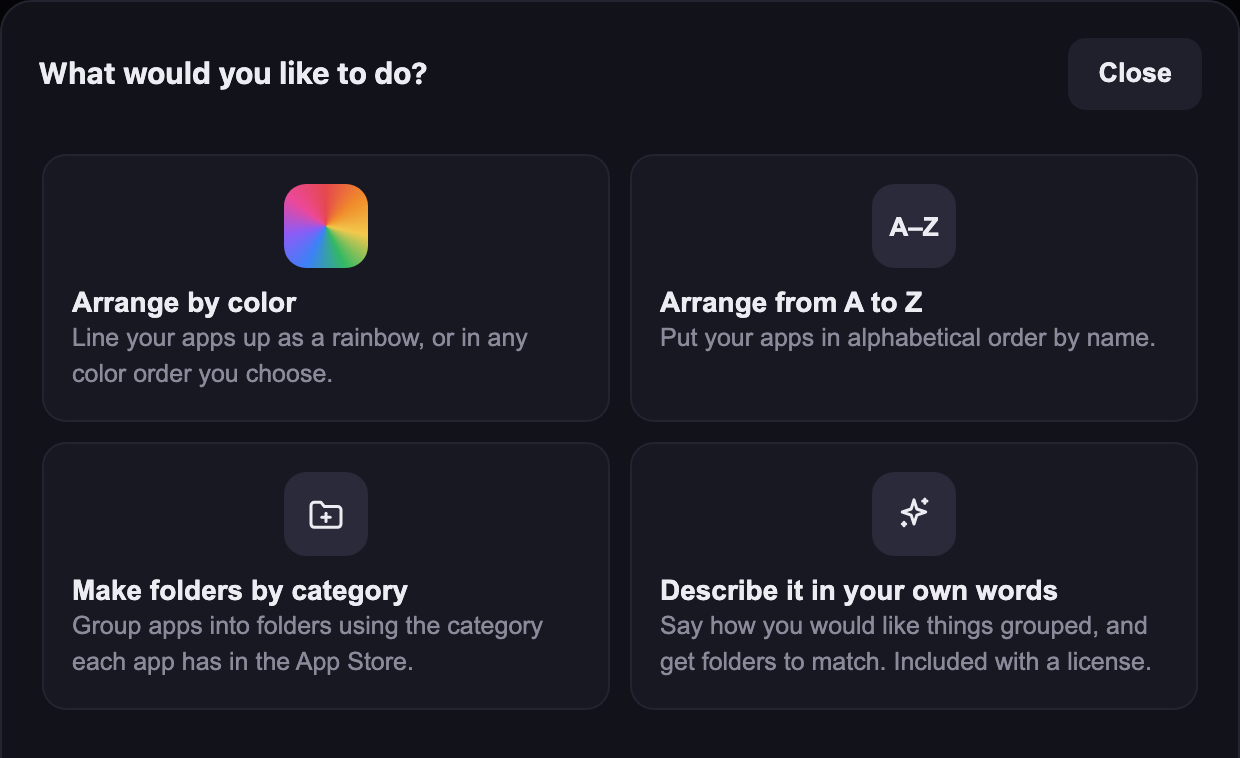
- Connect your iPhone and press Organize, then choose Arrange from A to Z.
- Choose all of your pages, a single page, or only the apps you selected.
- By default your folders, widgets and dock stay exactly where they are, and only the loose apps are sorted. If you want every app in one long alphabetical list, turn on Take apps out of their folders first.
- Check the result and press Apply to iPhone. A backup of your current layout is saved first, so you can always go back.
You can also right-click any single page and choose Sort A–Z to sort just that page. Sorting from A to Z is free in Icon Mosaic.
If there are apps you always want in the same spot, like Phone or Messages, keep them in your dock. The dock is never moved by a sort.
Common questions
Is there a way to sort iPhone apps alphabetically?
There is no sort button, but Settings > General > Transfer or Reset iPhone > Reset > Reset Home Screen Layout arranges your downloaded apps alphabetically after Apple's built-in apps. It also removes your folders. Icon Mosaic can sort from A to Z without removing them.
Does Reset Home Screen Layout delete apps?
No. It does not delete any apps or data. It only moves icons, removes the folders you made, and resets your widgets.
Can I alphabetize the apps inside a folder?
Not on the iPhone itself. You can drag them into order by hand.
Sort from A to Z and keep your folders.
Icon Mosaic is a Mac app that shows every page of your iPhone's Home Screen at once. You can drag apps anywhere, sort them by color or from A to Z, and make folders, and nothing changes on your phone until you apply it. It is free to download and try.
Download Icon Mosaic for MacSee how it worksMore guides
- How to rearrange your iPhone apps from your MaciTunes used to do this. Here is what works now.
- How to organize your iPhone apps by colorMake a rainbow Home Screen by hand or in a few seconds.
- How to move several apps at once on iPhoneThe hidden multi-finger trick, and moving whole pages.
- Ideas for organizing your iPhone Home ScreenEight layouts that people actually stick with.