Switching from Android
How to move your Android Home Screen to a new iPhone
After years with an Android phone, you know exactly where everything is. A new iPhone puts your apps wherever it likes. Here is how to bring your Home Screen over the way you had it, with the same apps on the same pages, your folders, your websites and your favorite people.
Updated

What Move to iOS does, and what it leaves out
Apple’s free Move to iOS app is the usual way to switch. It copies things like your contacts, messages, photos, mail accounts and calendars, and it can download free apps that are on both the Play Store and the App Store. It is worth using.
What it does not do is arrange your Home Screen. Your apps arrive in the iPhone’s own order, your folders are gone, and the shortcuts you made to websites and to the people you call most are left behind.
What comes over with Icon Mosaic
- Apps, in the same order. Every app that is on your iPhone goes to the same page and the same position, including the ones in your dock. The iPhone’s dock holds four apps, so any extra ones go to the first page.
- Folders, with their names. Each Android folder becomes an iPhone folder with the same apps inside.
- The iPhone version of each app. Icon Mosaic matches each Android app to its iPhone version, such as the Play Store to the App Store, and lists any you still need to download.
- Websites and favorite contacts. Website shortcuts, and shortcuts to call or text someone, become iPhone icons that do the same thing.
- A list of your widgets. Android widgets do not work on an iPhone, so Icon Mosaic lists the ones you had, to add the iPhone versions yourself.
Before you start
- Set up your iPhone first. Use Move to iOS if you like, and download your apps from the App Store. An app has to be on the iPhone before Icon Mosaic can put it in its place.
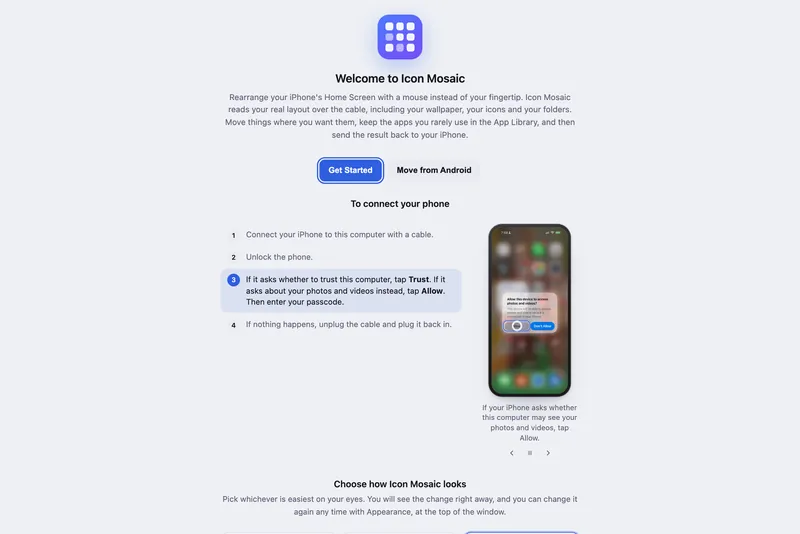
- Connect your iPhone. Open Icon Mosaic on your Mac, plug in your iPhone with a cable, and unlock it. If it asks whether to trust this computer, tap Trust, or Allow if it asks about your photos and videos, and enter your passcode.
- Choose your Android phone. Click From Android in the toolbar, and pick
Samsung Galaxy, Google Pixel or Another Android phone. Icon
Mosaic shows the steps for that phone, each with a picture of the screen you should see.
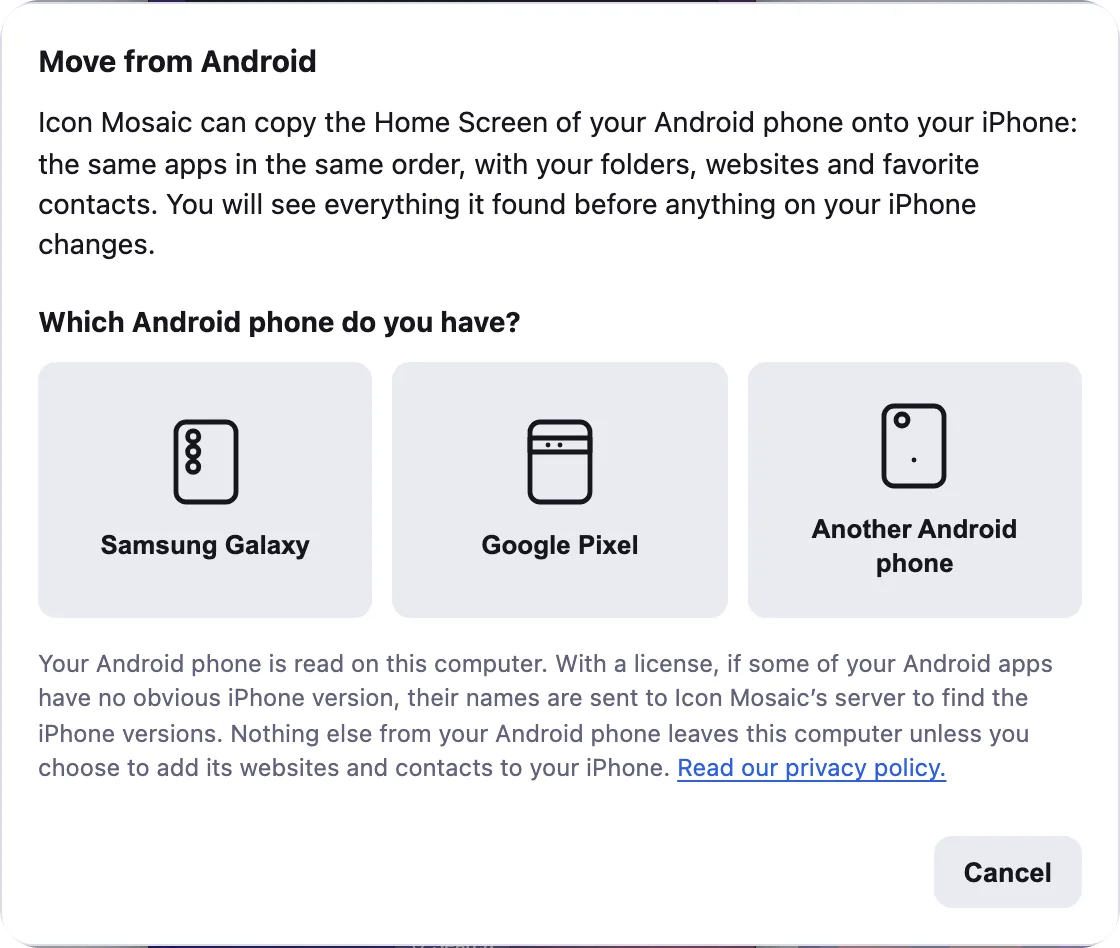
Pick your kind of Android phone, and the steps follow.

Get your Android phone ready
You only need to do this once. It turns on USB debugging, which lets Icon Mosaic read your Android phone.
- Turn on Developer options. On a Samsung Galaxy, open Settings, then About phone, then Software information, and tap Build number seven times. On a Google Pixel, open Settings, then About phone, scroll to the bottom and tap Build number seven times. Enter your PIN if it asks. On another Android phone, Build number is in About phone, sometimes inside Software information.
- Turn on USB debugging. On a Galaxy, go back to Settings, scroll to the very
bottom, and open Developer options. On a Pixel, open System,
then Developer options. Turn on USB debugging. If a Galaxy says Auto Blocker is
in the way, open Settings, then Security and privacy, then Auto Blocker, and
turn it off first.
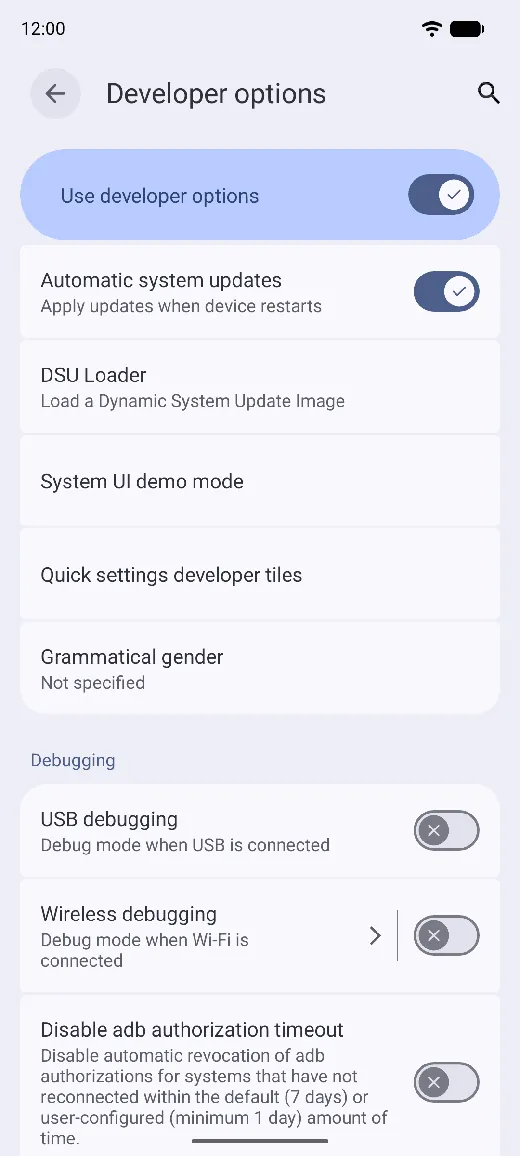
USB debugging, under Debugging. 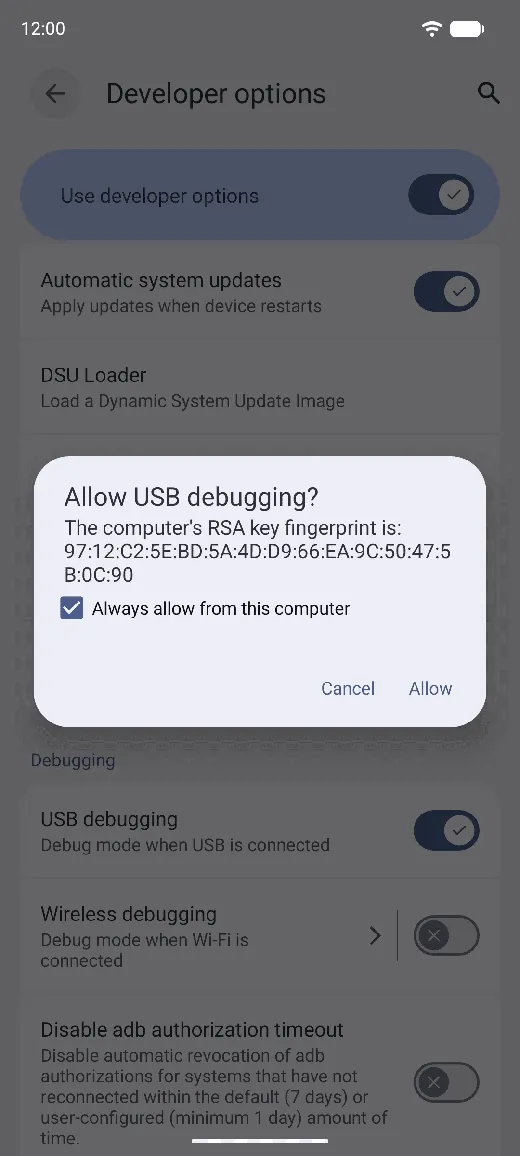
Check Always allow from this computer, and tap Allow. - Connect it, and allow USB debugging. Plug it into your Mac and unlock it. When it asks whether to allow USB debugging, check Always allow from this computer and tap Allow. If you only have one cable, unplug your iPhone first; Icon Mosaic asks for it again when it needs it.
Or connect over Wi-Fi
No cable, or one that will not connect? If your Android phone has Android 11 or later, it can connect over Wi-Fi instead. In Developer options, tap the words Wireless debugging, turn it on, and allow it on your network. Then tap Pair device with pairing code, leave the six-digit code on the screen, and type it into Icon Mosaic. Once your phone is paired, Icon Mosaic remembers it.
On a Windows PCA Samsung Galaxy connected with a cable also needs Samsung’s USB driver. Download the Samsung Android USB Driver for Windows from developer.samsung.com/android-usb-driver and follow its steps. A Mac does not need it.
Read your Android phone
Press Read My Android Phone. Leave the phone unlocked on its Home Screen, and do not touch it while Icon Mosaic reads it. You will see it flip through its pages and open its folders by itself, which can take a few minutes. Nothing on your Android phone is changed.
Go through the results
- See what Icon Mosaic found. The apps that will go where they were, any apps that are not on your iPhone yet, the websites and contacts that will become iPhone icons, and the widgets to add yourself. If an app is missing, download it, press Refresh, and use the reading you already have. Press Next: Add Contacts and Websites.
- Add your contacts and websites. Plug your iPhone back in if you unplugged it, and press the
button that adds the new icons. Your iPhone asks you to approve them once: open Settings, tap
General, then VPN & Device Management, tap Icon Mosaic Home Screen
icons, and tap Install.
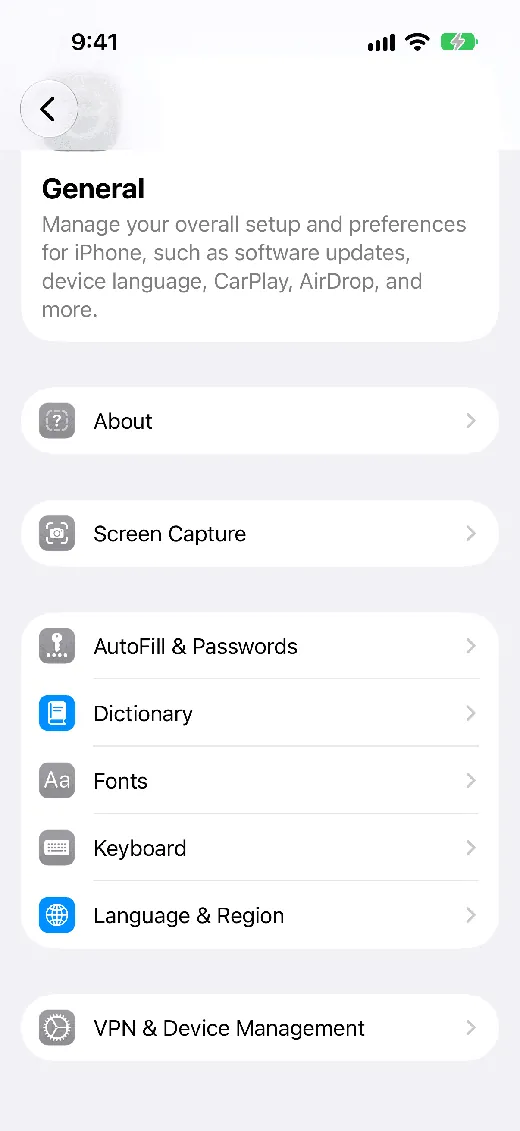
Settings, General, VPN & Device Management. 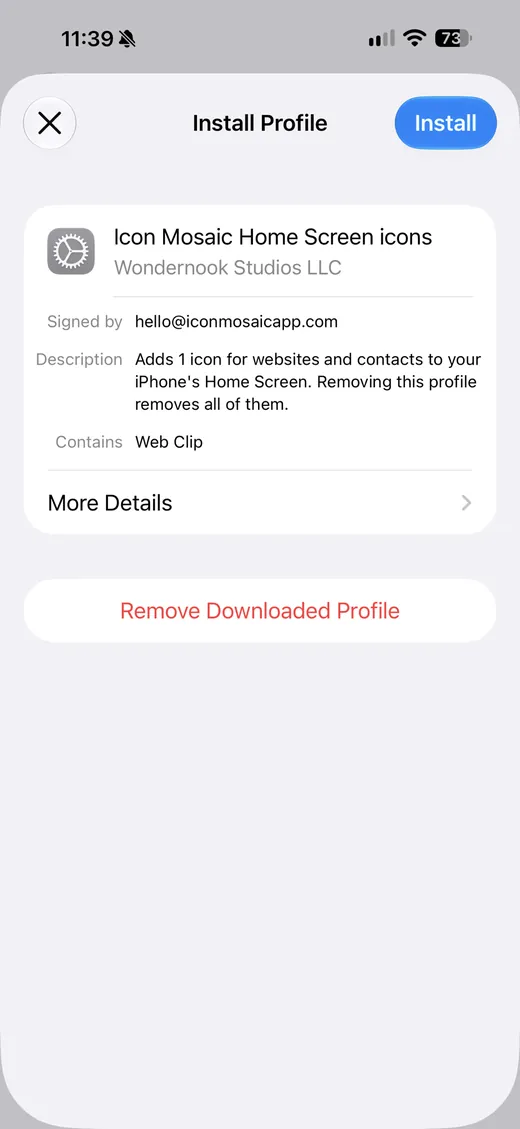
Tap Install, and enter your passcode. - Arrange your iPhone. Choose Arrange my iPhone like my Android phone, or, if you have already arranged your iPhone, Keep my iPhone’s layout, and add my contacts and websites. Then press Build My iPhone Layout.
- Look it over, and apply it. Your new Home Screen opens in the editor, where you can still move anything. Press Apply to iPhone. A backup of your current layout is saved first.
When you are finished, you can turn USB debugging or Wireless debugging off again in Developer options on your Android phone.
Your website and contact icons, later
Click Web & Contact Icons in the toolbar whenever you like to rename these icons, give them new pictures, numbers or web addresses, or add new ones.

What it costs, and what leaves your Mac
Reading your Android phone, seeing the plan and building the layout in the editor are free. Applying the layout to your iPhone and adding website and contact icons need a license, which is a single $19 payment. Your Android phone is read on your Mac. With a license, the names of any apps Icon Mosaic cannot match by itself, and the names of the apps on your iPhone, are sent to Icon Mosaic’s server to suggest the iPhone versions. Website and contact icons are sent to be signed, so your iPhone shows them as verified, and they are not kept. The privacy policy has the details.
Common questions
Does Move to iOS transfer my Home Screen layout?
No. Move to iOS brings over things like your contacts, messages, photos, mail accounts and calendars, and it can download free apps that are on both stores. It does not arrange your iPhone's Home Screen to match your Android phone, so your apps end up in the iPhone's own order.
Do I need to root my Android phone?
No. Icon Mosaic only needs USB debugging, or Wireless debugging for Wi-Fi, which are ordinary settings in Developer options. You can turn them off again when you are done.
Can I connect my Android phone over Wi-Fi instead of a cable?
Yes, if it has Android 11 or later. Turn on Wireless debugging in Developer options, tap Pair device with pairing code, and type the six-digit code into Icon Mosaic. Your Mac and your Android phone need to be on the same Wi-Fi network.
Why can't I turn on USB debugging on my Samsung Galaxy?
Samsung's Auto Blocker keeps USB debugging off while it is on. Open Settings, then Security and privacy, then Auto Blocker, and turn it off. Then open Developer options and turn on USB debugging. You can turn Auto Blocker back on when you are done.
Will it change anything on my Android phone?
No. Icon Mosaic only reads it: it flips through the pages and opens each folder to see what is inside.
Does it work with Samsung Galaxy phones?
Yes. Icon Mosaic reads the Home Screens of Samsung Galaxy and Google Pixel phones, and other Android phones like them. If it cannot read your phone, it tells you, and nothing changes.
Can I bring my Android widgets to my iPhone?
No. Android widgets do not work on an iPhone. Icon Mosaic lists the widgets you had, and you can add the iPhone versions by touching and holding the Home Screen.
Do it all on your Mac, in minutes.
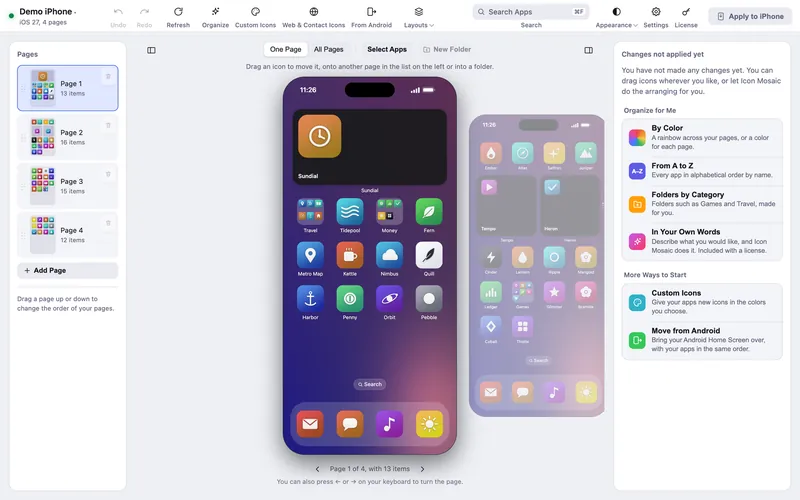
Icon Mosaic shows every page of your iPhone’s Home Screen side by side on your Mac, so you can drag apps anywhere, sort them by color or from A to Z, make folders, and send the result to your phone in one step.
Free to download and try. A one-time $19 license puts your new layout on your iPhone. A version for Windows is coming to the Microsoft Store soon.
Keep reading