How to back up and restore your iPhone Home Screen layout
Your Home Screen took years to arrange, and the iPhone has no way to save just that arrangement. Icon Mosaic keeps copies of your layout on your Mac, so you can try something new, switch between layouts, and always find your way back.
Updated

Two kinds of copies
| Saved layouts | Backups | |
|---|---|---|
| Made by | You, whenever you like | Icon Mosaic, every time you apply changes |
| Good for | A layout to come back to, such as Work or Vacation | Going back after a change you regret |
| How you find it | By the name you gave it | By when it was made |
How to save your current layout
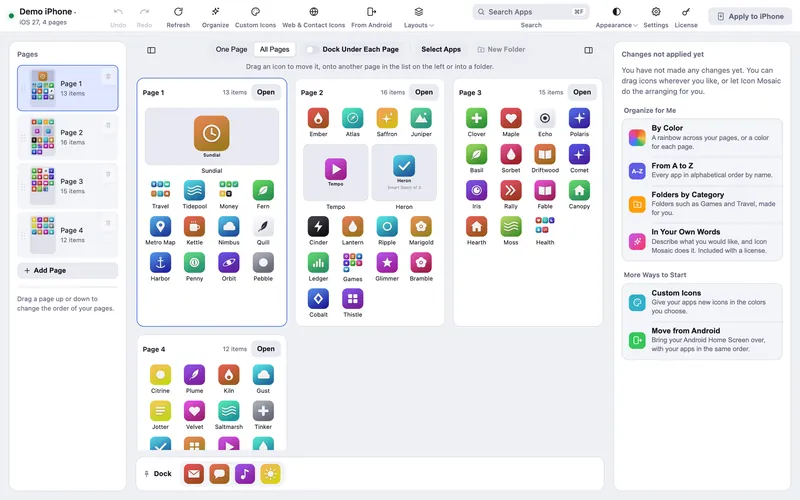
- Connect your iPhone to Icon Mosaic. Your Home Screen appears as it is right now.
- Choose Save Layout. Click Layouts in the toolbar and choose Save Layout, or press ⌘ S.
- Give it a name, and press Save. Saving keeps a copy of the layout as it is in the editor. Nothing is sent to your iPhone.
You can save a layout at any moment, including halfway through rearranging, so you can try two ideas and keep both.
How to put a layout back on your iPhone
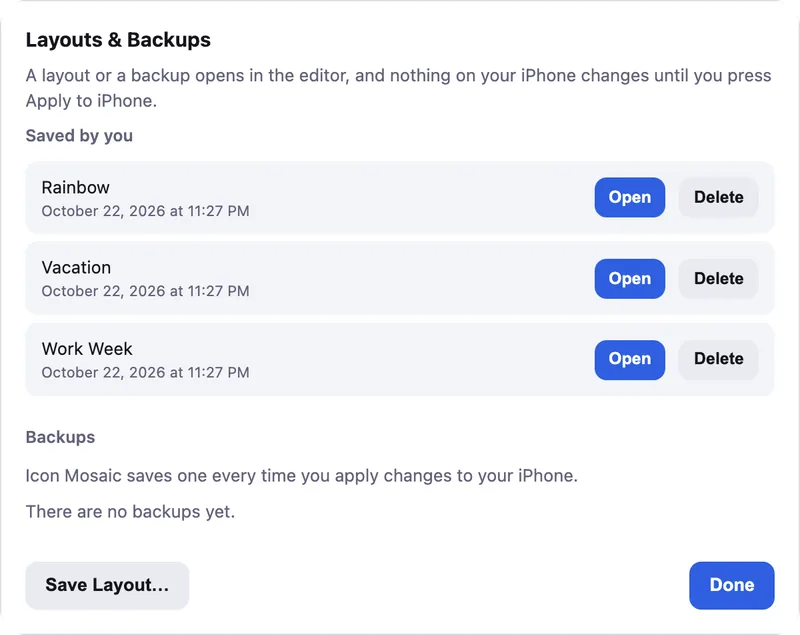
- Open Layouts & Backups. Click Layouts and choose Layouts & Backups, or press ⌘ O.
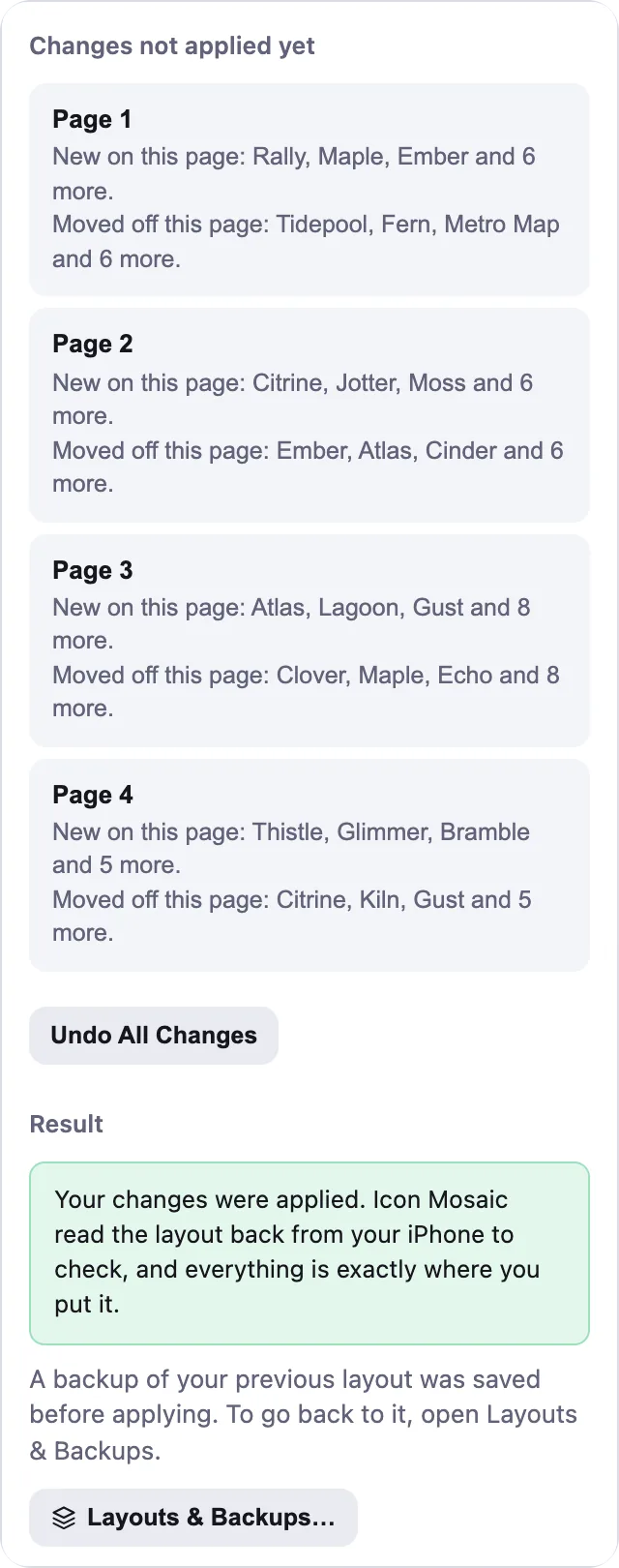
- Press Open next to the layout or backup you want. It opens in the editor, and nothing on your iPhone changes until you press Apply to iPhone.
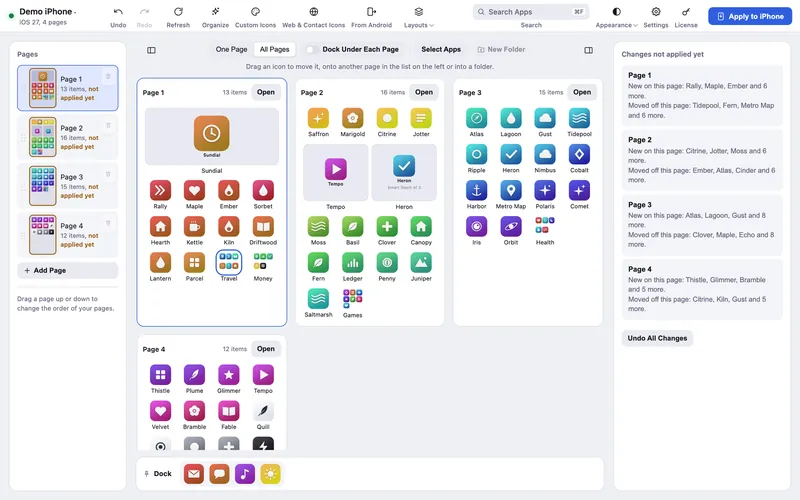
- Change anything you like, then press Apply to iPhone. Icon Mosaic shows what will change,
saves a backup of the layout your iPhone has now, and puts the one you chose in its place.
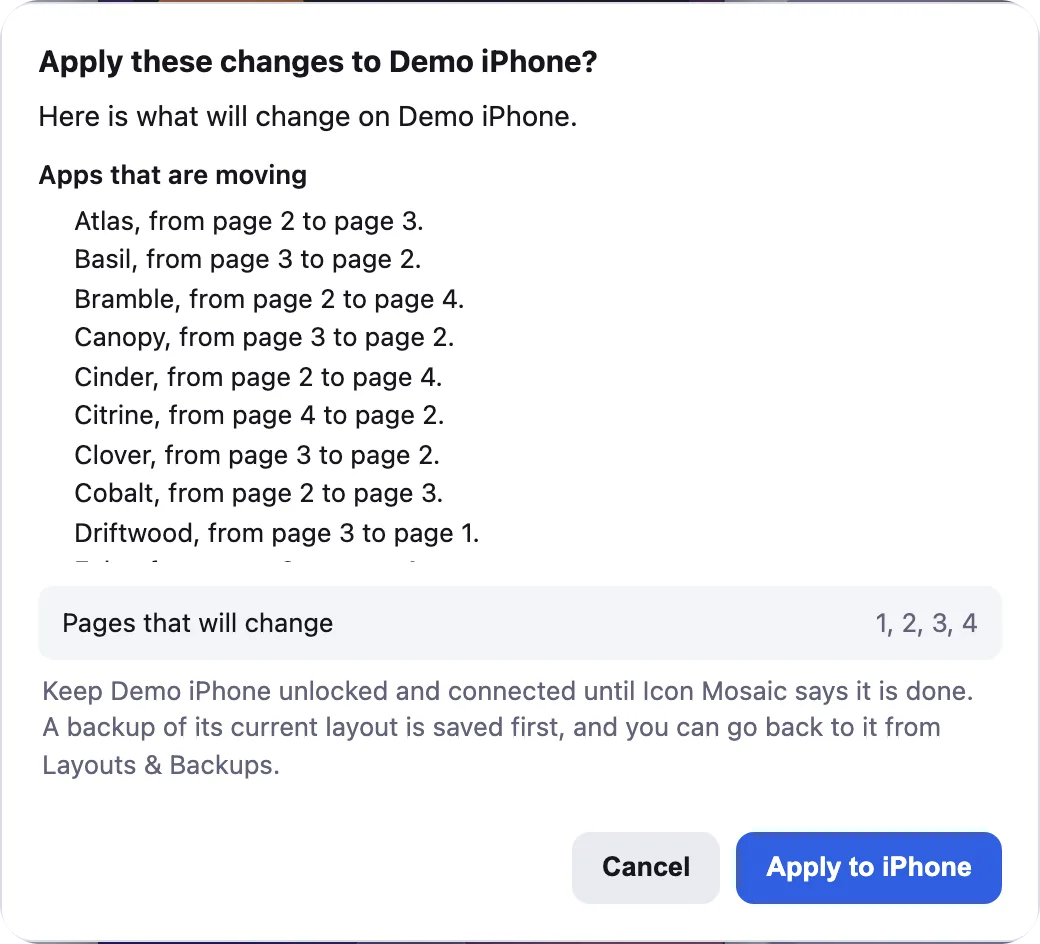
Before anything is written, you see exactly what will change.

Apps that are not on your iPhone any more cannot be put back by a layout. If you deleted an app since the layout was saved, download it again from the App Store and press Refresh first.
Ideas for saved layouts
- Work and weekend. A first page of work apps for the week, and one of games and streaming for the weekend.
- Vacation. Travel, maps, translation and photo apps up front while you are away.
- Try a rainbow. Save your current layout, sort by color for a week, and go back if it is not for you.
Common questions
Can I save my iPhone Home Screen layout?
Not on the iPhone itself, apart from a full backup of the whole phone. Icon Mosaic saves just your Home Screen layout on your Mac, as many as you like, and can put any of them back on your iPhone.
What is the difference between a saved layout and a backup?
A saved layout is one you chose to keep, with a name, so you can come back to it. A backup is made by Icon Mosaic on its own, every time you apply changes, so you can undo a change you regret.
Does a layout backup include my apps?
No. It records where each app, folder and widget sits. Your apps and their data stay on your iPhone. An app you deleted cannot come back from a layout backup; download it again from the App Store first.
Is saving a layout free?
Yes. Reading your Home Screen and saving layouts on your Mac are free. Putting a layout back on your iPhone needs a license.
Do it all on your Mac, in minutes.
Icon Mosaic shows every page of your iPhone’s Home Screen side by side on your Mac, so you can drag apps anywhere, sort them by color or from A to Z, make folders, and send the result to your phone in one step.
Free to download and try. A one-time $19 license puts your new layout on your iPhone. A version for Windows is coming to the Microsoft Store soon.
Keep reading