New in Icon Mosaic 1.0.6
How to theme your iPhone Home Screen
A theme is a wallpaper and a set of icons that belong together. Your iPhone can restyle its own icons, and you can give apps new icons of their own. Here is how each way works, what each one keeps and changes, and how to set up a whole look in a few minutes.
Updated

Two ways to change how your icons look
There are two quite different ways to restyle the icons on an iPhone, and the best themes often use a little of each.
- Apple’s looks. Your iPhone can draw every app’s own icon dark or tinted in one color, on iOS 18 and later, or as clear glass, on iOS 26 and later. Nothing new is added to your Home Screen, every app keeps its red badges, and you can switch back in a moment. The icons are still each app’s own design, so the look is calm but not entirely yours.
- Custom icons. A custom icon can be any picture at all: a soft line drawing, a pastel symbol, or an icon from an icon pack you bought. It opens its app just like the original, but it is made through the Shortcuts app, so it does not show badges. How custom icons work explains this in full.


Theming it on the iPhone, by hand
Apple’s looks change every app on your iPhone, not just one page. To choose one, touch and hold an empty part of the Home Screen until the apps jiggle, tap Edit, then Customize, and choose Dark, Clear or Tinted. With Tinted, you can pick the color with the dropper or the slider. For the wallpaper, touch and hold the Lock Screen, tap the + button, and choose a photo.
Custom icons by hand take much longer: one shortcut for each app in the Shortcuts app, a picture ready for each one, and a trip through Add to Home Screen for every icon. For a whole first page, that is an evening.
Theming it from your Mac or PC, with Icon Mosaic
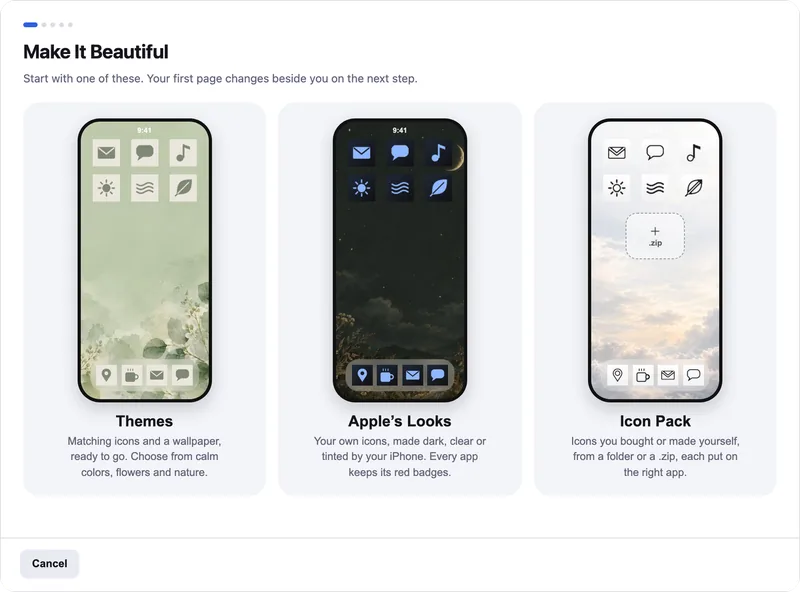
Icon Mosaic’s Make It Beautiful sets up the whole look at once: the icons, the wallpaper and the first page they sit on. You see your own first page change beside you as you choose.
- Choose a kind of look. Click Themes in the toolbar. Choose Themes for matching icons and a wallpaper, Apple’s Looks to have your iPhone restyle your own icons, with every tap shown to you, or Icon Pack to use one you bought.
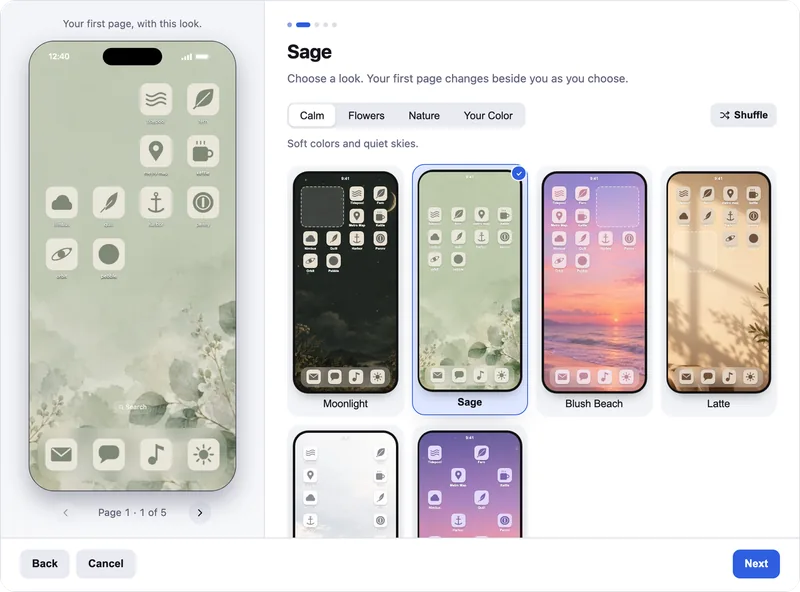
- Pick the look. There are twenty-four themes, in the Calm, Flowers and Nature collections, or Your Color to start from any color you like. The Softness slider quiets the colors of the wallpaper and the icons together, and Shuffle picks one for you.
- Make it yours, or use it as it is. Keep the look just as it is, or change the wallpaper to
a photo of your own, give any app a different icon, and style the names under the icons.
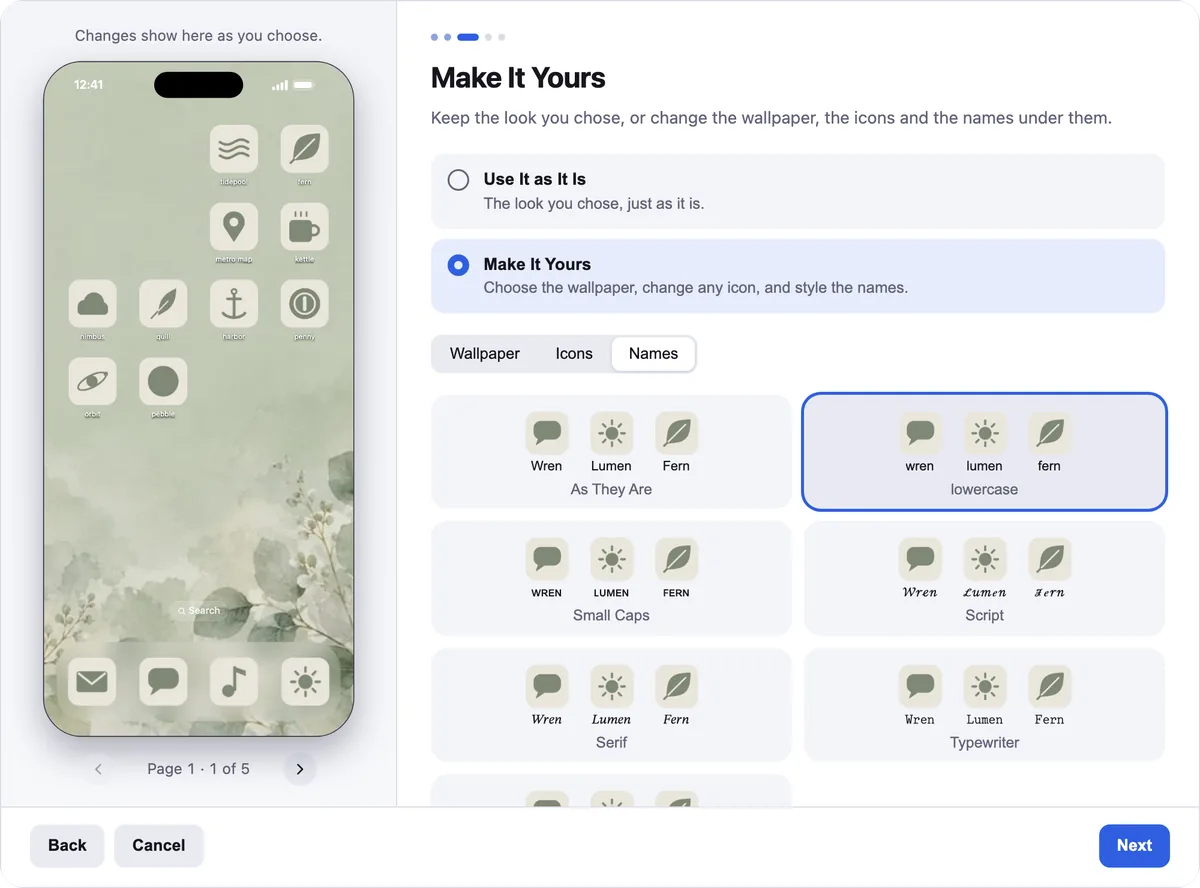
Make It Yours: the wallpaper, the icons and the names. - Choose your first page. Pick the apps for your first page. The folders and apps that were there wait on page 2 or in the App Library, and you can leave empty spaces, such as room for a widget.
- Add it to your iPhone. Icon Mosaic makes the shortcuts behind your new icons and shows each step on your iPhone. Adding your new icons to your iPhone walks through both ways.

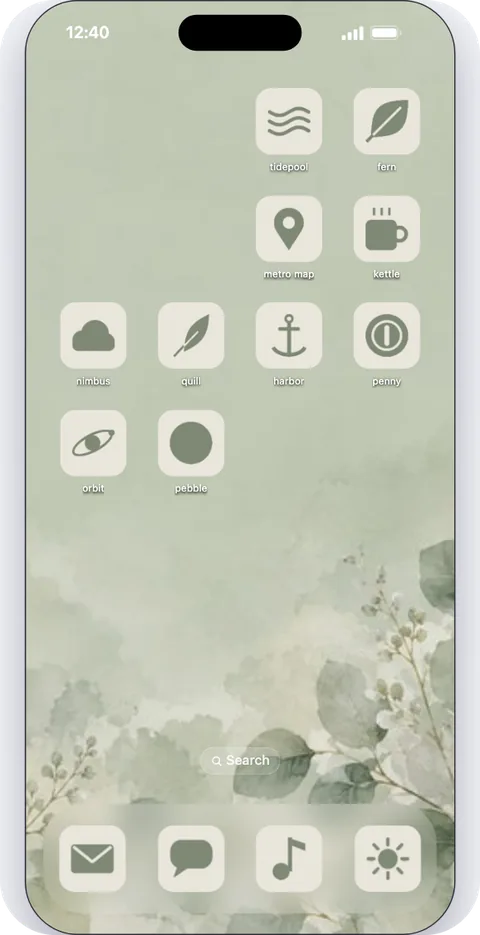
A few themes, on the same phone
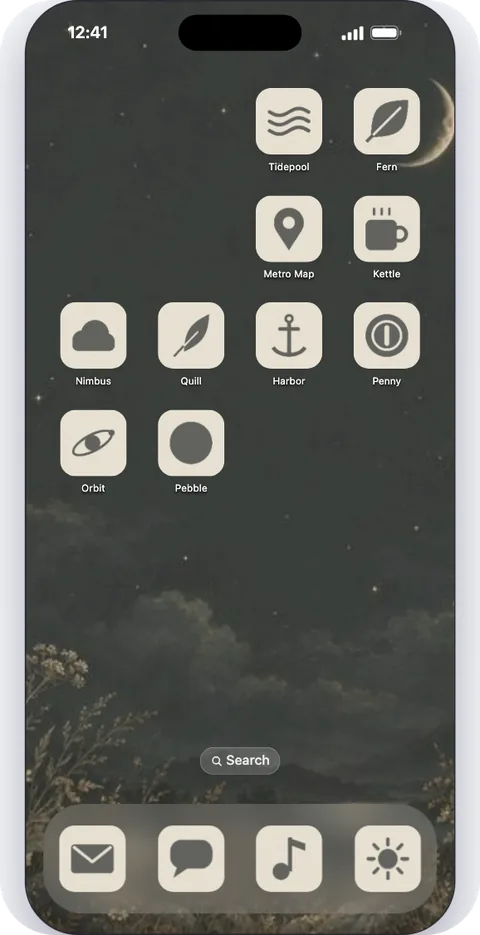
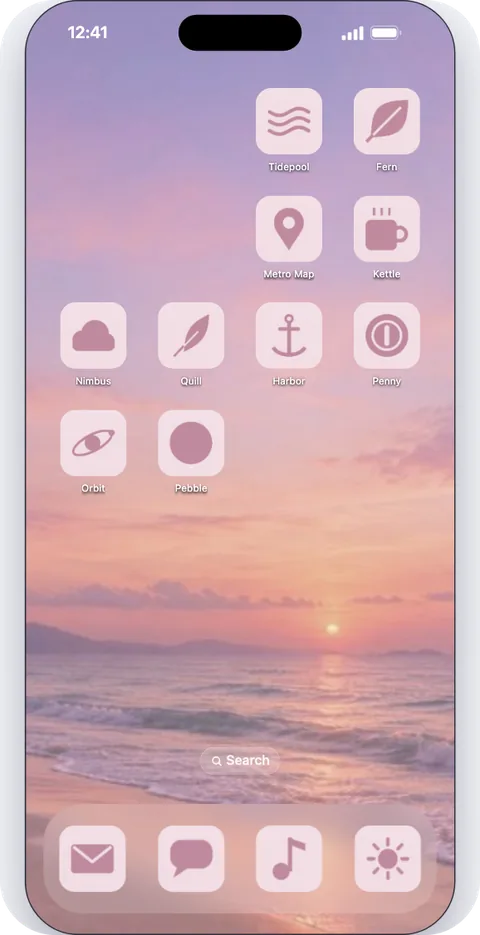
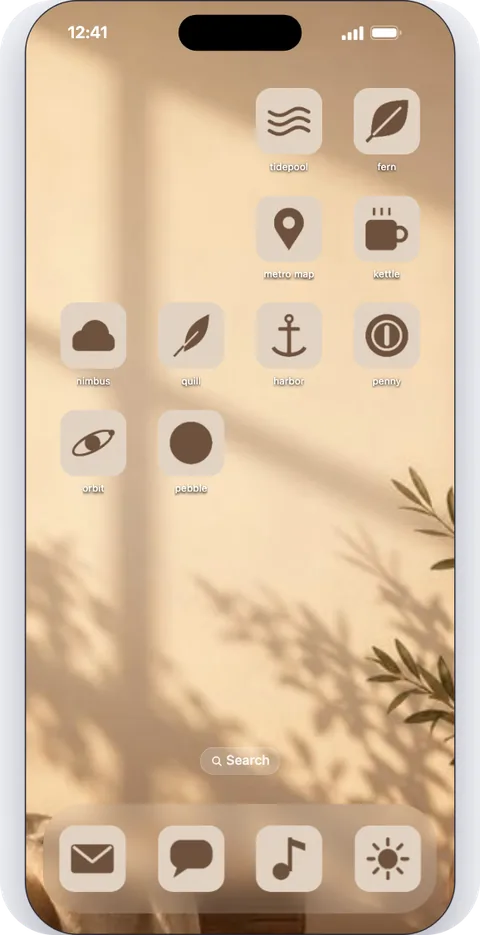
Keeping your badgesNew icons made through Shortcuts never show red badges. Icon Mosaic tells you which of your chosen apps would lose theirs, and Keep Their Badges leaves those apps with their own icons, so you still see a new message at a glance.
Changing your mind
Every look is a starting point, not a lock. You can open Make It Beautiful again and choose another, and Go Back to the Original Icons, in the More menu, puts your own icons back. If you like, it puts every page, the dock and your hidden apps back as they were before the theme, too. Icon Mosaic saves a backup of your layout before it changes anything.
Common questions
How do I put a theme on my iPhone?
A theme has two parts: a wallpaper, which you set on your iPhone in Settings or by touching and holding the Lock Screen, and icons that match it. For the icons, either use Apple's own Dark, Clear or Tinted looks, which restyle every app's icon, or give your apps new icons through the Shortcuts app. Icon Mosaic does both parts for a whole Home Screen at once, from your Mac or PC.
What is the difference between Apple's tinted icons and custom icons?
Apple's Dark, Clear and Tinted looks change how every app's own icon is drawn, so each app keeps its badges and nothing new is added to your Home Screen. Custom icons are new icons with any picture you like, made through the Shortcuts app. They can look like anything, but they do not show notification badges.
Do themed icons keep notification badges?
With Apple's looks, yes, because every app keeps its own icon. Custom icons made through Shortcuts do not show badges, so many people keep apps such as Messages and Phone as they are. Icon Mosaic tells you which apps would lose their badges and lets you keep their own icons with one click.
Which iPhones can use these looks?
Dark and Tinted icons came with iOS 18, and Clear icons with iOS 26. Icon Mosaic's custom icons need iOS 18 or later.
Can I go back to my normal icons?
Yes. With Apple's looks, choose Default when you customize your Home Screen. For icons Icon Mosaic made, choose Go Back to the Original Icons in the More menu, and you can put your whole Home Screen back as it was before the theme.
Do it all on your Mac or PC, in minutes.
Icon Mosaic shows every page of your iPhone’s Home Screen side by side on your computer, so you can drag apps anywhere, sort them by color or from A to Z, make folders, and send the result to your phone in one step.
Free to download and try, on a Mac or a Windows PC. A one-time $19 license puts your new layout on your iPhone.
Keep reading