New in Icon Mosaic 1.0.6
How to use an icon pack you bought on your iPhone
An icon pack, from Etsy or wherever you shop, is a folder of pictures, one for each app, often with wallpapers to match. Putting it on your iPhone by hand means making a shortcut and choosing a picture for every single app, which adds up to hundreds of taps. Icon Mosaic reads the whole pack, works out which picture belongs to which app, and puts them all in place in a few clicks.
Updated
What is in an icon pack
An icon pack you bought usually arrives as a .zip file. Inside are pictures named after apps, such as Instagram.png, Messages.png and Camera.png, often in several styles, such as a bold outline and a thin one, each in a folder of its own. Many packs add a folder of wallpapers that match the icons, and a short guide.
The pictures are only pictures. Your iPhone cannot use them as app icons on its own: each one has to become a shortcut that opens its app, with the picture as its icon.
The slow way: one icon at a time
On the iPhone, save the pack’s pictures to Photos or Files. Then, for every app, open the Shortcuts app, make a new shortcut with the Open App action, choose the app, choose Add to Home Screen, tap the icon to choose the pack’s picture, type the app’s name, and tap Add. Repeat for every app, then move each new icon where you want it, and move the original apps out of the way. Most packs come with a guide for exactly this. For thirty apps, that is around ten taps each, or three hundred taps, and it takes a long evening.
With Icon Mosaic, the same pack goes on in a few clicks on your computer and one tap on your iPhone.
The quick way, with Icon Mosaic
- Open your pack. Click Themes in the toolbar and choose Icon Pack, or choose Use an Icon Pack… in the More menu. Drop the .zip or the folder on the window, or choose it. There is no need to unzip it first.
- See what it matched. Icon Mosaic reads the names of the pack’s pictures and gives each one to its app, even when the names have a style in front of them or are spelled a little differently. If the pack comes in more than one style, choose one under Version. Apps the pack has no picture for are listed under Not in This Pack, and keep their own icons unless you choose a picture for them.
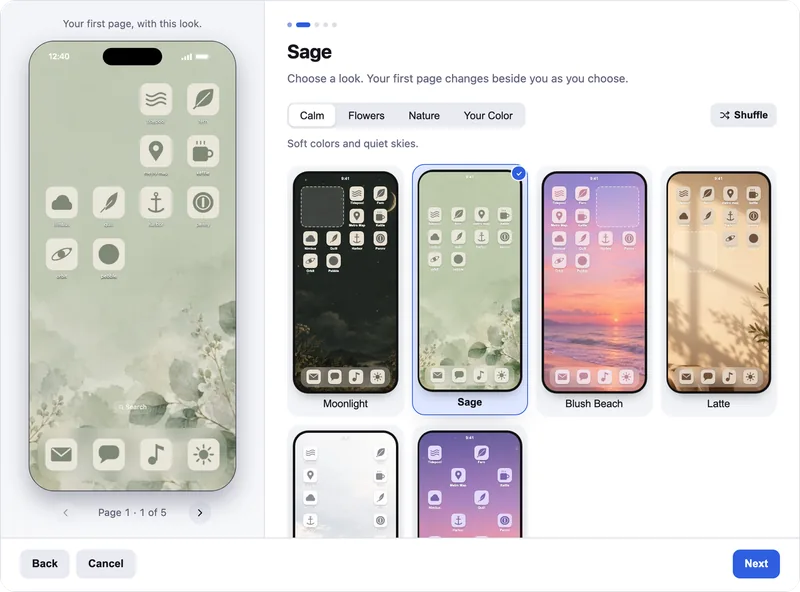
- Choose which apps. Start with the apps in your dock and on page 1, or give every matched app its new icon at once.
- Make it yours. Choose one of the pack’s wallpapers, search them by name, or use your own
photo. Give any app a different picture from the pack, and style the names under the icons.
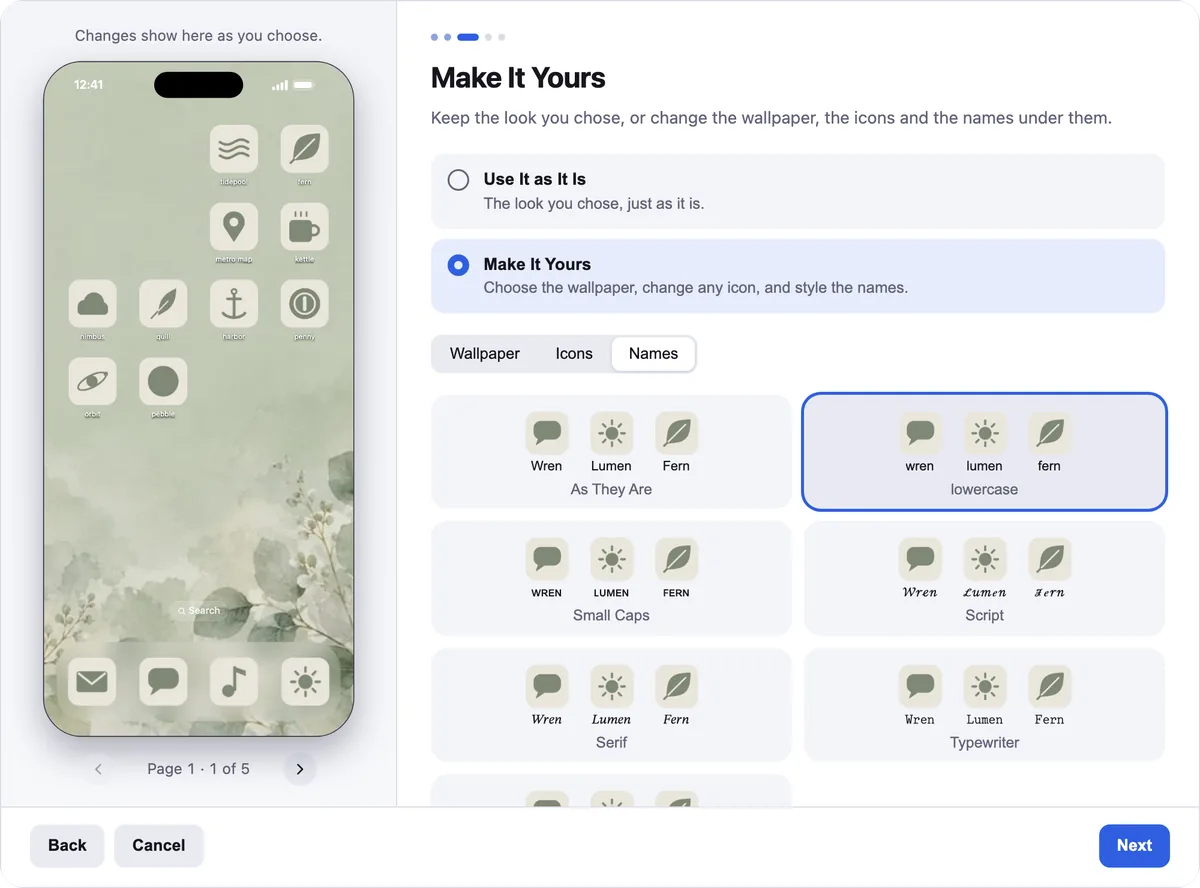
Make It Yours works the same way with a pack. - Choose your first page, and add it to your iPhone. Pick the apps for your first page and where the rest go. Then Icon Mosaic makes the shortcuts and shows each step on your iPhone. Adding your new icons to your iPhone shows both ways.


Before you startIcon Mosaic’s custom icons need an iPhone with iOS 18 or later. Icon Mosaic only reads your pack and never changes it, so you can use it again whenever you like.
Lots of icons, and taking them off again
A pack can match well over a hundred of your apps. That makes a beautiful Home Screen, and it also means a hundred new icons that do not show badges. Many people give the pack’s icons to the apps on their first page and dock, and leave the rest as they are.
When you would like your own icons back, choose Go Back to the Original Icons in the More menu. Icon Mosaic gathers the pack’s icons onto a page of their own, and removing that page on your iPhone deletes them, while your apps stay. Here is how removing them works.
Common questions
What kind of icon pack works?
A pack of PNG or JPEG pictures, in a folder or a .zip file, named after the apps they are for, such as Instagram.png or Camera.png. Most packs sold for iPhone are made this way. Packs with several styles, such as a bold and a thin outline, in folders of their own, are offered as versions to choose from.
Do I have to unzip the icon pack first?
No. Icon Mosaic opens a .zip directly, and reads each picture only when it needs it, so even a large pack with thousands of pictures opens in a moment. You can also choose the unzipped folder.
What if the pack has no icon for one of my apps?
That app keeps its own icon, and Icon Mosaic lists it under Not in This Pack. Click it to choose any picture from the pack for it, or one of your own.
Can I use the wallpapers that came with the pack?
Yes. Icon Mosaic finds the pack's wallpapers and lets you search them by name, and the one you choose is sized for your iPhone's screen.
Do icons from an icon pack show notification badges?
No. Like every icon made through the Shortcuts app, they do not show badges. Icon Mosaic tells you which of your apps would lose theirs, and Keep Their Badges leaves those apps with their own icons.
Do it all on your Mac or PC, in minutes.
Icon Mosaic shows every page of your iPhone’s Home Screen side by side on your computer, so you can drag apps anywhere, sort them by color or from A to Z, make folders, and send the result to your phone in one step.
Free to download and try, on a Mac or a Windows PC. A one-time $19 license puts your new layout on your iPhone.
Keep reading