Arranging your Home Screen: on your iPhone, or on your Mac
Every iPhone can rearrange its own Home Screen, and for moving one or two apps that works well. Once you want to tidy a whole Home Screen, though, the phone asks for a lot of holding, jiggling and waiting. Here is how the two ways compare, step by step.
Updated
Arranging on the iPhone itself
On the iPhone you touch and hold an empty part of the Home Screen until the apps jiggle, and then drag them one by one. To move an app to another page, you drag it to the edge of the screen and wait for the page to turn, and then keep holding while you find the right spot. You can carry a few apps at once by tapping other apps while you hold the first one, though it takes a steady hand.
That is fine for a quick change. For a whole Home Screen, it can easily take an hour of holding and waiting, and there is no undo if an app lands in the wrong place or slips into a folder by accident.
Arranging on your Mac with Icon Mosaic
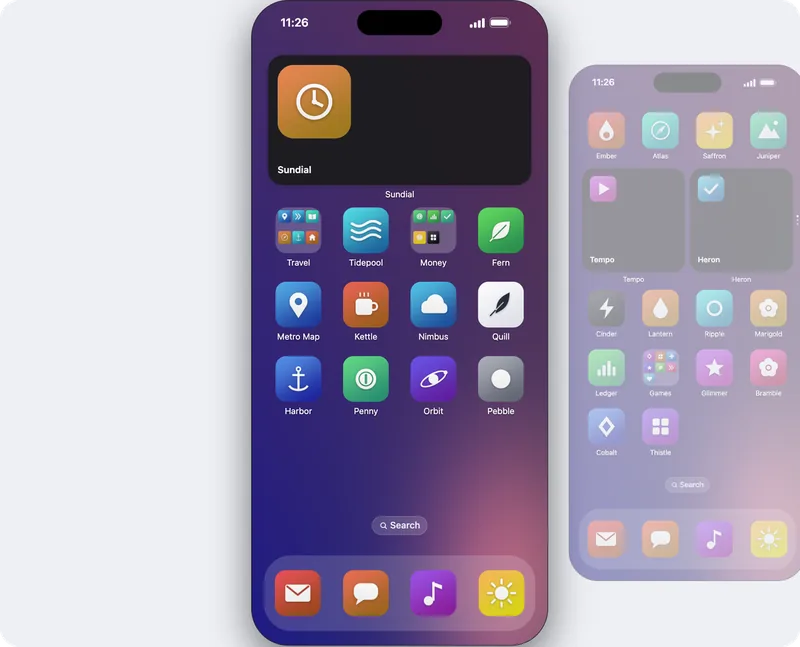
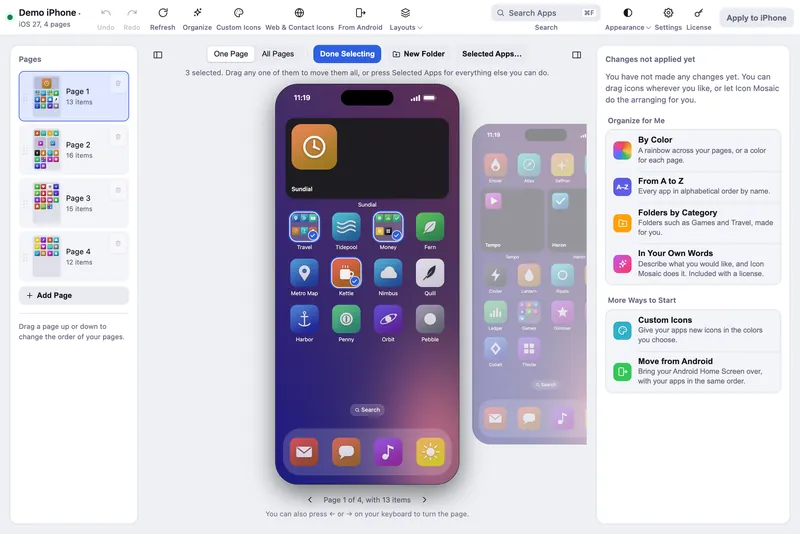
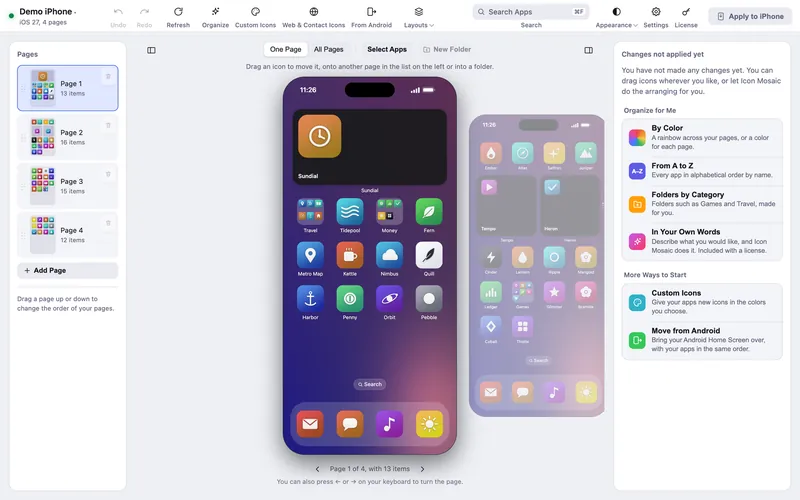
Icon Mosaic shows your iPhone's Home Screen on your Mac, with your own wallpaper and every page in view. You drag apps anywhere with your mouse, straight from one page to another, and nothing jiggles or turns while you work.

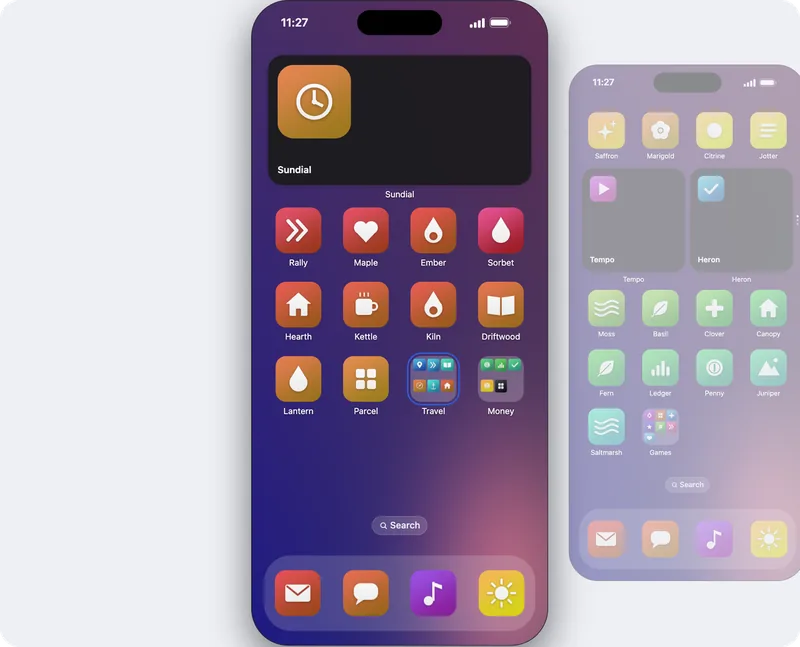
When you would rather not move every app yourself, Organize does it for you. It can sort your apps into a rainbow, put them in alphabetical order, or make folders by category, and you see the result before anything changes on your phone.

Side by side
| Icon Mosaic on your Mac | On the iPhone | |
|---|---|---|
| See every page at once | Yes, side by side, with your own wallpaper | One page at a time |
| Move an app to another page | Drag it straight there | Hold it at the edge of the screen until each page turns |
| Move many apps at once | Choose them with Select Apps, then drag them together | Gather them in one hand while you hold the first |
| Sort by color | One click, in the color order you like | By hand, app by app |
| Alphabetical order | One click, keeping your folders | Only by resetting the whole layout, which takes your folders apart |
| Make folders | By hand, by category, or from your own words | By hand, one folder at a time |
| Hide many apps at once | Choose them all, and they go to the App Library together | One app at a time |
| Undo a mistake | Undo every step, and a backup is saved first | No undo |
| See the changes before they happen | Yes, page by page | Every change happens as you make it |
How to arrange your Home Screen on your Mac
- Download Icon Mosaic, and connect your iPhone. Plug it in, unlock it, and tap Trust if it asks. Your Home Screen appears on your Mac with your own wallpaper.
- Drag, sort and tidy. Move apps between pages, open folders with a click, or press
Organize to sort by color, from A to Z, or into folders.
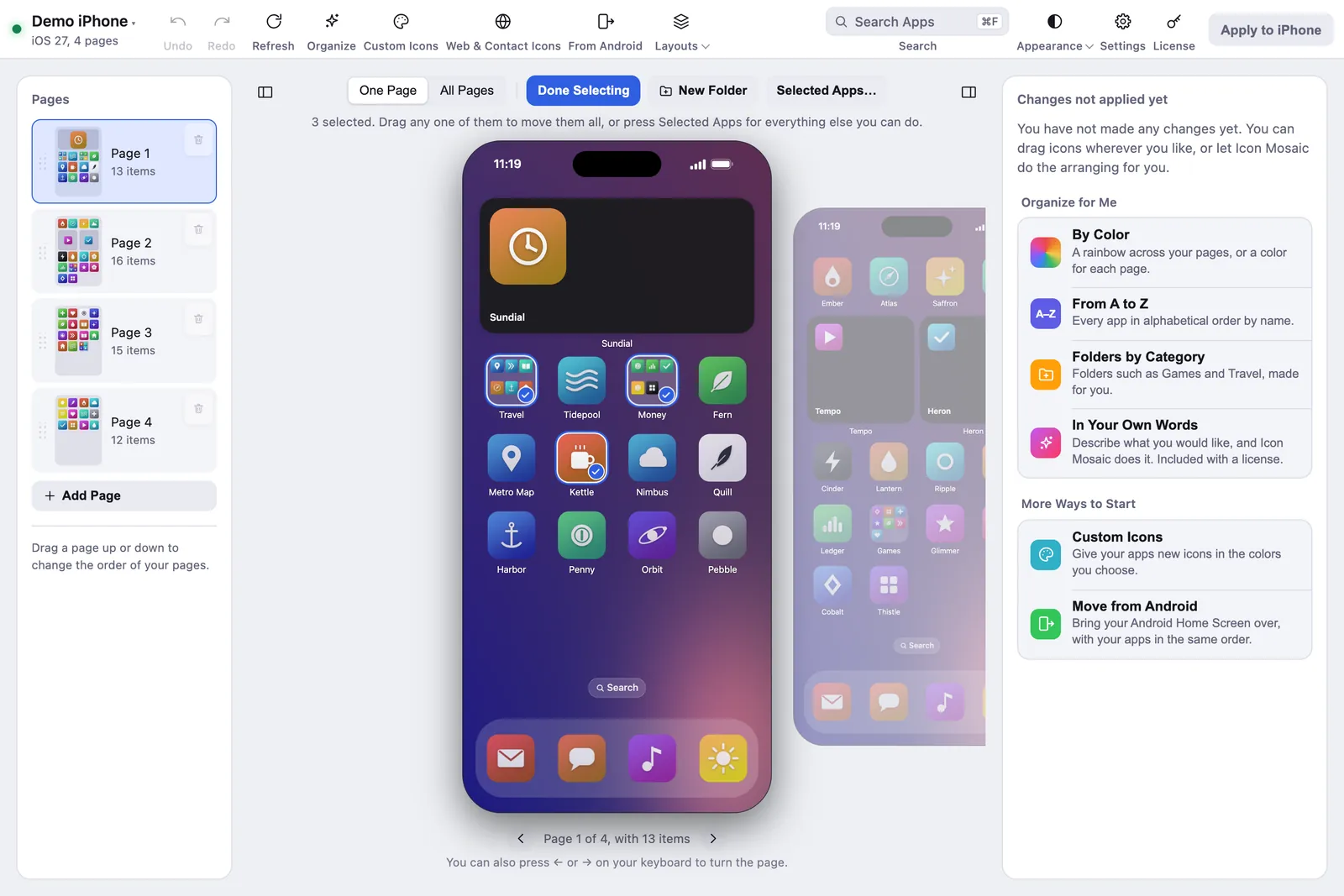
Choose several apps, and move them all in one go. - Press Apply to iPhone. Icon Mosaic shows you every change first and saves a backup of your
layout before anything is written.
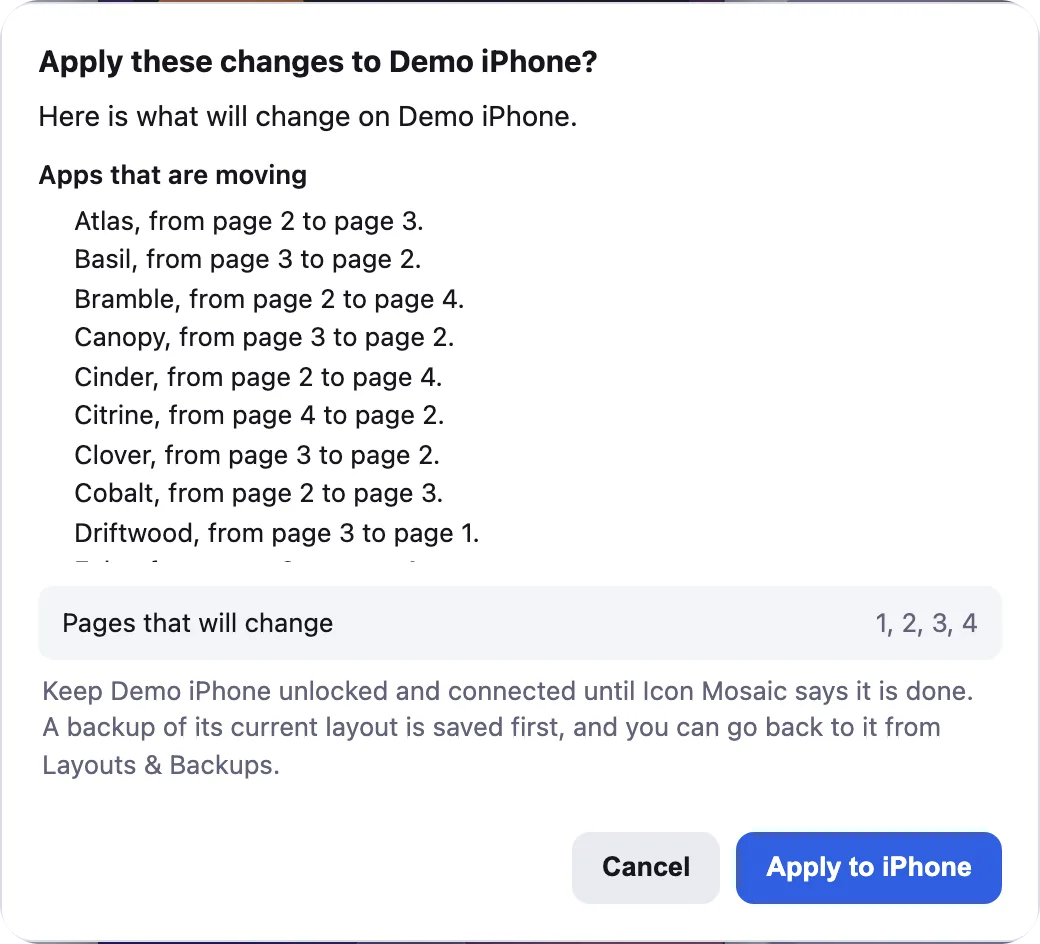
Every change, page by page, before it reaches your phone.


Icon Mosaic is free to try, and a one-time $19 license, with no subscription, puts your new layout on your iPhone. If you only need to move an app or two today, our guide to moving apps on your iPhone shows every gesture on the phone itself.
Common questions
What is the easiest way to move apps around on an iPhone?
For one or two apps, touch and hold an empty part of the Home Screen until the apps jiggle, then drag each app where you want it. For a whole Home Screen, it is much quicker on a Mac: Icon Mosaic shows every page at once, so you can drag apps straight from one page to another, sort them by color or from A to Z, and then send the new layout to your iPhone.
Can my iPhone sort my apps by color or alphabetically on its own?
Not by color. The only built-in way to put apps in alphabetical order is Reset Home Screen Layout in Settings, which also puts every Apple app back where it started and takes your folders apart. Icon Mosaic sorts by color or from A to Z and keeps the folders you want to keep.
Can I undo a change I made on my iPhone's Home Screen?
The iPhone has no undo for moving apps, so a slip of the finger has to be put right by hand. Icon Mosaic can undo every step, shows you every change before it reaches your phone, and saves a backup of your layout first.
Do I still need my iPhone to arrange it on a Mac?
Yes, for a moment. Connect your iPhone with a cable, unlock it and tap Trust if it asks, and Icon Mosaic reads your Home Screen. You do all the arranging on your Mac, and your iPhone gets the new layout when you press Apply to iPhone.
Do it all on your Mac, in minutes.
Icon Mosaic shows every page of your iPhone’s Home Screen side by side on your Mac, so you can drag apps anywhere, sort them by color or from A to Z, make folders, and send the result to your phone in one step.
Free to download and try. A one-time $19 license puts your new layout on your iPhone. A version for Windows is coming to the Microsoft Store soon.
Keep reading