Can Apple Configurator arrange your iPhone Home Screen?
Apple Configurator is the one Apple app that can still put a Home Screen layout on an iPhone from a Mac. It was built for schools and businesses, though, and that shows as soon as you try it on your own phone.
Updated
What Apple Configurator is for
Apple Configurator is a free Mac app from Apple for preparing iPhones and iPads in bulk. A school might use it to set up a cart of thirty iPads the same way, with the same apps, settings and restrictions. It does this with configuration profiles, and one kind of profile setting, called Home Screen Layout, lists which apps, folders and web clips go on which page and in the dock.
The catch: supervision
Apple only applies a Home Screen Layout to supervised devices. Supervision gives an organization extra control over a phone, and to supervise an iPhone with Apple Configurator you have to prepare it, which erases everything on it. You would then restore your backup and live with a phone that says it is supervised and managed. Even then:
- The layout is enforced, not just arranged. While the profile is installed, the layout comes from the profile, and you cannot rearrange those apps on the phone in the usual way.
- Removing the profile undoes it. Take the profile off and the icons go back to their default arrangement rather than staying where you put them.
- You build the layout from scratch. The profile starts empty rather than from the Home Screen you already have.
Apple Configurator compared with Icon Mosaic
| Icon Mosaic | Apple Configurator | |
|---|---|---|
| Built for your own iPhone | Yes | No, for fleets of school and business devices |
| Erases the phone | Never | Yes, to supervise it |
| Starts from | Your current Home Screen, folders, widgets and wallpaper | An empty layout you build in a profile |
| After applying | A normal Home Screen you can keep changing | A layout locked by a profile |
| Sort by color or A to Z | Yes | No |
| Make folders for you | By category, or from your own words | No |
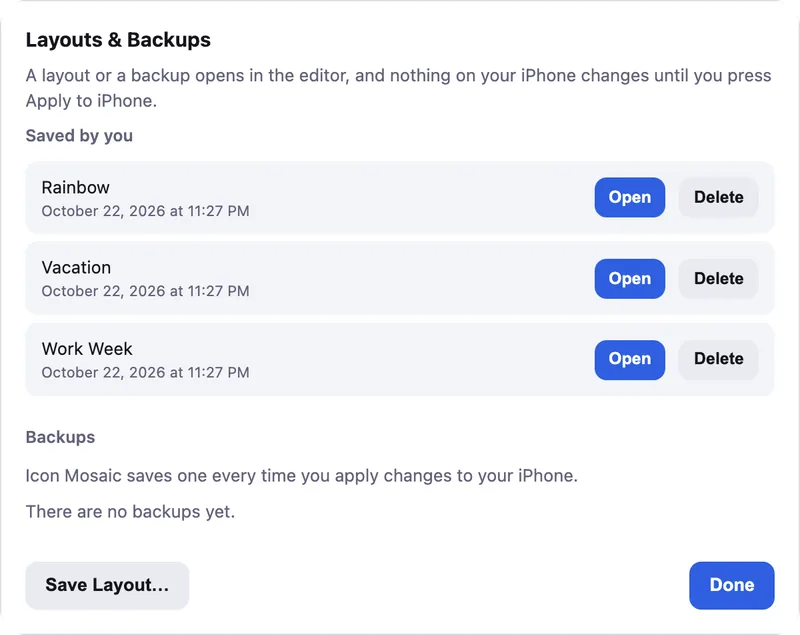
| Undo and backups | 60 steps of undo, saved layouts, and a backup before every change | Remove the profile |
The way to arrange your own iPhone
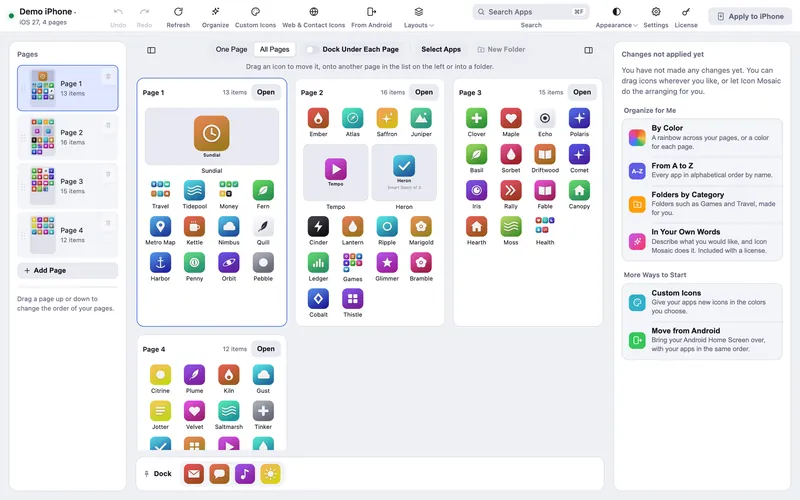
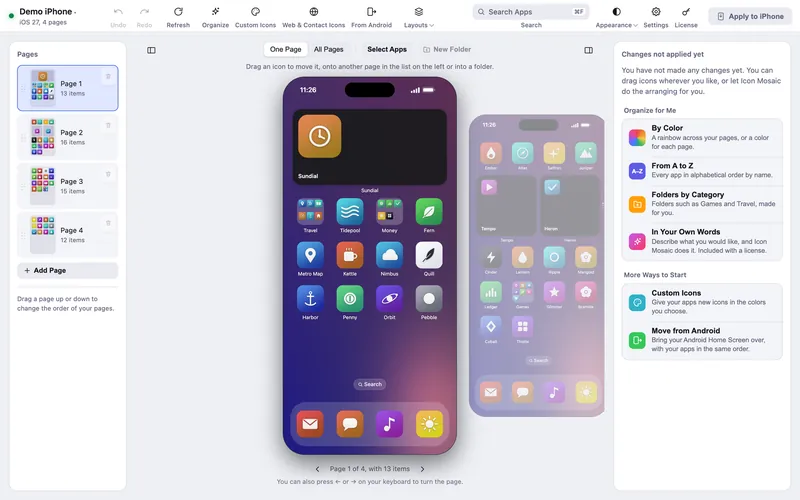
For your own iPhone, you want the opposite of a locked layout: a reorganization you can keep adjusting by hand. That is what Icon Mosaic does. It reads your Home Screen as it is now, lets you rearrange it on your Mac, shows you exactly what will change, and writes it back as an ordinary layout, the same as if you had arranged it with your thumb.

If you look after a fleet of company or school devices that should all look the same and stay that way, a locked layout is exactly what you want, and Apple Configurator or a device management service is the right tool for that job.
Common questions
Can Apple Configurator change the Home Screen of an unsupervised iPhone?
No. The Home Screen Layout setting only takes effect on supervised devices, and supervising an iPhone with Apple Configurator erases it.
Can I move apps myself after Apple Configurator sets the layout?
Not while the profile is installed, because the profile decides the layout. If you remove the profile, the icons go back to the default arrangement.
Is there a way to arrange my own iPhone from a Mac without supervision?
Yes. Icon Mosaic arranges a normal, unsupervised iPhone over the cable or Wi-Fi without erasing it, and you can keep changing the layout on the phone afterward.
Do it all on your Mac, in minutes.
Icon Mosaic shows every page of your iPhone’s Home Screen side by side on your Mac, so you can drag apps anywhere, sort them by color or from A to Z, make folders, and send the result to your phone in one step.
Free to download and try. A one-time $19 license puts your new layout on your iPhone. A version for Windows is coming to the Microsoft Store soon.
Keep reading